
After enabling Zoom's administrator two-step policy, check whether it targets everyone, selected roles or selected groups. An enabled toggle alone does not establish that every account member is in scope.
Confirm the selected population
| Selection | What to inspect |
|---|---|
| All account users | The intended account-wide scope |
| Specific roles | The selected role list |
| Specific groups | The selected groups and membership |
An authorized administrator should inspect the selection in Admin Center security settings and save role or group choices. Do not expand the scope merely to test one member.
Separate scope, methods and enrollment
Zoom also requires at least one allowed authentication method. Covered members still complete their own enrollment when prompted. The documented feature has account-plan and administrator prerequisites and concerns the relevant email-and-password login type. An organizational SSO route requires checking its own identity-provider policy.
Start with the members you intend to cover
Before editing a switch, list the actual people who need the requirement and the reason for including them. Record each person's account identity, current role, group membership, and login type. A department label in another system is not automatically a Zoom role or group. Translate the organizational intention into the objects that are actually available for selection in Zoom, then check whether the intended members are represented.
Also confirm the operator's account privileges and the plan requirements in the current help article. A member who cannot see account-wide security controls may have a permissions question rather than a broken verification method. Repeated requests for a member's SMS code do not test whether an administrator has the required permissions to change a policy.
Audit three layers instead of one switch
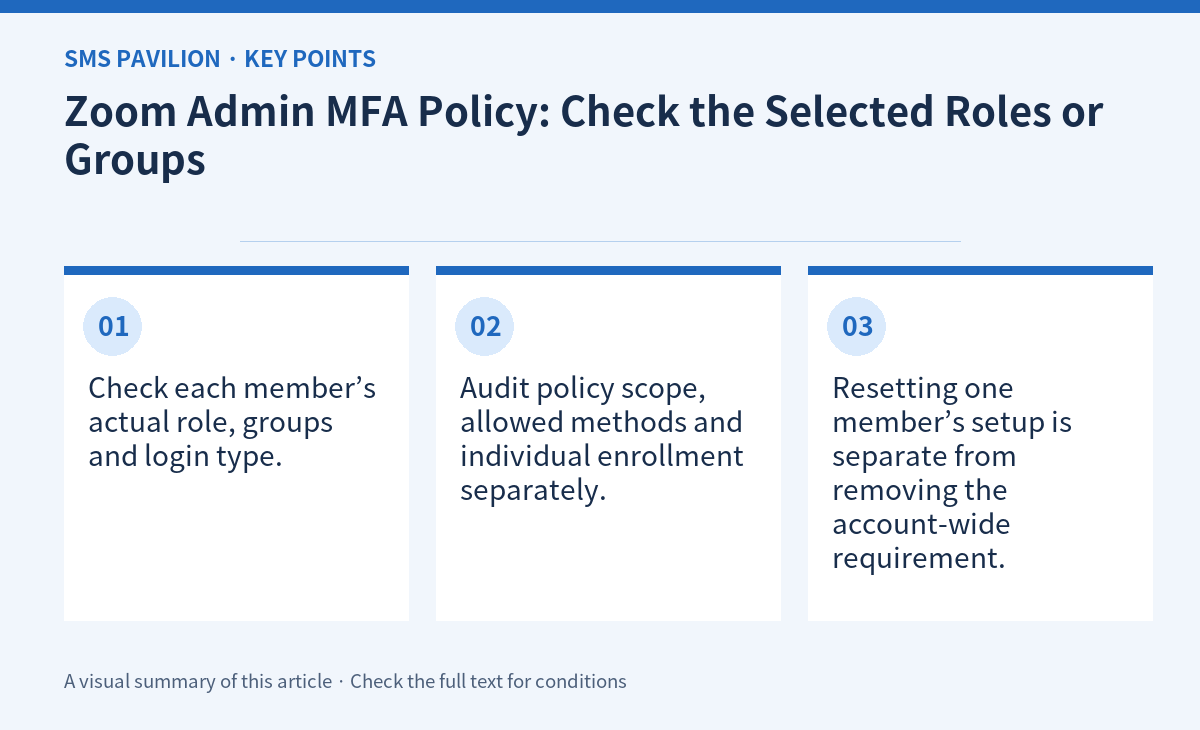
The first layer is the saved policy scope. Record whether it applies to all account users, selected roles, or selected groups. For a restricted selection, retain the actual selected list instead of a screenshot showing only that the feature is enabled. Compare the list with the management intention before assuming that an unchallenged member has been missed by the software.
The second layer is the allowed authentication methods. Inspect the options supported by the current account interface and keep at least one permitted method selected, as the official procedure requires. An administrator should apply the organization's authorized choice rather than inferring that every method described in an article is available or appropriate for every member.
The third layer is individual enrollment. After saving, reopen the setting to confirm the result, then have an appropriate test member follow their own sign-in flow. Record whether the person is covered, whether enrollment is still required, and whether a concrete error blocks completion. Selecting a group does not prove that every member has already enrolled a working device. The administrator should not collect members' usable codes or complete enrollment on their behalf.
Classify a missing prompt with concrete examples
Suppose the saved requirement targets selected groups and the person you checked belongs to none of them. First decide whether the selection matches the intended management scope. That observation alone is not evidence that verification is broken for the entire account. If the person is in scope but cannot finish enrollment, investigate their enrollment stage separately from the selection list.
A third situation is a member entering through organizational single sign-on. The work-email-and-password flow described in this help topic does not establish the requirements of a separate identity provider. Identify the actual login route and investigate the relevant policy there. Do not widen the Zoom account policy to all users simply as an experiment when the original task concerns one person's access.
Keep an actionable exception record
A useful report includes a masked member identifier, login type, actual role and groups, saved scope, allowed methods, and the step that failed. Those fields let another administrator distinguish a selection error from a member-specific enrollment failure. Passwords, one-time values, and authenticator seeds are unnecessary for this report and should not be copied into it.
When a person loses an enrolled device, consider the documented reset for that member separately from a change to the organization-wide requirement. Restoring one person's access should not silently remove the requirement for everyone else. Record who still needs enrollment or further help, as well as who has completed the check. Finish when the intended list, permitted methods, and observed enrollment results agree, with remaining exceptions assigned a clear next action.
For related distinctions, use these focused explainers: Zoom Verification Codes: Email One-Time Passwords and Two-Step Verification; SMS Works but an Authenticator Code Fails: Check the Right Clock; A Team SMS Inbox Needs an Owner and a Handover Rule.
