
Zoom verification codes can refer to an email one-time password or a configured two-step verification method. If you prepared your phone but the screen asks you to check email, first identify the current challenge. The phone number has not necessarily stopped working.
Read the login context around the email request
Zoom explains that, in certain circumstances without two-step verification enabled, an unusual sign-in can trigger an email one-time password. Configured two-step verification is a separate mechanism with supported methods such as an authenticator, text or call, subject to account settings. The word code alone does not identify the receiving channel.
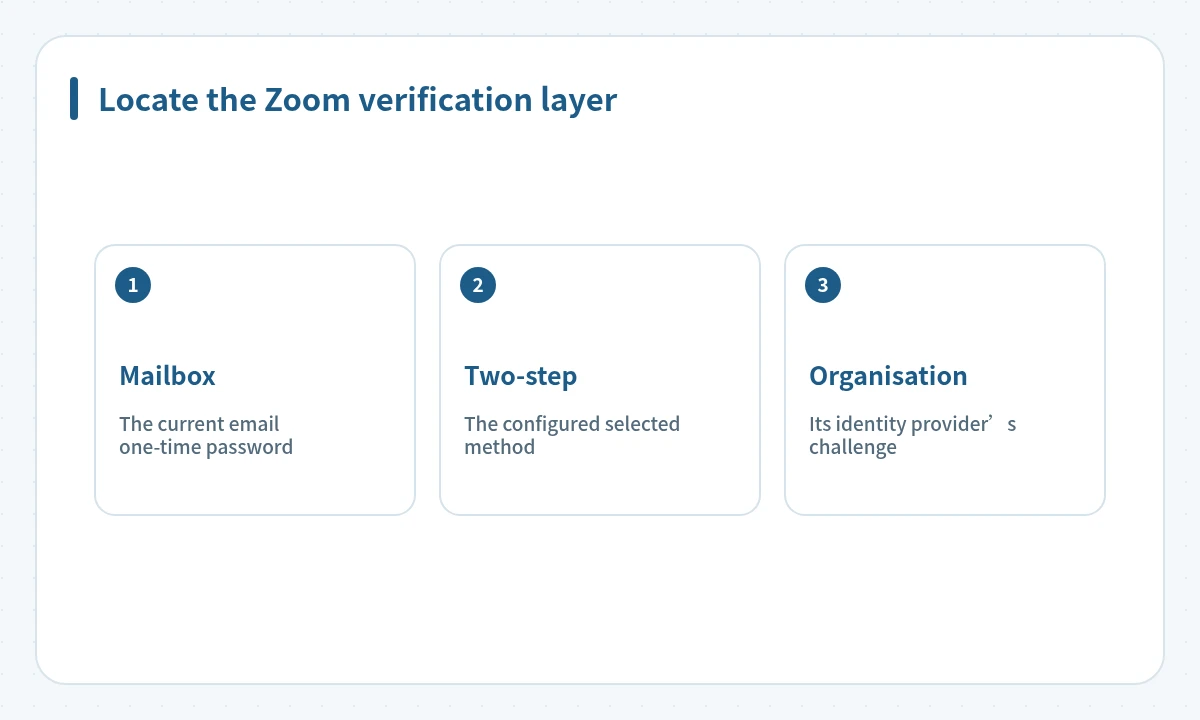
Also distinguish an email-and-password login from an organisation's single sign-on. A challenge on the organisation's identity page belongs to that login process. Changing a Zoom phone number may be unrelated to it. Check the page's domain, the account selected and the method named before editing settings.
A meeting passcode is another kind of information
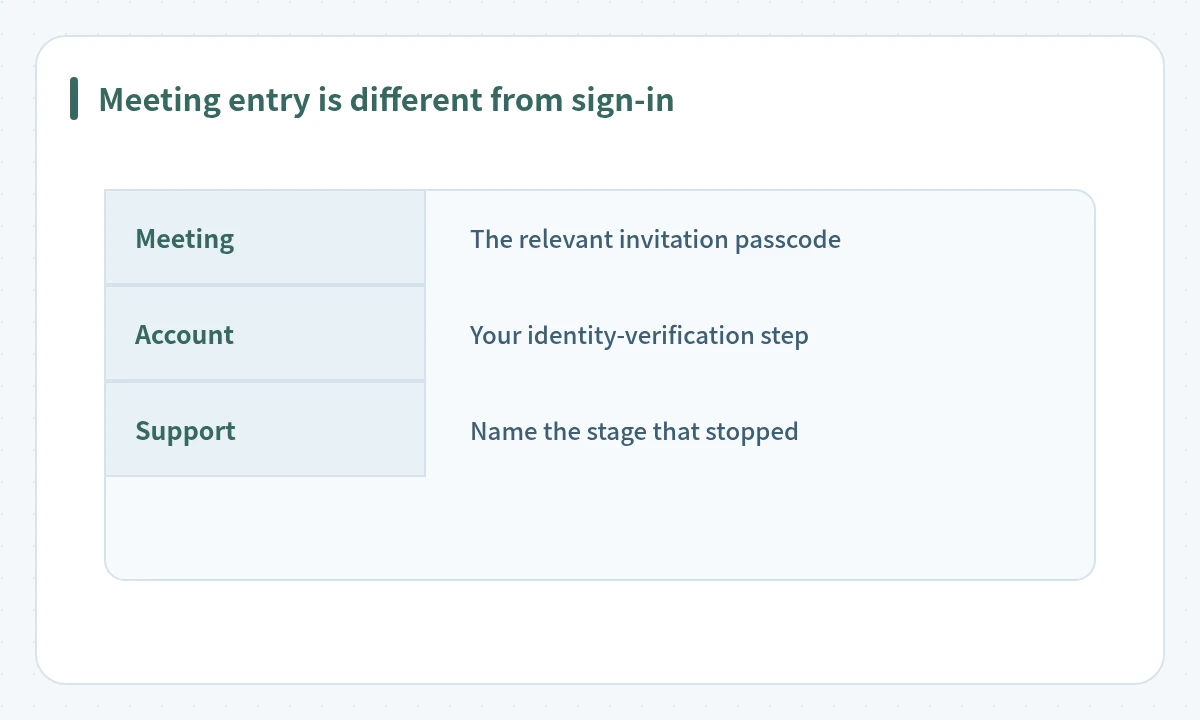
The passcode in a meeting invitation concerns entry to that meeting. It is not the account's login verification code. A meeting organiser does not need your account code to help you join, and the invitation's digits do not answer an account two-step verification challenge.
| Current request | Relevant destination or information |
|---|---|
| Email one-time password | The account mailbox shown by the page |
| Configured two-step verification | The selected, enrolled method |
| Organisation single sign-on | The identity provider's instructions |
| Meeting passcode | The corresponding meeting invitation |
Investigate the named destination, not every setting
For an email request, confirm the address and account first. Check spam folders, categorised inboxes and organisation filtering. A mail administrator can use the approximate request time and message type to investigate; they do not need a live Zoom code or your password. Receiving ordinary meeting notifications does not identify the state of a particular verification email.
For configured two-step verification, follow that method's checks. A text points to the recorded number and its reception; an authenticator points to the correct account entry; recovery options concern the material you actually saved. When an administrator controls the setting, ask that administrator about the supported process rather than treating removal of security protection as the default fix.
Keep the current page and its result identifiable while checking delivery. Several simultaneous login attempts can leave you with messages that no longer clearly correspond to the screen you are using. Observe retry instructions and record the error without recording the secret itself.
Prepare a consistent login arrangement afterward
Once access is restored, review the account's login type, active methods and recovery-material storage. Before replacing a phone, confirm how the new device will continue that particular verification process. Keep the old setup available until the supported transition is complete.
A focused report might say that an email-and-password login requested an email code that never reached the displayed mailbox, or that an organisation page requested an authenticator unavailable on the new phone. Those descriptions identify different responsible systems. Saying only that Zoom codes do not work leaves that essential distinction unresolved.
Keeping account authentication, organisation identity and meeting entry separate makes urgent pre-meeting troubleshooting much more precise.
References
Zoom: Manage two-step verification and email one-time passwords.
