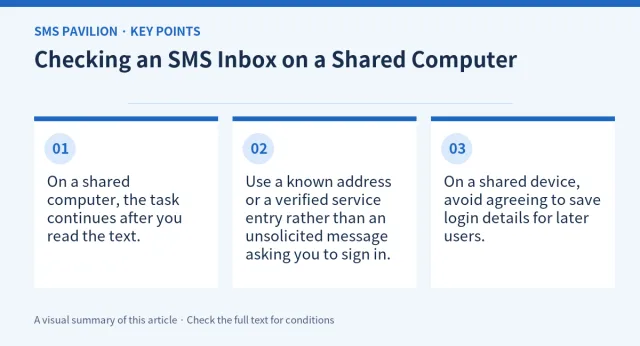
Website sign-in and browser-account sign-in are different identities. Review the actual saved-data settings before assuming work-related bookmarks, history or credentials remain only inside the receiving site.
Identify the browser account as well as the website account
A profile icon in the browser frame can refer to the browser's own account. The account shown inside the receiving website refers to that service. Neither should be used to infer the other's identity, ownership or data settings.
For example, a work inbox may be open in a browser profile associated with a personal account. That observation does not prove which information has been synchronized, but it is a reason to review the actual settings. Do not assume either that everything is shared or that nothing is saved remotely.
Google's Chrome help describes saving information such as bookmarks and passwords to a signed-in Google Account, with history and tabs also subject to relevant settings. The categories and controls need to be checked in the browser actually being used. A general word such as “sync” is not enough to identify every destination or data type.
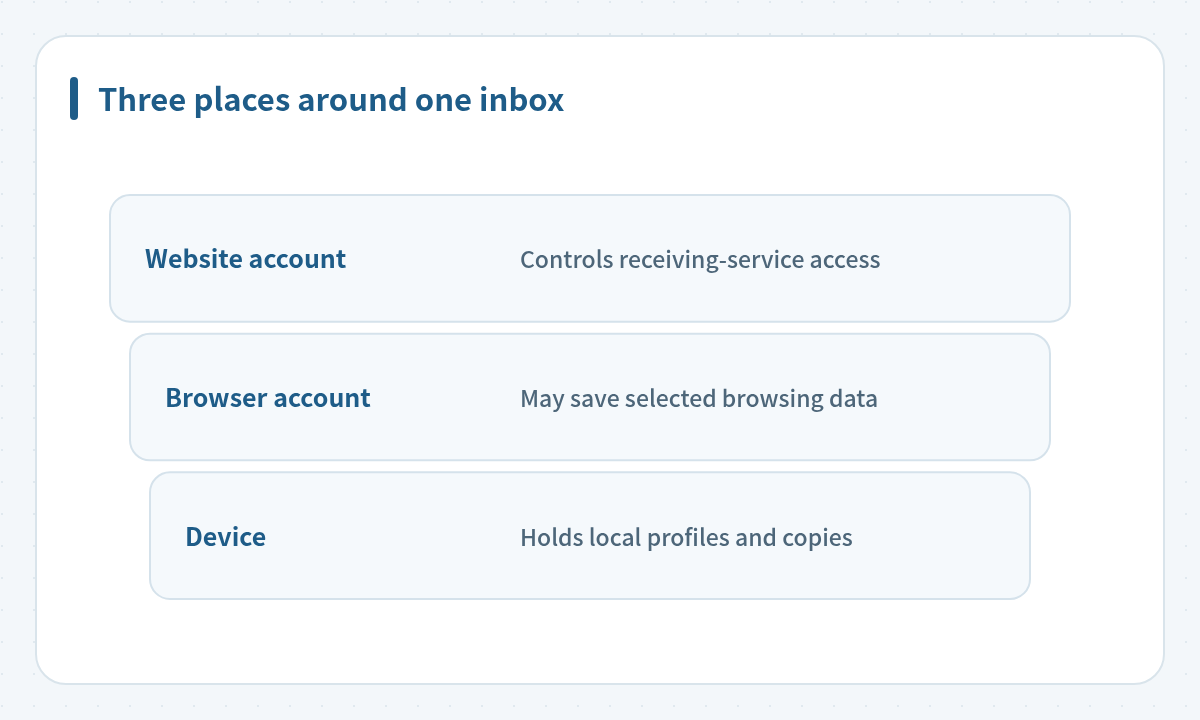
Review what the work task leaves around the inbox
Bookmarks may identify a service or contain a deep link. History and open tabs may reveal which pages were used. Saved credentials can create a separate access concern. Inspect each category according to the browser's documented behaviour rather than treating all browsing data as one switch.
Avoid putting live codes, passwords or private message text into bookmark names, notes or tab-group labels. An apparently convenient label can create a copy outside the website even if the inbox itself never exposes messages to other users. A short, non-sensitive description is enough to recognise an entry point.
If a deep link includes temporary or unexplained parameters, do not make it a shared shortcut simply because it opens correctly in your current session. Use a known stable entry point where suitable and keep the record's location distinct from any material that could carry access context.
Use a work arrangement you are authorised to maintain
Where an organisation provides managed browser profiles or device policies, follow that environment's rules and contact the responsible administrator if access is unsuitable. A separate profile can help organise work, but it is not a universal guarantee of isolation from the device owner, software or other authorised administrators.
On a personal device, review the actual browser account and relevant saved-data choices before beginning sensitive work. Do not use a borrowed device as a convenient place to sign into both the inbox and your synchronization account. Finishing a website task does not automatically undo the browser-account changes you made along the way.
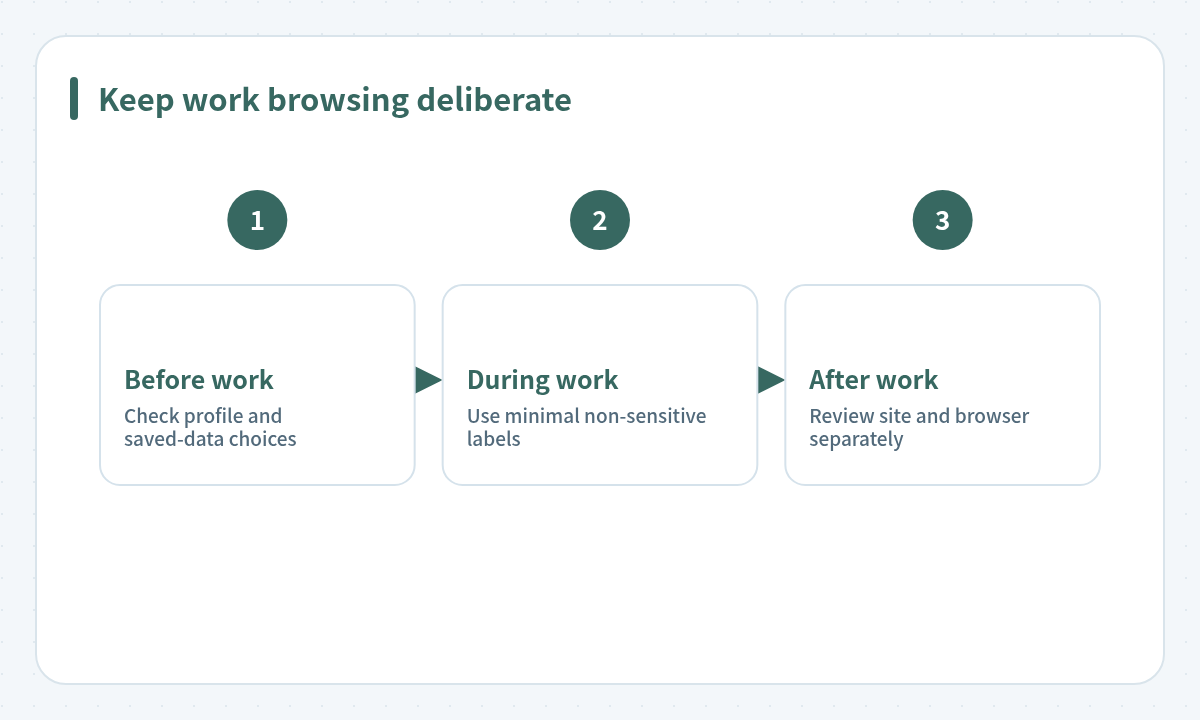
A clean finish involves more than closing a tab
Sign out or end website access as appropriate to the task, then separately check any browser-account or saved-data decisions you made. The relevant actions depend on the product and device. Do not describe signing out as a guaranteed deletion of every local or synchronized copy.
If information was saved to an unintended account, use the browser's official management tools and the applicable work process to identify and correct it. Keep the affected categories and devices clear. Changing the inbox password alone does not remove a bookmark, history item or downloaded record stored elsewhere.
For Chrome's current distinctions, see Google's guide to saved information across devices. The useful boundary is simple: website access controls the receiving account, while browser accounts and device settings govern additional surrounding information. Both need a deliberate place in a work routine.