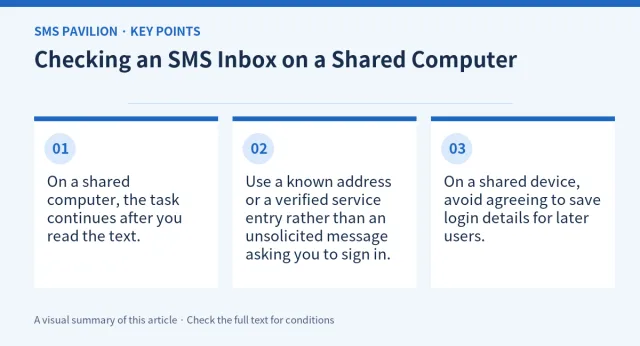
A private browser session does not make an SMS service anonymous or erase records held elsewhere. Separate local browsing traces, website access and the receiving resource’s lifetime.
Decide which privacy problem you are solving
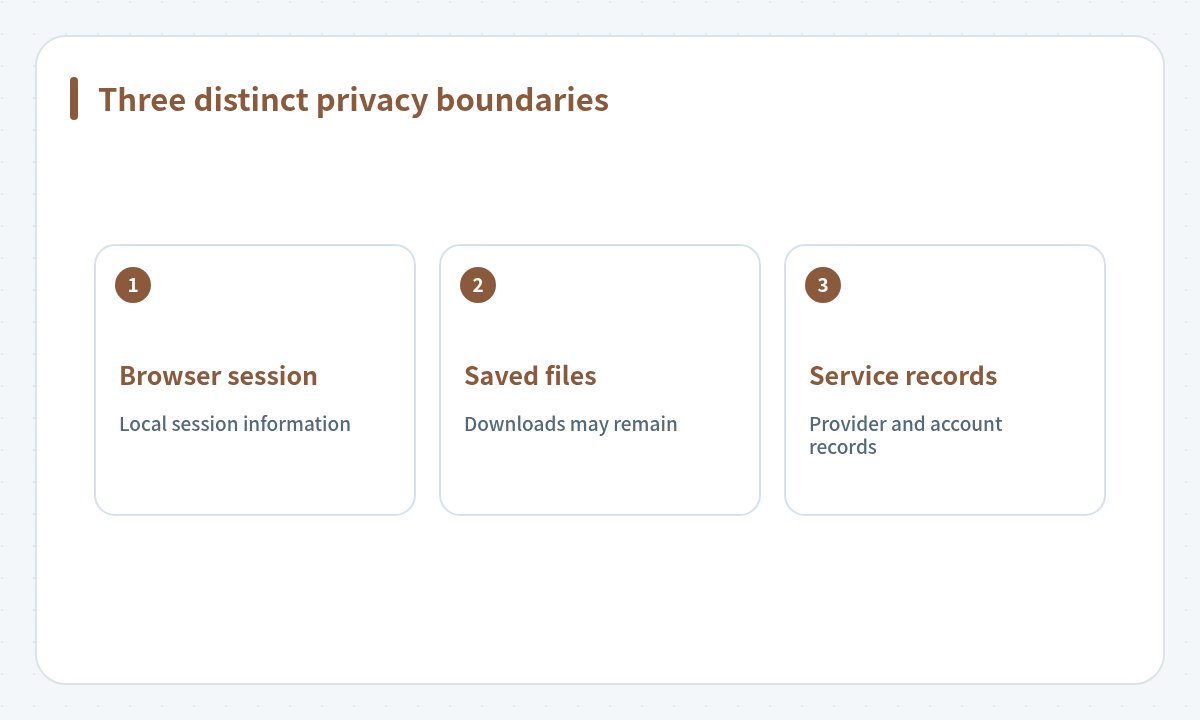
On a shared device, you may want to avoid leaving ordinary browsing history or a continuing signed-in session for the next user. That is different from hiding your activity from a website or controlling who can view a shared receiving number. A private browser window addresses only part of the first problem.
Google's current Incognito guidance explains that Chrome starts a separate browsing session and ends it when all Incognito windows are closed. The guidance also notes that signing in still identifies you to the site, and that downloads and bookmarks can remain on the device. It does not promise anonymity from the receiving provider or a network operator.
Before starting, check whether the device itself is suitable. A private window cannot make an untrusted shared computer safe for sensitive account access. If you cannot rely on the device or are not authorised to change its configuration, use a trusted supported device instead of improvising a private browsing workaround.
A separate session changes the workflow
Do not expect an inbox already open in a regular window to be signed in inside Incognito. Enter through the known service address and use normal authorised authentication. Keep track of which window contains the receiving resource and which contains the business request, particularly if you operate more than one account legitimately.
Private browsing may also interact differently with a site's sign-in process or browser permissions. If the service says the environment is unsupported or a required step fails, follow its documented route. Do not weaken security controls or repeatedly request codes to force the session to work.
A disposable receiving resource has its own access and lifetime rules. Closing the browser window does not necessarily release the number, cancel an order or delete the provider's message records. Conversely, the resource may expire while a private window remains open. Browser lifetime and resource lifetime should each be checked where they are actually managed.
Finish the website task and the local session separately
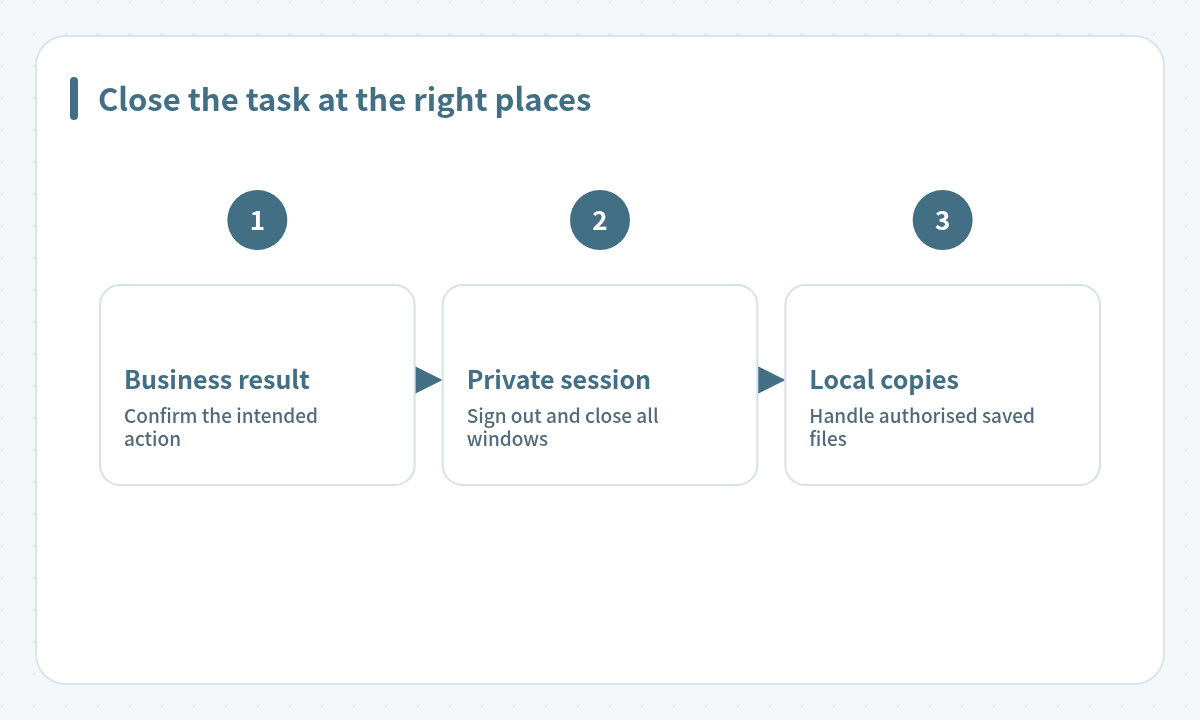
First confirm the intended business result. Then use appropriate sign-out controls and close the private session according to the browser’s instructions; inspect downloads or other copies independently.
Private browsing does not hide a public inbox from other readers, cancel a number order or make an untrusted computer suitable for sensitive access. Choose a trusted environment before relying on session settings.
Finish the task at each relevant location
Check the target service's result before closing the browser. If you were changing an account setting, inspect that setting through the normal account interface. The inbox showing a message is only evidence that you can view that record, not that the target service accepted the action.
Use the service's sign-out process when appropriate, then close every private window to end the private browsing session. On a shared machine, also inspect any downloads you intentionally created and handle them according to your authority and retention needs. Closing the window does not clean up a separately saved export, a screenshot or a file copied to another folder.
If the number itself is shared publicly, private browsing does not prevent other authorised or public viewers from reading its messages. A temporary label is not a privacy guarantee. Important accounts need a receiving and recovery arrangement that meets their actual requirements rather than reliance on the private-window icon.