
Web.de verification codes can be confused with authenticator setup information when the enrollment QR appears on the phone being used. WEB.DE's official help provides a manual option through Code kopieren. The copied material establishes an authenticator entry; it is not the short-lived number later requested for browser sign-in. Identify the stage before searching for an unrelated text message.
Verify that the enrollment belongs to your account
Start from your own WEB.DE security settings and confirm the intended mailbox. Do not scan a demonstration QR forwarded through a conversation or accept a platform logo as evidence that an image belongs to your identity. The enrollment must originate from the account task you actually initiated.
For example, one phone might display the setup page while also holding the authenticator. Its camera cannot simply point at its own screen. That is an enrollment-interface problem, not evidence that a login message failed to arrive. Inspect the official QR or manual setup options instead of waiting for SMS to replace the setup material.
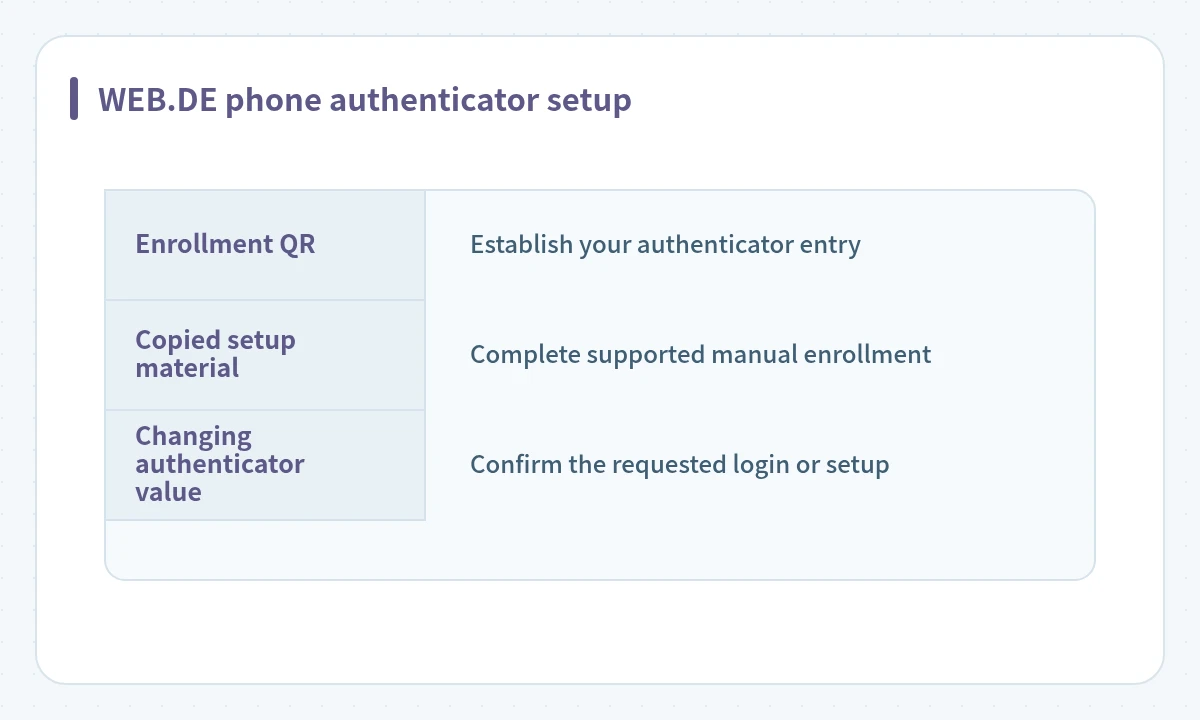
Keep the information types separate
| Information | Appropriate use |
|---|---|
| Enrollment QR | Establish your authenticator entry |
| Copied setup material | Complete supported manual enrollment |
| Changing authenticator value | Confirm the requested login or setup |
A field involving the word code does not make every resource interchangeable. Do not paste long-term enrollment material into the browser's short-value field. Its purpose and sensitivity differ from a routine challenge, and it should not be published as an ordinary troubleshooting detail.
Complete the manual route through the current page
Inspect the official copy option near the QR and follow the authenticator's supported manual-entry method. Compare the resulting account label and mailbox. With several similar identities, copying information for the wrong one can create an entry that produces digits without answering the intended account's challenge.
Keep the work within an environment you control. Do not place enrollment material in a group conversation, public note or an unknown remote-assistance tool. If it cannot be transferred safely, consult official help rather than submitting the secret to a website promising to generate values for you. The current page's supported process should guide the next step.
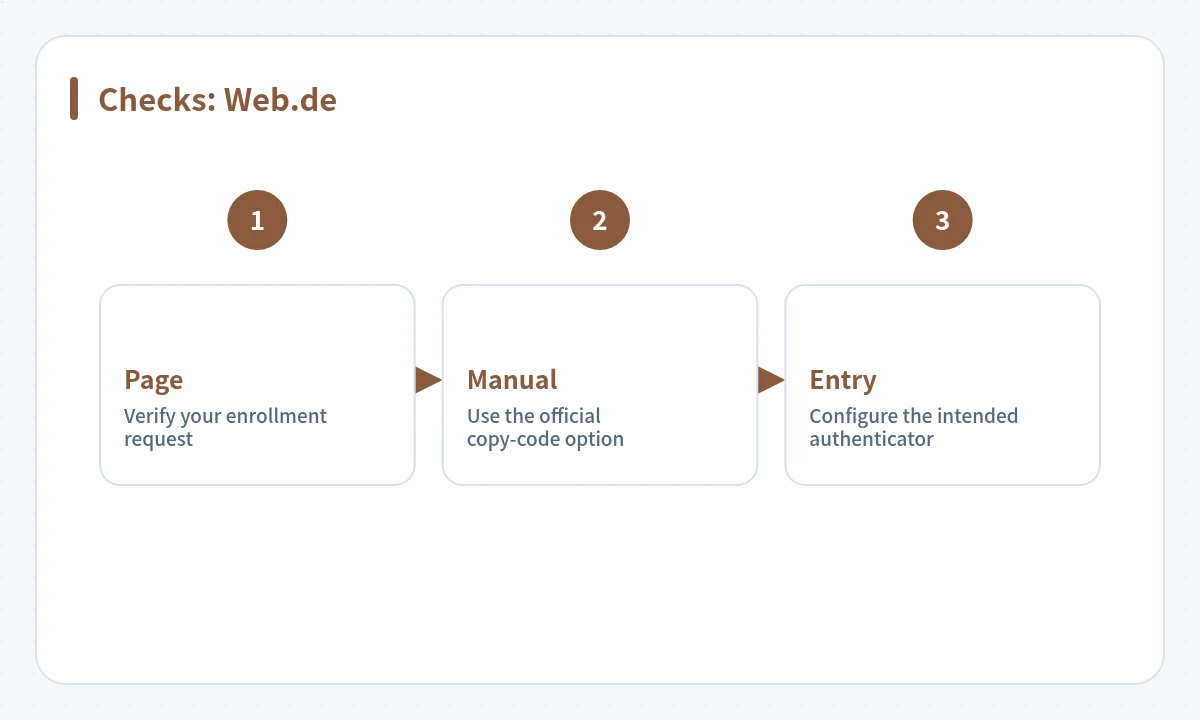
Return to the account to finish confirmation
An app entry appearing is an intermediate result. Complete the confirmation required on the official page and inspect the final enrollment state. A visible changing number does not establish that the account accepted the new method or that the correct mailbox was selected.
If the current interface lacks a button shown in older help, record the version and stage and consult WEB.DE support. Do not remove the only working entry or disable another protection merely to reproduce an old screenshot. Preserve an existing usable resource until the replacement arrangement is clear.
Finish by checking the intended mailbox, accepted setup and protected recovery resources. Describe inability to scan, failed manual entry or rejected confirmation as distinct symptoms. A masked screenshot and exact response are enough to make the case useful without exposing the QR, copied setup material or live value used for the account.
References
WEB.DE: QR scanning problems and manual setup; WEB.DE: two-factor authentication overview.
