
Viber verification codes at phone activation and desktop linking belong to different stages. When the computer displays a QR code, first check whether your own phone already has an activated, usable Viber account. Waiting for another desktop text may address the wrong task.
Desktop linking starts with the phone account
Viber's official desktop instructions require Viber to be installed and activated on the phone, followed by scanning the computer's QR code and approving the connection. Installing the desktop application does not complete phone activation, and a working internet connection does not establish that the two identities are linked.
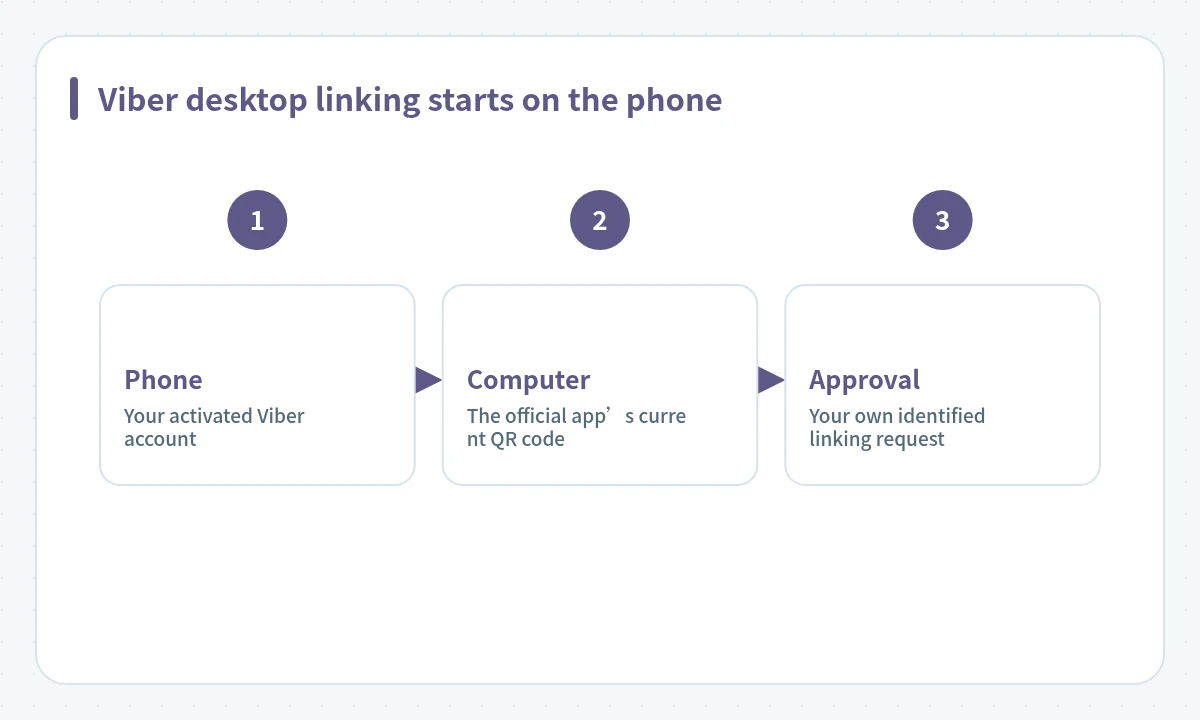
Open Viber on your own phone and confirm the intended account works. Then use the official desktop application and its current QR request. Do not scan a code supplied in a group or by an unsolicited helper as a purported repair for missing activation SMS; it may be asking you to authorise another device.
Inspect what you are about to approve
A linking QR code is part of the access process, not an ordinary error picture to forward publicly. After scanning, compare the phone's approval request with the computer you intended to connect. Do not approve an unfamiliar action merely because someone promises to synchronise your messages.
| Where progress stopped | First check |
|---|---|
| The phone is not activated | The official phone activation and receiving route |
| No usable desktop QR appears | The official app and connection state |
| Scanning or approval fails | The current request and exact message on both devices |
| Content differs after approval | The linked account and actual sync result |
This stage-based description is more useful than treating every pause as a code failure. It also helps you avoid changing a phone setting to address an unrelated desktop connection problem.
Check synchronisation as its own result
After approval, follow the current synchronisation steps and inspect which conversations and functions are actually available. Viber notes that not every phone feature is necessarily available on desktop. A missing feature therefore should not automatically trigger repeated activation requests.
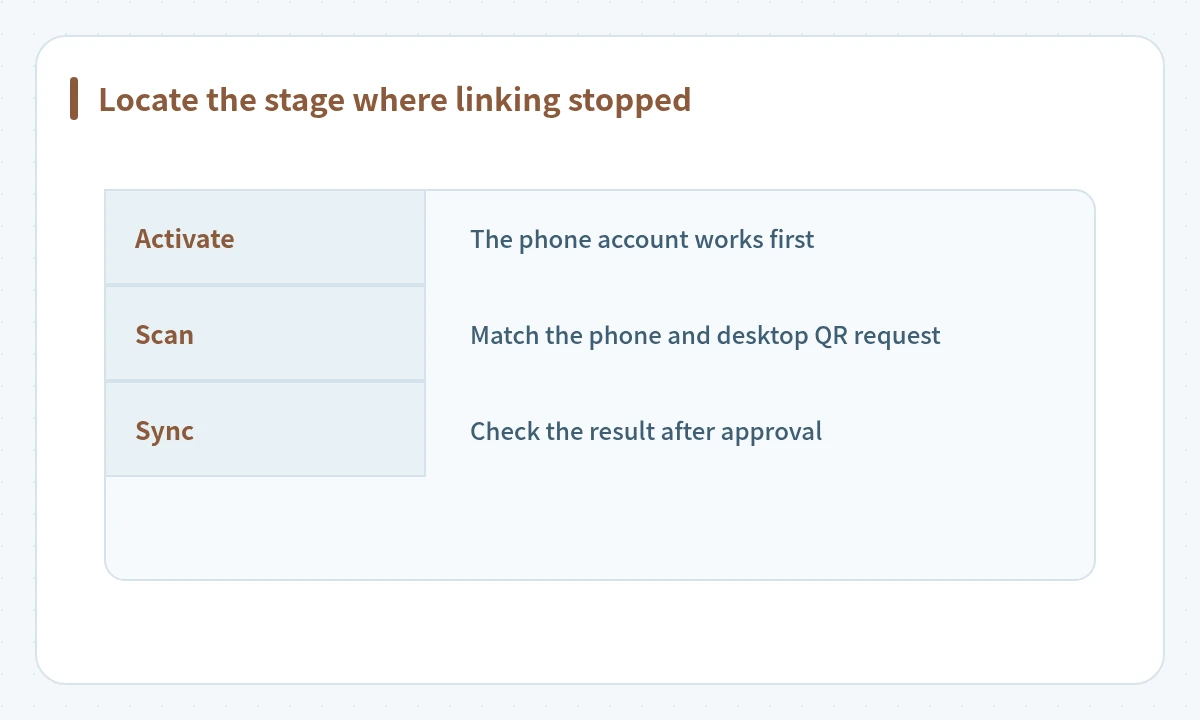
If network or app troubleshooting is needed, preserve the phone account that still works. Do not uninstall, clear its data or sign out merely to make a new desktop QR appear. Locate the failed stage and consult its corresponding official help before making a change that could remove the remaining working session.
A practical support record can include the operating systems, application versions, stage and exact error. Use harmless observations rather than copying a live linking credential into the record.
Share the problem without sharing the connection
Hide QR codes, activation texts and private conversations in screenshots. Someone can understand that scanning failed without receiving the data intended to approve your device. Use official support rather than a stranger offering to connect the account remotely for you.
Once linking completes, confirm the computer is the one you meant to use and manage its access appropriately, especially on a shared machine. The purpose is to connect your account to your own authorised device, not to hand phone-verification material to an outside operator.
References
Viber: Desktop setup, QR approval and synchronisation.
