
One device displaying an SMS alert does not establish that every signed-in device can notify you. Check receiving records first, then test each browser and operating system notification path you depend on.
This is a notification check, not a promise of instant delivery. The provider must first receive the message under its own service conditions. A notification can then fail or be hidden even when the message is available through a normal inbox query.
Map the paths you actually use
List the device, browser profile and account used for each access path. A work profile and a personal profile on the same laptop can behave differently. A phone’s installed shortcut and a full browser may also have different settings, depending on the service and operating system.
Check whether the service documents background notifications at all. Some pages only update while open, and a browser permission cannot create a feature the application does not implement. If no supported background path exists, plan around an explicit inbox check rather than an alert that may never arrive.
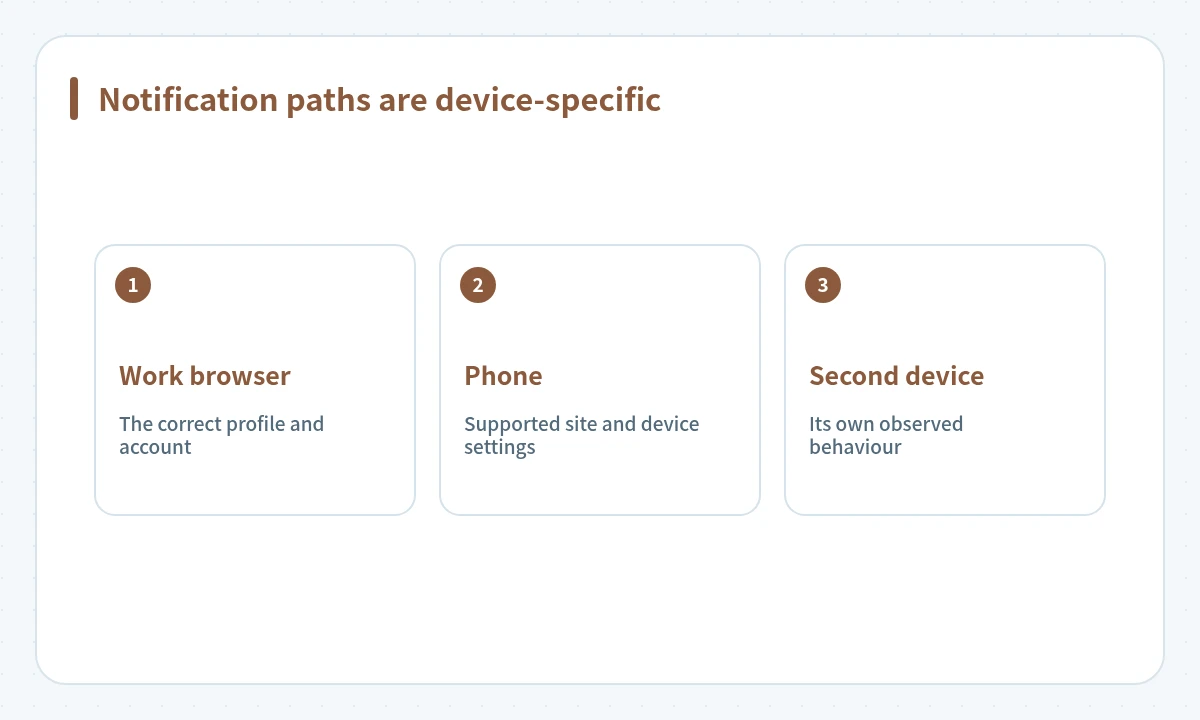
Use a small device matrix
| Access path | Before the test | Observed result |
|---|---|---|
| Desktop work browser | Correct profile and account | Record alert and current inbox query separately |
| Phone browser | Supported permission and display settings | Check foreground and supported background behaviour |
| Secondary device | Expected receiving resource | Confirm what appears after normal access resumes |
Use harmless text sent through an authorised path. Record which device displayed a prompt, which showed a notification and which had the message in its inbox. Do not use a live verification request just to create a test alert, especially if it may expire while you move between devices.
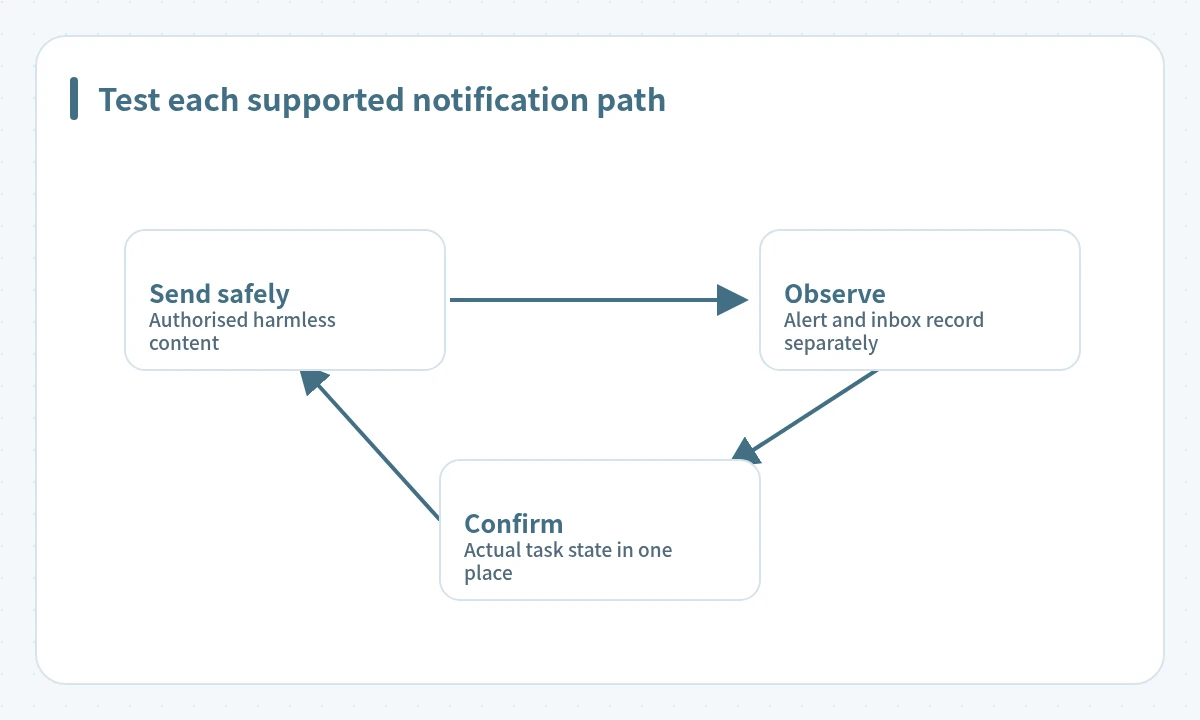
Acknowledgement needs its own rule
Dismissing a notification on one device may or may not dismiss another copy. Opening a message may update a shared read marker, a local marker or neither. Observe the documented behaviour rather than assuming all devices share one notification state.
For team work, decide where completion is recorded. If everyone treats the disappearance of their own alert as proof that someone else handled the task, an important message can be left without an owner. Conversely, if each device independently repeats an action, one incoming record can lead to several conflicting responses.
Notification previews also create separate visible copies. Check the lock screen, notification centre and any connected display you actually use. Limit previews where appropriate, then verify the result with new harmless content. A private receiving account does not automatically make a public screen private.
If a device fails the test, narrow the investigation to that path: account, supported service feature, site permission, operating-system setting and current connectivity. Avoid resetting every browser or changing the number simply because one notification is absent. Finish by checking the message record through a successful query, so that the alert diagnosis remains separate from the receiving diagnosis.
