
Hide the keyboard and check the form’s scroll area before requesting another code. The input method’s completion key and the webpage’s verification control may perform different actions.
Separate keyboard controls from form actions
The keyboard’s Next or Done key can move focus or dismiss input without completing verification. Read the webpage’s result rather than assuming the keyboard action submitted it. A grey button can also reflect missing fields, a pending request or another condition that needs its own explanation.
Try the browser and device’s normal scrolling and keyboard-dismissal controls. Check above and below the field for validation messages or an open dialog. Do not guess the position of a covered button: a repeated tap can hit resend or another action when the layout changes.
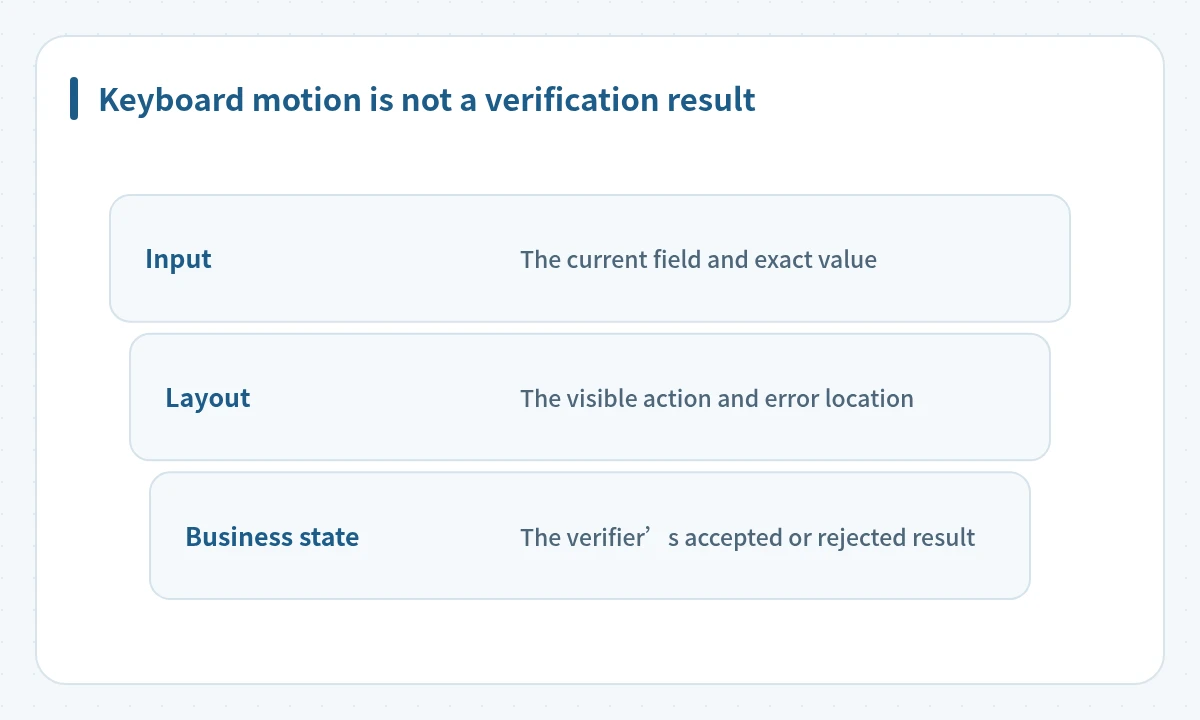
Keep the account and request together
When returning from the receiving page, confirm that the business page still shows the same account and operation. If it signed out, replaced the verification dialog or started another request, follow its supported flow. A code remaining in a field is not evidence that the previous request is still active.
Orientation changes can alter the layout too. Check where focus and controls moved after rotating or resizing, and use a supported alternative view when necessary. Moving to another device may require a new verification flow; the target service decides whether the earlier request remains usable.
The VirtualKeyboard API documentation illustrates that on-screen keyboards and page layout can interact in different ways. Support varies, and the reference does not establish that the website uses that API. The user-facing goal is simply a form whose current field, action and response can be reached reliably.
If a fixed help panel or cookie banner contributes to the obstruction, record that combination too. The keyboard may expose an existing overlap rather than be the only cause. Use the site’s normal dismiss controls where available, and retain a clear account and request context while testing the supported layout.
Diagnose the layout without recording a live verification
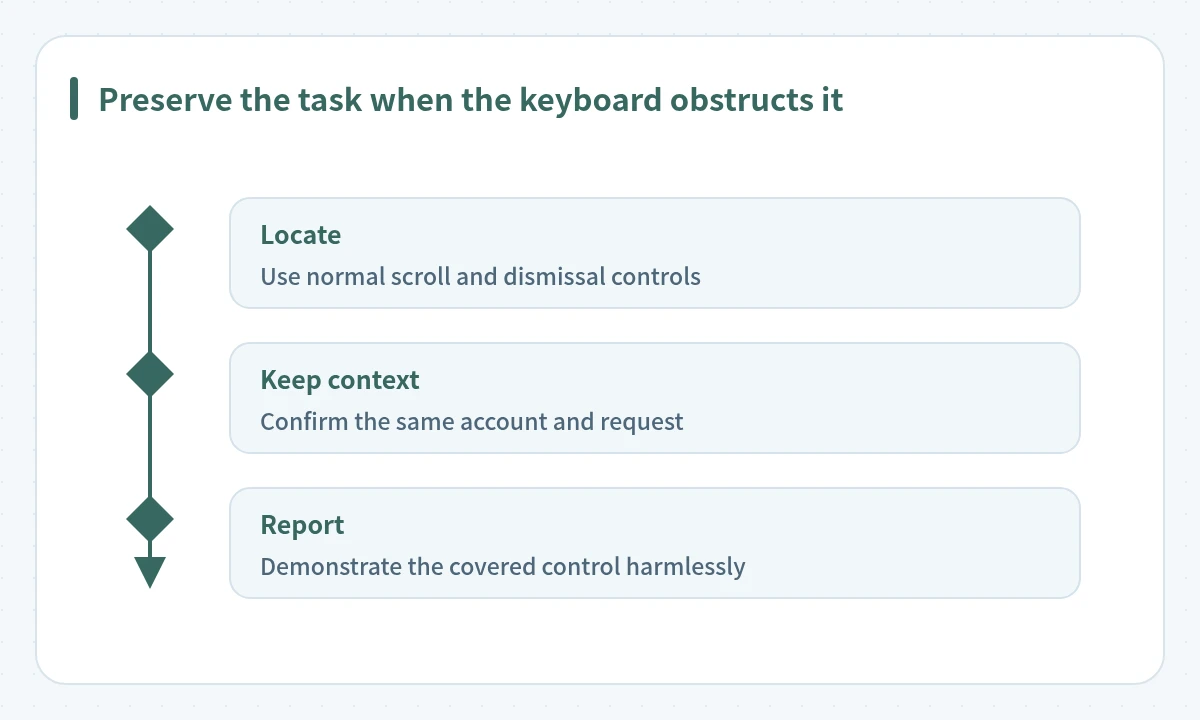
| Report item | Useful detail |
|---|---|
| Environment | Device, browser and orientation |
| Before typing | Which controls were visible |
| Keyboard open | Which field or action became covered |
| After an action | The actual feedback or stored account result |
Use harmless demonstration values for screenshots and recordings. Hide account identifiers and never capture a usable code simply to show the keyboard. A precise explanation of the covered element is more helpful than a full private session recording.
If you already pressed Submit and feedback is unclear, allow the normal response and inspect the resulting business state before pressing it again. Repeated actions can turn an obstruction into several competing requests, making both the layout issue and the verification harder to understand.
For maintainers, repeat the relevant task with the keyboard open and closed at the supported device sizes. Verify the error path as well as the success control: showing the button is insufficient if the user still cannot read why the request was rejected. Keep the final completion decision with the verifier, not with the keyboard animation.
Reference: MDN: on-screen keyboards and page layout.
