
An inbox requiring sign-in can still produce notifications containing message content. Test the actual locked-screen preview settings on each relevant device or application.
Look at the notification layer separately
The receiving service may require sign-in while the device shows a preview generated from an earlier authorised session. Those observations can coexist. Review the browser or application’s notification permission and the operating system’s display controls according to the actual setup.
Apple’s notification-settings guide describes preview and presentation options on supported iPhones. Other devices and managed environments can use different controls. Follow the current instructions for the device in use rather than assuming a label from another system has an identical effect.
A setting that hides the message body may still leave an app name, sender detail or badge visible. Decide which information matters to your environment and inspect the actual result instead of judging privacy by one toggle’s name.
Test with content that is safe to display
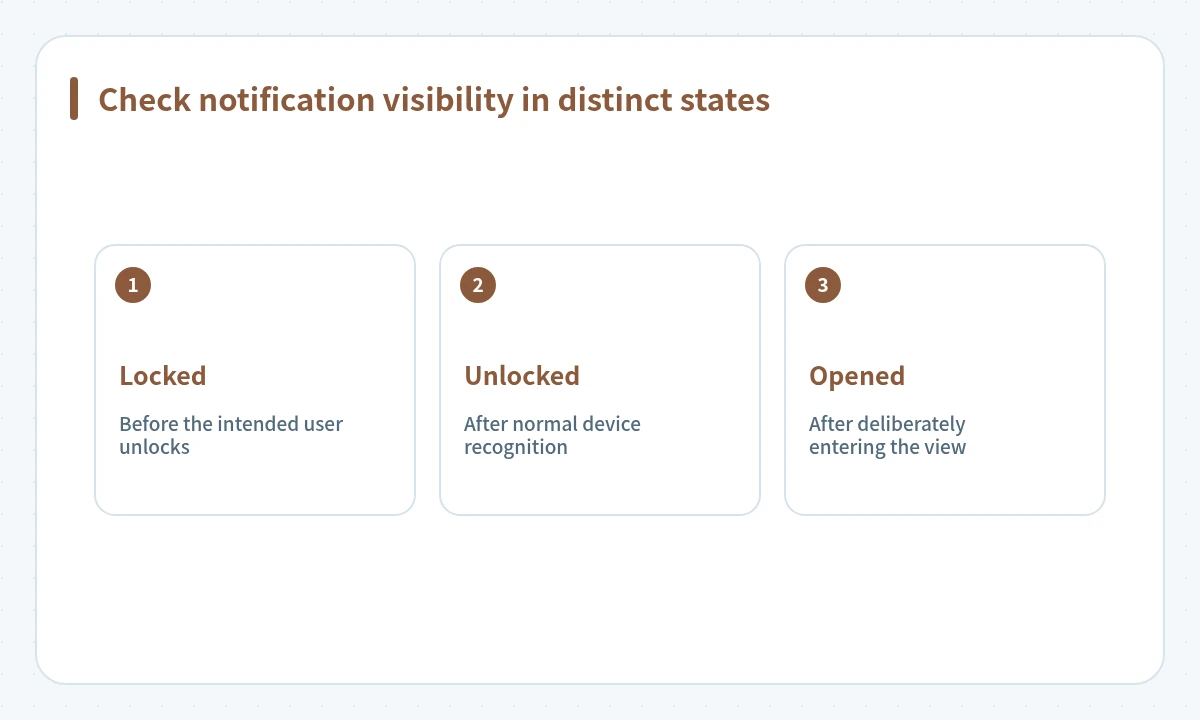
Where the service supports an authorised test, use a harmless sample rather than a live account code. Observe the phone locked, after normal unlocking and after deliberately opening the notification. These are different states and can reveal different amounts of content.
Keep the test’s receiving path consistent. If the test uses a separate application or account, its result may not describe the browser inbox you intended to assess. Note which permission and preview controls were active without collecting a recording of unrelated private messages.
Biometric recognition, device state and the specific notification source can affect what is displayed. A brief glance under one condition is not a guarantee about every future observer. Use a repeatable sequence appropriate to the real device, including the moment before the intended user has unlocked it.
Check how the device is actually used
A phone on a shared desk, a projected display or a device temporarily handed to another person can create a different audience from normal private use. Review the relevant notification presentation before using that environment for sensitive work.
Do not solve a preview concern by broadly sharing inbox credentials with someone who can “watch the messages instead.” That changes account access rather than controlling the screen. On a managed work device, follow the organisation’s requirements and ask its administrator about restricted settings.
If you change a preview option, rerun the harmless test and record what became visible or hidden. The observation should identify the environment and state, not claim that every copy of the message is now protected.
Keep alerts and receiving results distinct
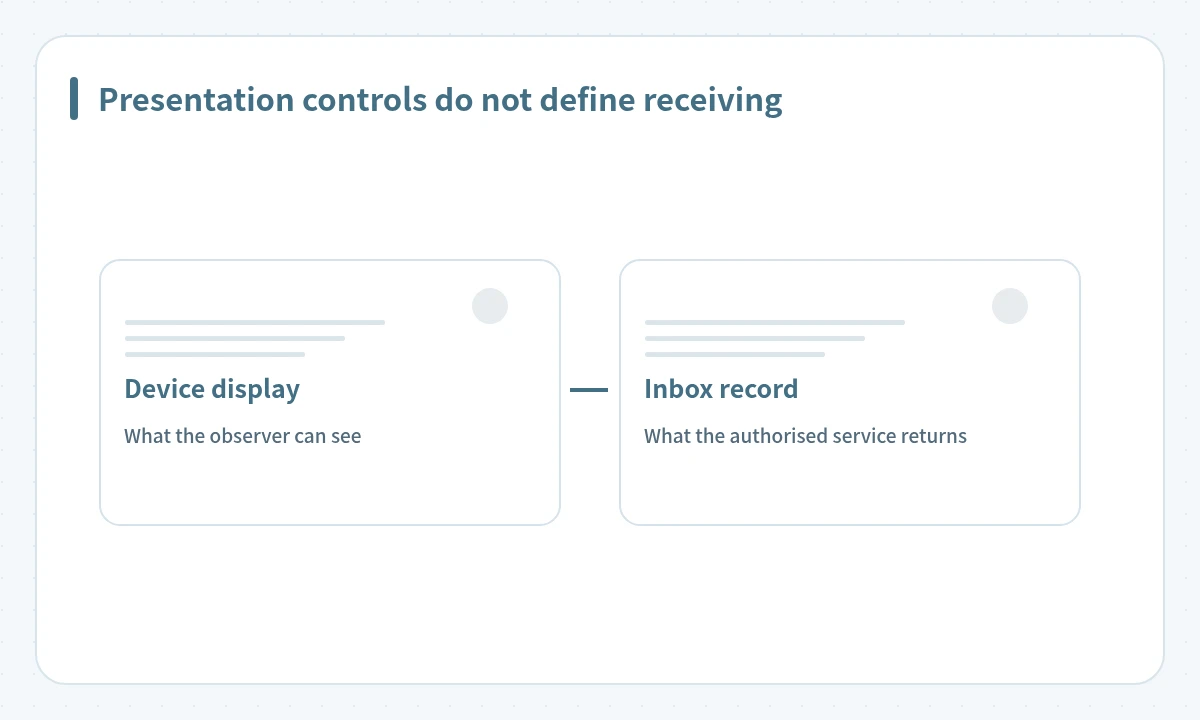
Muting or hiding a notification does not establish that the remote message was deleted or that the number stopped receiving. Check the authorised inbox when the task requires the current record. Equally, clearing an alert does not finish the business operation associated with it.
Review these controls again after a meaningful device, browser or work-environment change. A previous test belongs to the setup tested at that time; retaining that context makes it easier to notice when the viewing conditions have changed.
