
Clearing browser data usually changes local or browser-account state rather than deleting service-side messages. Distinguish sessions, local storage, downloaded files and receiving history before removing data.
Make sure you can sign in again
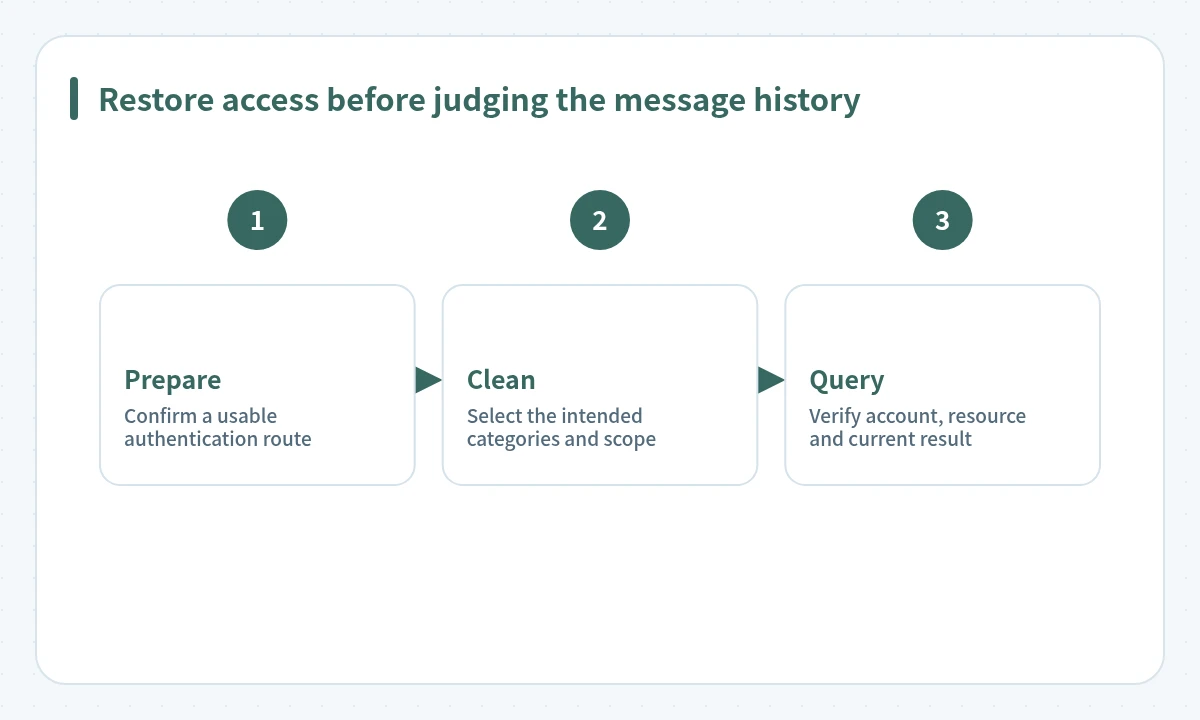
Before removing session data, confirm the account identity, trusted entry point and supported authentication or recovery route. If the current session is your only usable access, do not clear it casually as the first troubleshooting step.
Also resolve unfinished forms, notes and local drafts. Whether they are synchronised depends on the actual application. A saved-looking field is not proof that the server received it. Keep necessary non-sensitive task context without copying live codes into another tool as a makeshift backup.
Chrome’s browsing-data help distinguishes categories such as cookies and site data. The selected category, browser platform and synchronisation state affect the result. Read the actual confirmation rather than using “clear cache” as a label for every possible deletion.
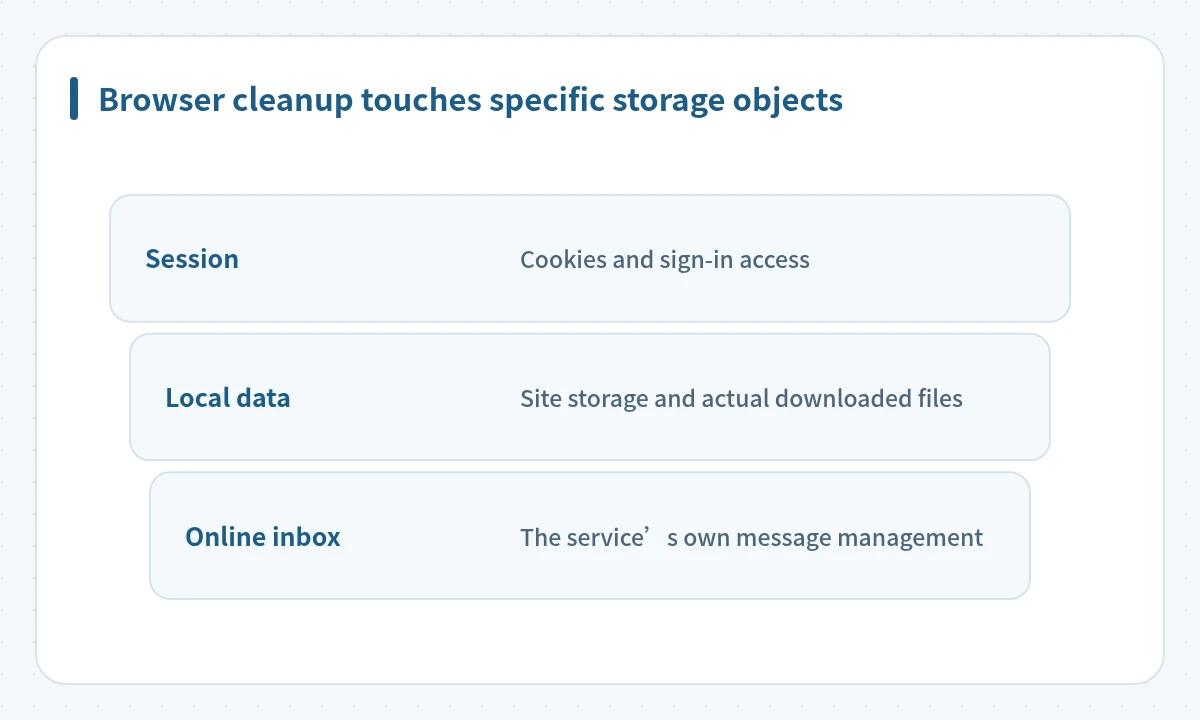
| Object | Question before cleanup |
|---|---|
| Session cookies | Will you need to authenticate again? |
| Local site storage | Is there unsynchronised work or a local preference? |
| Downloaded files | Is the file itself being removed, or only a list entry? |
| Online messages | What does the service’s record-management action do? |
Narrow a display investigation where possible
For a display fault on a trusted site, consult the browser’s supported site-specific controls. Select the relevant storage entries and save unrelated work before proceeding. Write down the visible symptom so the subsequent visit can be compared with a defined starting point.
After cleanup, the site may require sign-in or ask for permissions again. Confirm the account and number, then perform a normal query. An empty view needs its own investigation: dates, folders, permissions and load status can change what appears.
Compare the returned resource, selected interval and query feedback with the task you intended to resume. If the page reports a loading error, retain that outcome in the troubleshooting note. A completed query and an unfinished load need different follow-up steps.
If browser synchronisation is enabled, read which selected categories affect other devices or the browser account. Do not infer that a cleanup is strictly local from where you clicked it. Its confirmation should establish the applicable scope before you proceed.
Use the service’s own action for online deletion
If the goal is to remove a message from the online inbox, read the supported management feature’s scope, authorisation and recovery rules. Signing out or deleting browsing history does not establish that such a server-side action occurred.
The opposite distinction matters too. When you only want to repair a display issue, do not select permanent message deletion as a substitute for browser cleanup. Similar words in two menus can describe very different consequences.
If an online record is deleted, separately consider any downloads, prints, screenshots or copies on another device that you actually created. Do not assume every product creates all of these, or that one action can remove every external copy.
A clear work note separates restoring browser access, querying online history and handling local files. Each has an observable result. That makes it easier to explain what changed without overstating either a repair or a deletion.
Reference: Google Chrome Help: delete browsing data.
