Numbers and references are identifiers, even when they contain only digits. Before importing an SMS export, preserve the source and choose data handling that keeps leading zeros, long values and time context intact.
Keep the original before working on a copy
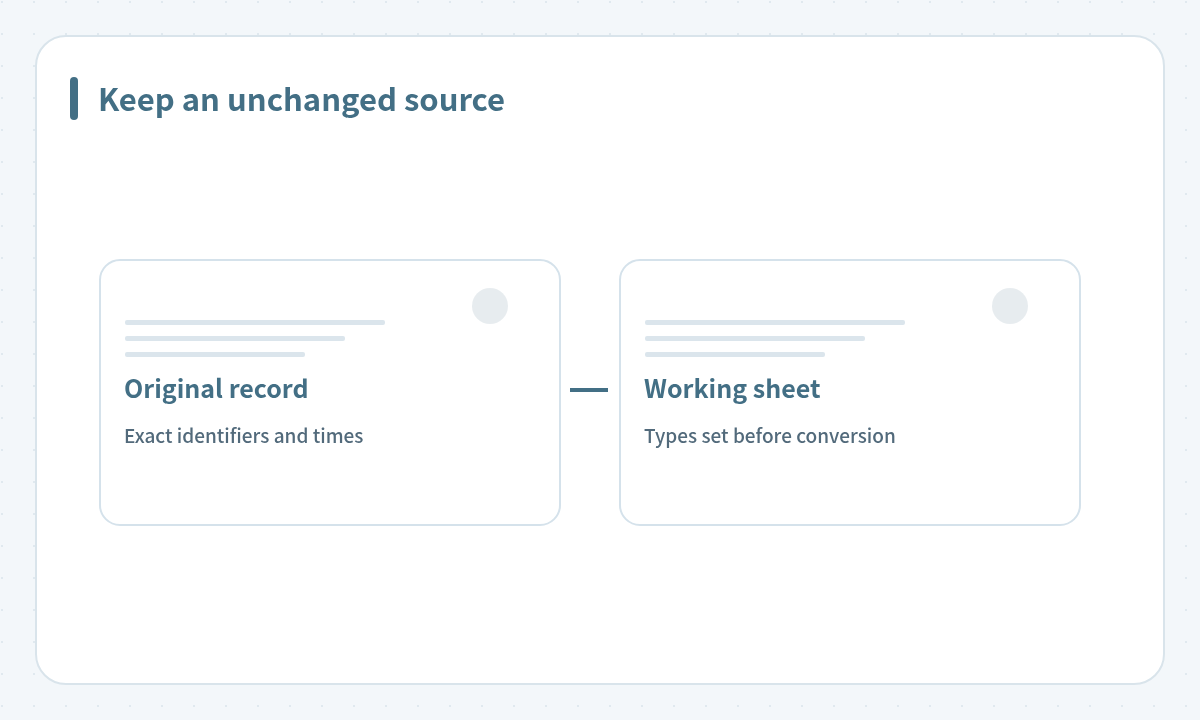
Start with the receiving service's supported export or the minimum permitted record you need. Retain an unchanged source copy in an appropriate location, and do formatting work on a separate file. That gives you something to compare if the spreadsheet later displays a value differently.
Do not paste a complete private inbox into an online file converter to avoid learning an import setting. An export can contain message bodies, account clues and references unrelated to the task. Select the necessary scope and use tools suitable for the actual data and work environment.
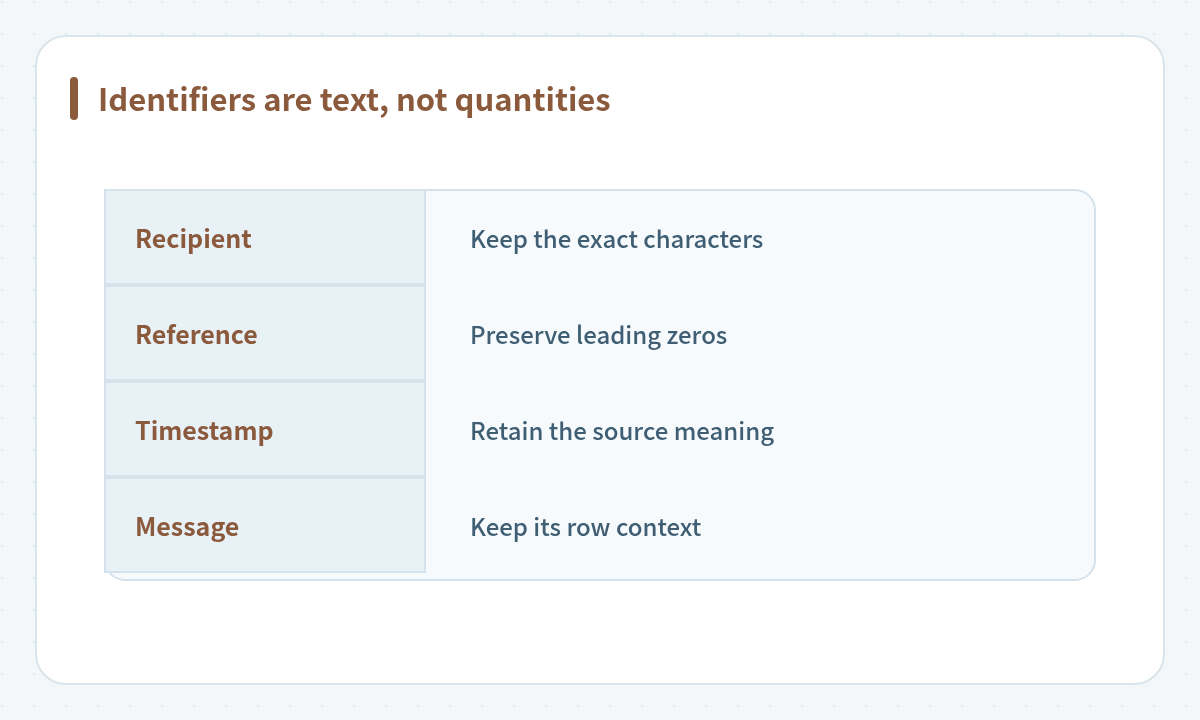
Set identifier columns to text during import
Microsoft's Excel guidance explains that automatic conversions can remove leading zeros or interpret long values as numbers. Its recommended text-data handling is relevant to phone identifiers and references: choose the data type before the values are converted, rather than relying on their appearance after import.
Treat recipient numbers, sender identifiers, message IDs and business references according to their meaning. A column containing digits is not necessarily numeric data. A reference that happens to look like a date should not become a calendar value merely because the application recognises the pattern.
A displayed plus sign, a leading zero and a long sequence all need comparison with the original record. Changing a cell's visual format after an irreversible conversion cannot reconstruct unknown digits. If a value has already changed, return to the source and import again with the appropriate type rather than adding characters from memory.
Preserve time meaning as well as time appearance
Keep the source timestamp and its stated timezone or offset where available. If a normalised time is useful for comparison, put it in a separate column with a clear label. Do not overwrite the original value with a local display and leave colleagues to guess how it was calculated.
Regional spreadsheet settings can also make an ambiguous date difficult to interpret. A value such as 03/04 is not enough context on its own. Use the full source date and the source's documented meaning; if that meaning is unknown, flag it for clarification instead of choosing an order that merely looks familiar.
Sorting creates another risk. Keep each row's fields together so that a number does not become detached from its message and timestamp. Review a few complete records after sorting or filtering, not just the column that looks most important.
A CSV file is not a data-type guarantee
A text-based export may preserve characters correctly while a spreadsheet chooses its own interpretation on opening it. Distinguish the source file's content from the application's display and the workbook produced after saving. A successful download does not verify the later conversion.
Also check separators, quoted message bodies and embedded line breaks with the supported import process. A multiline text should not cause the next record's timestamp to appear beside the wrong recipient. If the file is difficult to parse, consult the export description rather than repairing rows by visual guesswork.
Use column names that make the distinction between message text and your own comments clear. Adding a note such as “follow up” should not overwrite the original message body. A working sheet becomes much easier to interpret when the reader can see which values came from the source and which were added during review.
Check the saved file, not just the first display
Use invented identifiers with a plus sign, a leading zero and a long digit sequence to test import, save and reopen. Compare the resulting stored values with the unchanged sample, keeping complete rows together.
If a real identifier has already been converted and lost characters, return to the source rather than reconstructing it from memory. A visual cell format cannot recover unknown digits.
Check the round trip with harmless examples
Before processing sensitive material, test the intended import and save process with invented identifiers that include a leading zero, a plus sign, a long reference and an unambiguous timestamp. These are formatting examples, not valid account credentials or evidence of any provider's behaviour. Close and reopen the resulting file to see what was actually stored.
Microsoft's guidance on leading zeros and large numbers describes the underlying conversion issue and text-import options. The purpose here is not to turn a worksheet into an authoritative messaging system. It is to keep a useful working record from losing the exact identifiers and time context that make it useful in the first place.