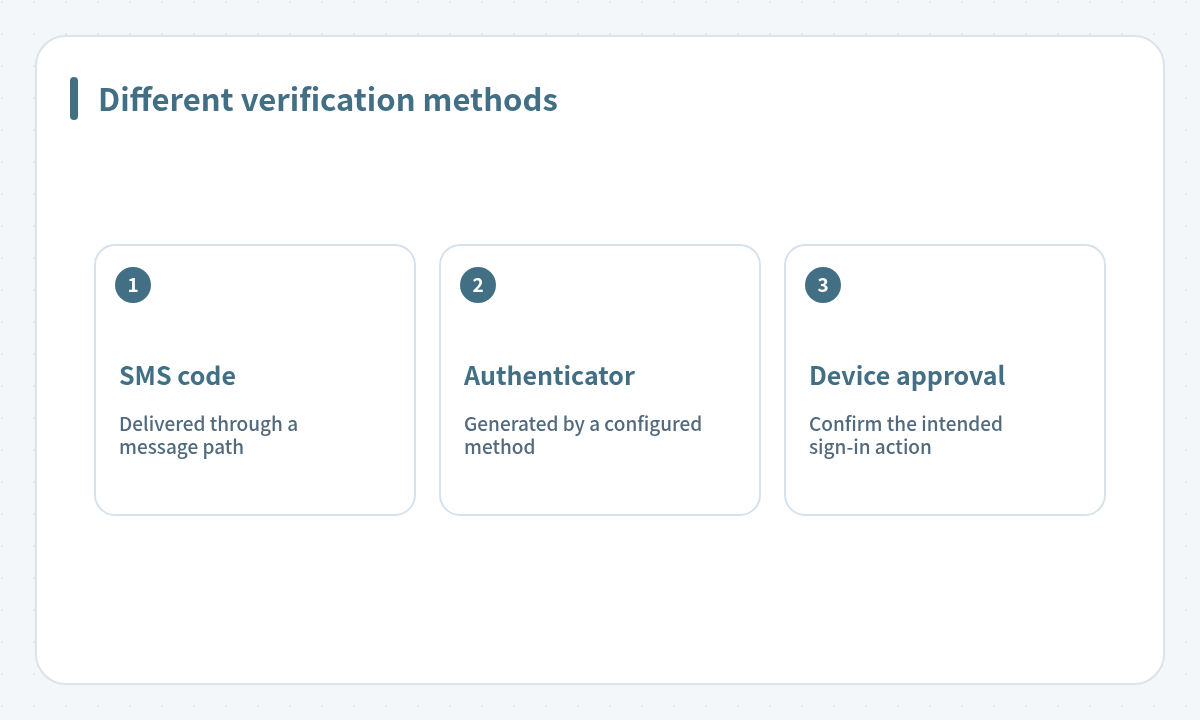
A verification screen may request a received text, a configured authenticator or a device approval. Identify the method and intended account before refreshing an SMS inbox for a value it does not supply.
For the complete workflow around this question, continue with Receive SMS Online: Complete Steps, Codes and Troubleshooting. The link opens the relevant section.
Identify the method the page is actually requesting
A code sent to a number, a code generated by an authenticator and a prompt asking an already trusted device to approve access are different methods. The target service should identify the current step. A generic heading such as “verification” is not enough reason to treat all available material as interchangeable.
Read the destination and account context, using the independently known service entry point. If the page shows a masked phone number, compare the appropriate account information. If it names an authenticator, use the method previously and legitimately configured for that account.
Do not choose a code by its length or by which one arrived most recently. A value can look plausible and still belong to a different service, account or action. The code's origin and intended step matter more than its appearance.
An authenticator can generate rather than receive
Google's official Authenticator guidance describes generating one-time verification codes for supported services, including generation without an internet connection or mobile service. That is a different mechanism from waiting for a provider to place an incoming SMS in a web inbox.
The example does not establish that every application called an authenticator has identical behaviour or that a code can be generated without prior account setup. Follow the actual target service's supported configuration and recovery process. A setup secret or enrollment QR code should not be shared with someone who offers to “make a code” for you.
Also distinguish generating a code from completing sign-in. The target service may still require network access, other credentials and a valid current request. A device producing digits does not establish that the intended business action was accepted.
Use only alternatives the account actually supports
If the current method is unavailable, look for the service's documented alternative or recovery path. An SMS option may exist for one account and not another. Do not assume that possessing a receiving number entitles you to replace a configured method on demand.
If you still have normal access, review the account's legitimate backup arrangements before a failure occurs. Keep the relevant instructions and responsibility clear without putting live codes, setup secrets and account passwords together in a broadly shared note.
When another person is assisting, they can explain the page and the supported method without needing the current code or a live approval. Do not approve a device or session you cannot relate to the action you intentionally started.
Describe the unavailable method accurately
“The account asks for its configured authenticator, but the usual device is unavailable” identifies a recovery question. “SMS never arrived” describes another path and would send support toward different evidence.
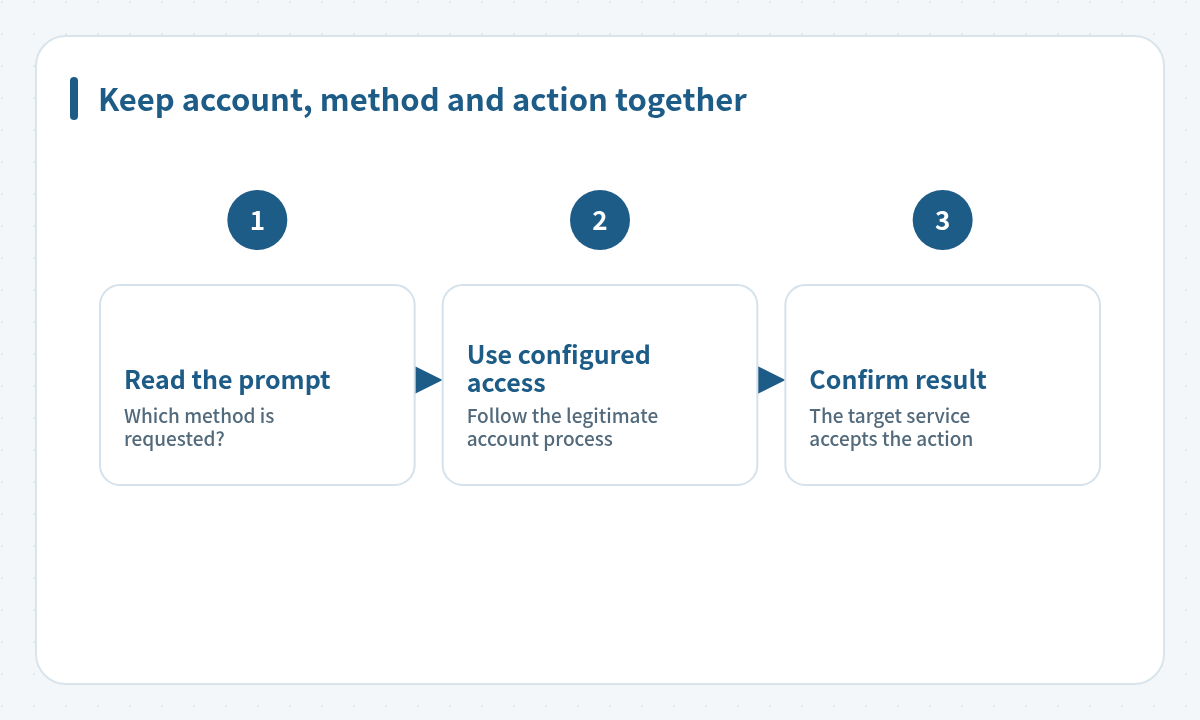
Use only alternatives the account actually supports. Do not choose a value by length, share an enrolment secret with a helper or assume generating digits proves the business accepted the sign-in.
Report the failing step accurately
A useful request for help might explain that the account asks for a configured authenticator but the usual device is unavailable. That is different from saying SMS never arrived. Include the service's visible method name and any non-sensitive error wording, not a screenshot containing active secrets.
For one documented implementation, see Google's Authenticator guidance. The wider habit is to keep the account, method and intended action together. An inbox should be assessed for the messages it is actually meant to receive, rather than used as a catch-all explanation for every verification screen encountered during sign-in.
Main guide for this question
Receive SMS Online: Complete Steps, Codes and Troubleshooting