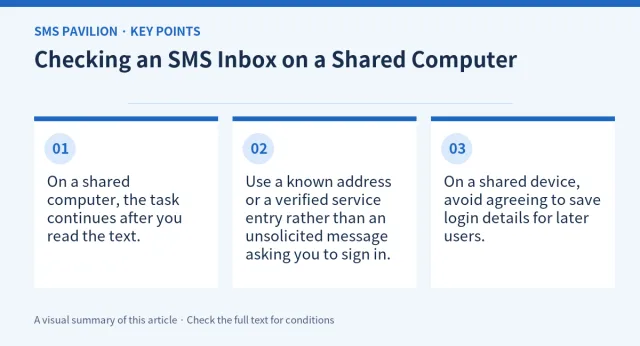
An app’s embedded web view and your normal browser can have different session state. Confirm the actual address and browsing environment before entering credentials or interpreting another sign-in prompt.
Identify the window, not just the page design
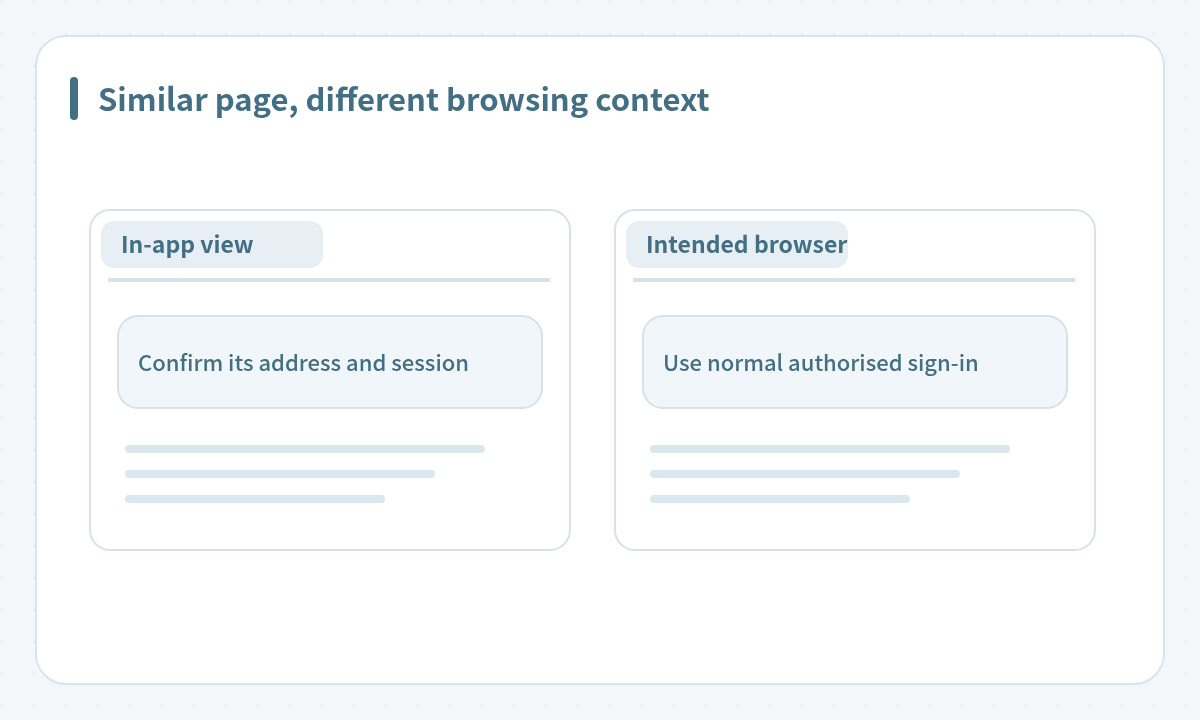
An application may show web content within its own view or pass it to a separate browser, depending on the device and configuration. The account state and available controls can differ. A familiar webpage inside an unfamiliar frame is not proof that your normal session has transferred there.
Look for the current address and the application's documented way to open a page in the intended browser. Do not rely solely on logos, colours or a title saying “Messages.” If the actual destination cannot be confirmed, avoid entering credentials until you can reach the service through a known entry point.
You do not need to copy a long, unexplained session URL into several applications to reproduce access. A confirmed stable service entry is usually a clearer place to begin. Preserve the original task reference separately if it is needed to locate a record after signing in.
Re-establish normal access deliberately
When the page is in the intended supported browser, use the service's ordinary sign-in process. Confirm the account, selected number and relevant date range. The same person using the same device can still have several legitimate accounts or workspaces; a previously saved account choice should not be assumed correct.
If access works in one environment and not another, record that comparison without claiming a particular cause. Cookie handling, supported features, product design or other conditions may differ. A single observation narrows the investigation; it does not establish which component is at fault.
Do not globally relax browser protections, install a suggested extension or share a session-bearing address just to make both views behave identically. A product may support one path and not another. Follow its documented access requirements and ask through the known help route where needed.
Keep the verification task tied to its target
If a code is waiting, check that the business action remains active after changing browsers. Moving the receiving view does not restart an expired request, and reopening a target page does not necessarily restore the previous form state.
Match the account and purpose before entering any code. Avoid distributing authentication material between chat messages, notes and different browser views as a way to keep track. The authorised receiving path and the intended target field are enough; an unrelated intermediary does not need a copy.
If a link came from someone else, establish whether it points to a record you are entitled to view. An application successfully handing the address to a browser does not grant permission. The service should still enforce its normal access process.
Report the handoff as a short sequence
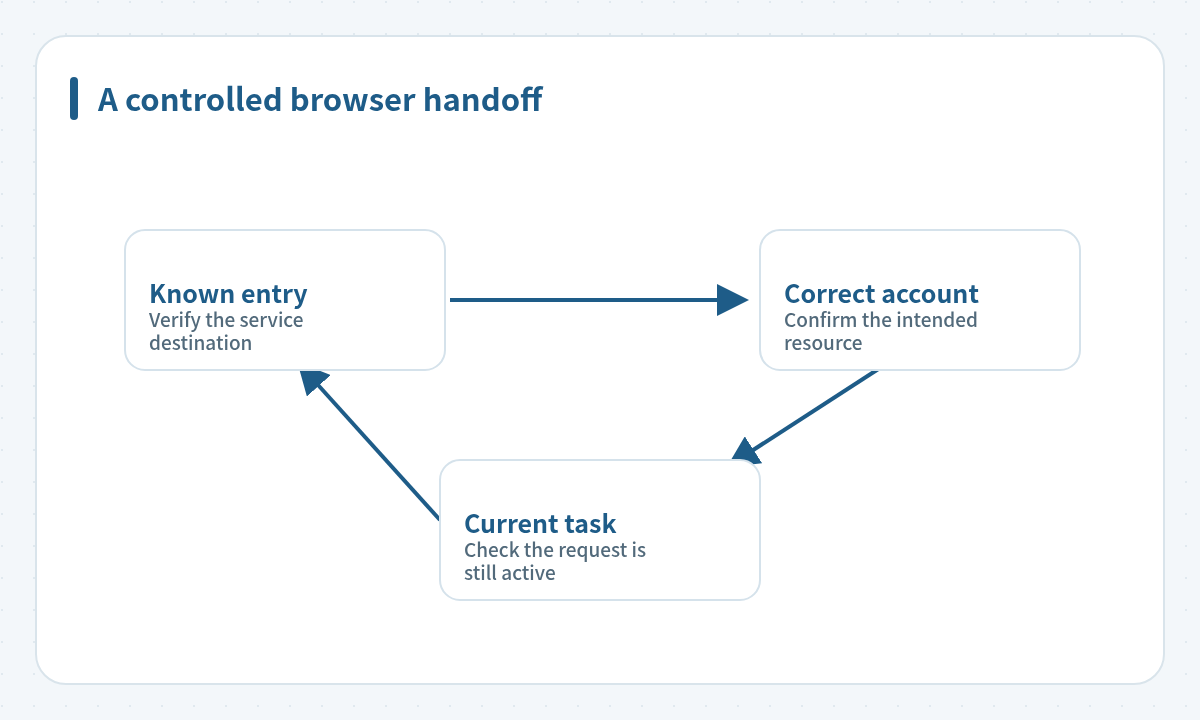
State the originating app, the first view, the documented action used to open the intended browser and the result. A sign-in prompt, an error and a current inbox view are different outcomes.
Use a stable confirmed entry point where suitable instead of copying unexplained session URLs between apps. After moving the view, recheck the business request: it may have expired even though the inbox now opens.
A useful support report describes the handoff
State where the link was opened, which environment first displayed it, what action opened the intended browser and what happened next. Describe whether the result was a sign-in page, a specific error or a successful inbox view. Leave out live codes and private address parameters.
If a harmless sample can reproduce the issue, use that instead of recording a personal inbox. Ask for a supported way to continue the task rather than a method to extract or move authentication tokens between environments. That keeps troubleshooting within the normal account controls.