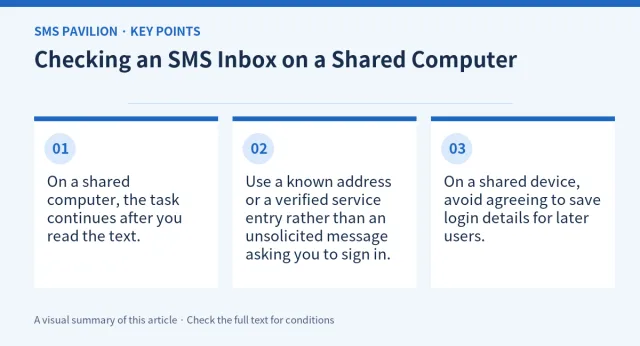
A usable SMS inbox needs understandable number labels, message boundaries and keyboard focus. Test the full reading task with your actual screen reader, including opening details and returning to the list.
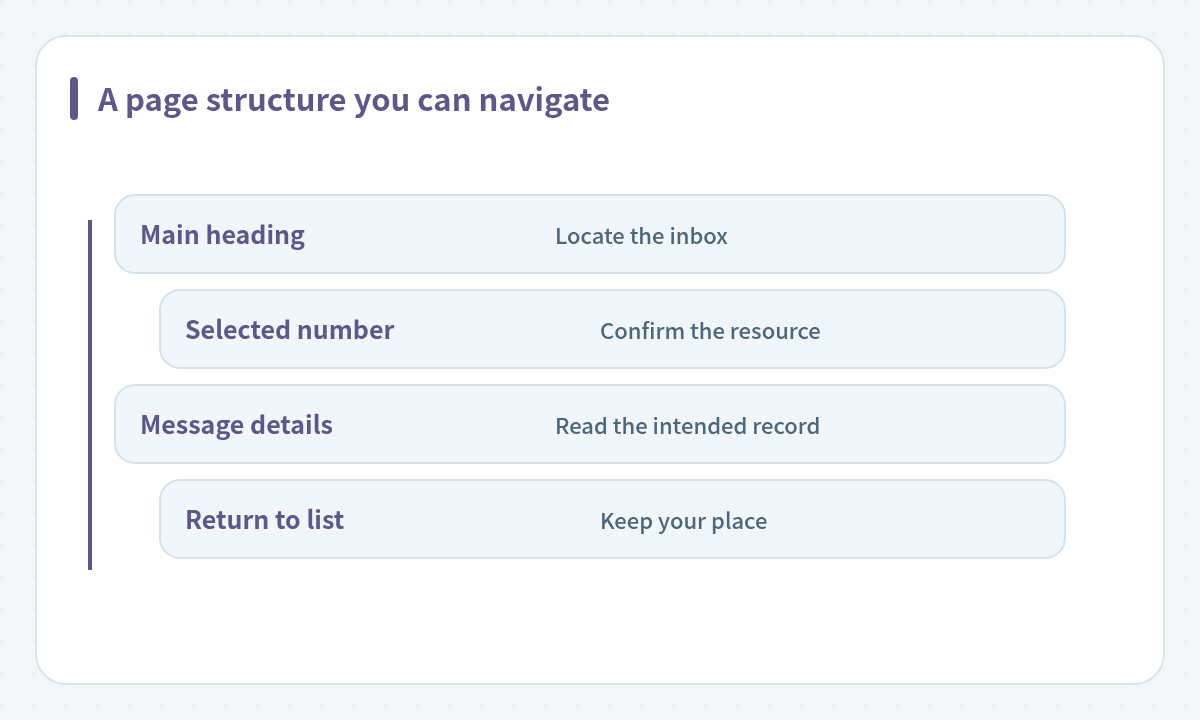
Start with the page structure
Navigate by headings or landmarks using the commands available in your assistive technology. You should be able to distinguish the main inbox from navigation, account controls and help content. W3C's guidance on headings explains how correctly marked-up headings support this kind of in-page navigation; visually large text alone is not a reliable substitute.
Next, locate the selected number and account context. A heading such as “Messages” may not tell you which of several numbers is active. If the selected resource is only indicated by colour or an unlabeled icon, record that limitation before depending on it for a time-sensitive task. Do not compensate by memorising the order of similar buttons, because that order may change.
Try a harmless message before a live verification
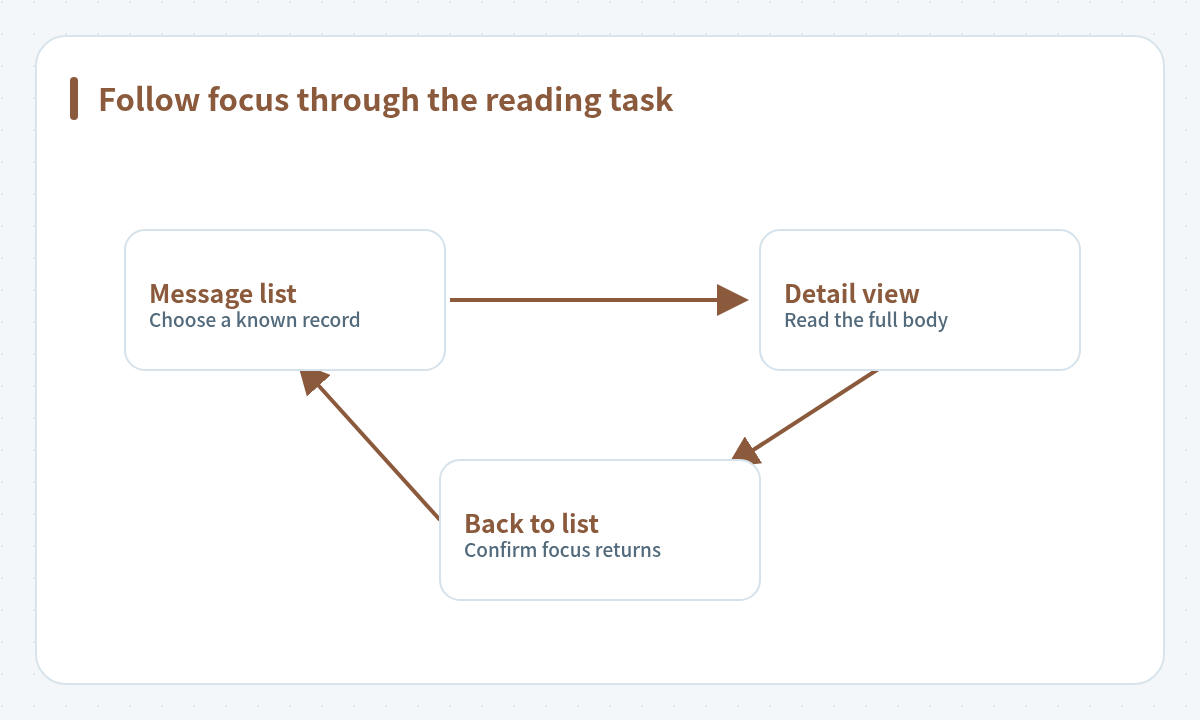
Use a permitted, non-sensitive sample to check the reading path. Can you reach the message list, hear enough context to distinguish rows, open the intended record and read the entire body? Test with the screen reader you actually use, rather than assuming that a statement about accessibility guarantees the same experience on every device.
A message row needs enough context to be distinguishable from its neighbours. Sender information, a date and the relevant number may be useful, but reading all surrounding controls on every row can also make navigation cumbersome. Notice whether the detail view gives you a clear place to begin and an understandable way back.
After closing the detail, check where keyboard focus goes. Returning to the list and returning to the top of the entire page are different experiences. If focus disappears or moves unpredictably, do not repeatedly press Enter to find out what was selected. Pause, orient yourself and use a known navigation method.
Check what happens when new content arrives
An inbox may update while you are reading an earlier message. New content should not be assumed to have been announced, and an announcement should not be assumed to identify the right number. Observe whether your reading position remains usable and whether you can deliberately locate the update.
For a verification task, keep the receiving page and the target service separate in your mental and browser navigation. Confirm the target account and the action being verified before entering a code. An accessible inbox cannot correct an unlabeled field or an inaccessible challenge on the target service, so the full task needs checking.
Do not ask somebody else to read an entire private inbox when one interface control is the problem. If assistance is needed, share the minimum context required through an approved method. Never disclose a live code simply as evidence that a page failed to announce it.
Check the fields between the two pages
When a task involves copying a value, verify that the copy control identifies its purpose and that the destination field has a meaningful label. Hearing several buttons called “Copy” is not enough to distinguish a recipient number from a message body. Ask whether the surrounding accessible context makes the distinction clear.
Keep focus on the intended window when moving between the receiving page and the business service. If an error message appears, determine whether it can be reached and whether it explains how to correct the problem. A visible red border by itself gives no spoken explanation.
Report the first point where context is lost
A useful report might say: “After closing message details, focus returns to the header rather than the selected row.” Include the browser and assistive-technology versions, then reproduce with a harmless message.
Distinguish missing inbox context from a problem in the destination verification form. An accessible copy button cannot repair an unlabeled field on another website; the complete task needs both.
A useful accessibility report is specific
Record the browser, screen reader and version, the control you attempted to use, the expected result and the actual focus or announcement. A short sequence such as “Open the message, close details, focus returns to the page header” gives a provider something concrete to investigate. Remove personal messages from any recording.
You can also ask whether the provider offers another documented reading interface. That is a question about the actual product, not an assumption that an application, export or API exists. Keep using a method only if it preserves both access and the context needed to avoid handling the wrong message.
For the underlying page-structure principles, see W3C's headings tutorial. The practical acceptance test remains your own complete reading task, including updates, returning to the list and safely finishing the session.