A QR sign-in step and a text code can appear together while authorising different actions. Check the account, requesting device and current approval prompt before proceeding.
Ask which device is requesting access
A QR sign-in page may ask an already signed-in device to approve another session. An SMS step may instead verify control of a number or authorise a particular account action. The actual meaning depends on the service's documented flow; the fact that both use the word “verification” does not make them interchangeable.
Before scanning, establish where the QR code came from. It should belong to the sign-in attempt you intentionally started through the service's known entry point. A code sent by a stranger, pasted into a group chat or shown during an unexpected call is not made trustworthy by opening a familiar application when scanned.
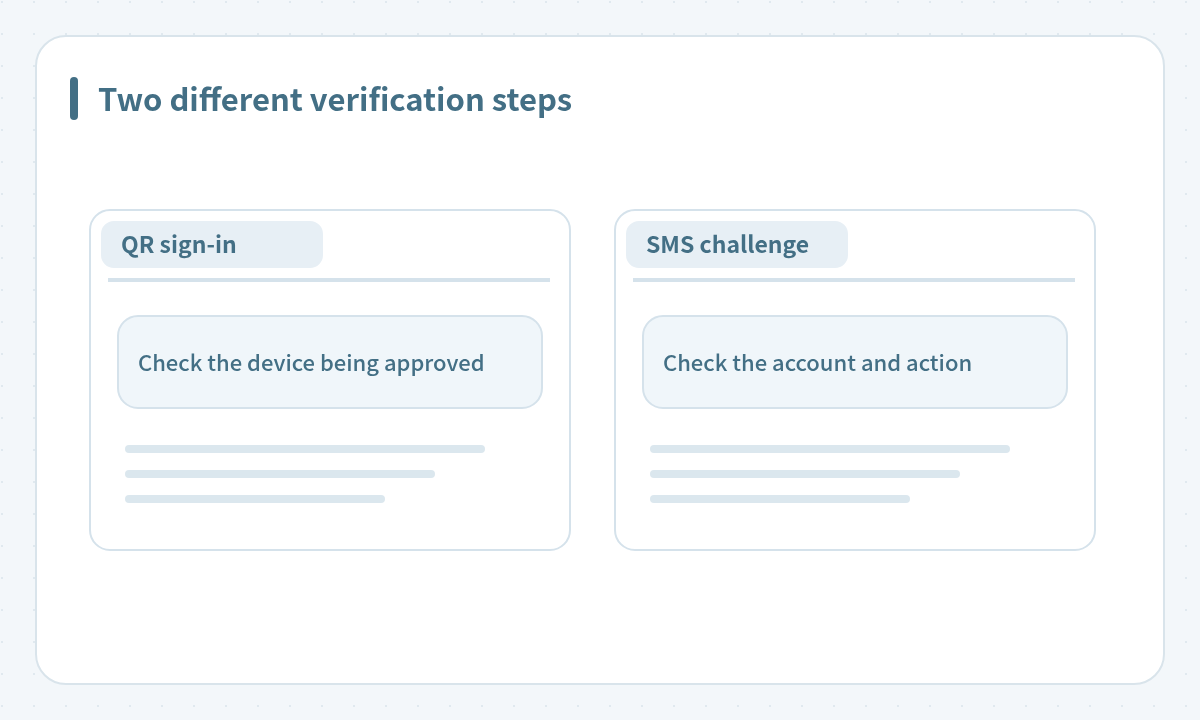
Read the approval screen, not just the code
If scanning leads to a confirmation prompt, inspect the action and any device or session details it provides. Does it match the browser you are trying to sign in? Is the account the one you intended to use? An unfamiliar device request should not be approved simply because a caller describes it as a routine security check.
This check remains necessary if a text arrives at roughly the same time. Timing is context, not proof that the two events belong together. You may have an existing request in one tab and an unrelated request elsewhere. Match the action described by the service rather than assuming every current code belongs to the screen nearest you.
If the text is for a password reset, number change or other sensitive action, treat it as that action. Do not repurpose it as a generic login token. Follow the service's current instructions, including any waiting period or expiry shown on the target page.
Avoid moving a live sign-in flow into chat
Someone helping with an interface problem usually needs to know which step failed, not to receive your live QR code or SMS code. A screenshot of a sign-in page can contain usable or sensitive material even when it shows no password. Describe the page and hide the active challenge before sharing a support image.
Screen sharing creates a related problem: an observer can see a code that you did not deliberately send them. Pause the share or narrow the visible window when handling authentication, using a method appropriate to the service and your work environment. Do not continue an approval just because the other person is waiting on a call.
Watch for a change in the requested action
A flow that begins with viewing an account should not quietly become permission to add a new device or change recovery information. At each confirmation, compare the action with the task you intended to complete. Familiar branding does not remove the need to read the current prompt.
If another person is guiding you, ask them to explain the step without requiring the active challenge. A legitimate explanation can describe where to look and what the fields mean. It does not require you to approve a session whose origin you cannot establish.
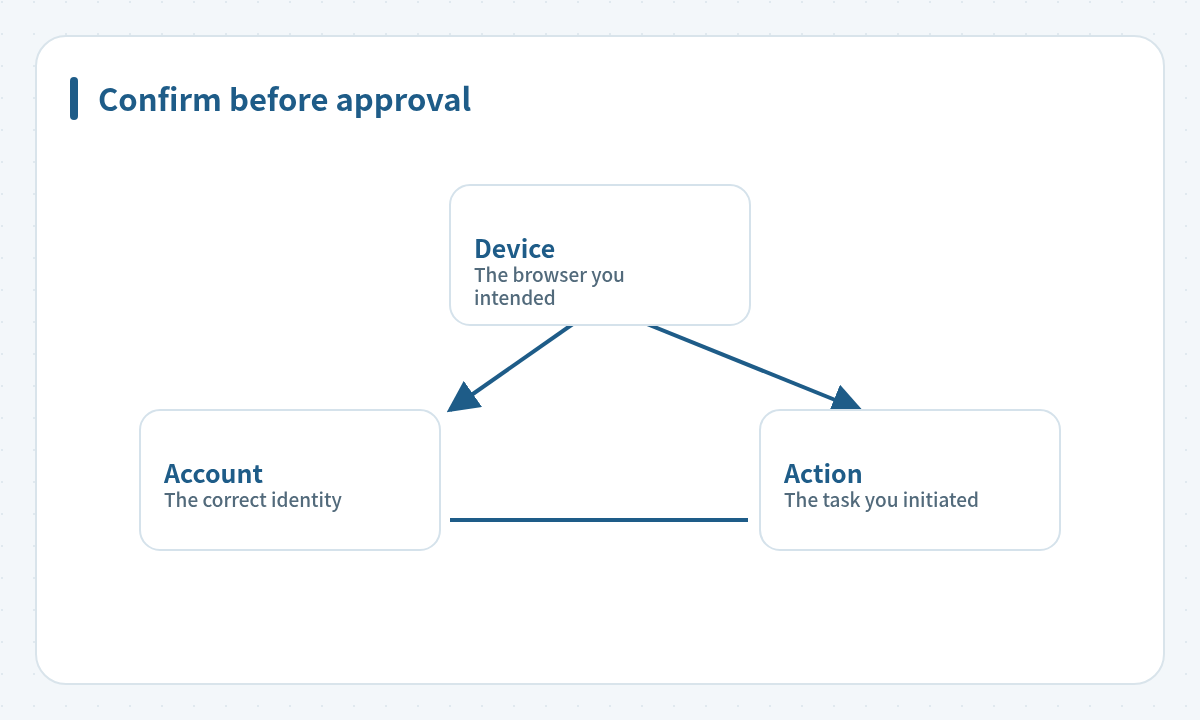
Stop when the requested action changes
If a task meant to open an account instead asks to add a device or change recovery details, pause and compare it with the sign-in you deliberately started. A familiar application opening after a scan is not enough to authorise an unknown session.
Support can explain the step without receiving the live QR image or code. If an approval may already have completed, review the target service’s supported session controls; closing the code page does not prove that session ended.
If the flow becomes unclear, stop the approval
Cancel the pending step where the service allows it, close unrelated sign-in tabs and begin again from an independently known entry point. Check the account first if any approval may already have been completed. Closing the QR page after approval is not evidence that the resulting session has ended.
Use the service's own account or device-management controls to inspect unfamiliar sessions, if those controls are available. The receiving inbox cannot list sessions belonging to every separate business account, and changing its password will not automatically revoke access in another service.
A useful report of a failed attempt names the step: the QR page opened but no approval appeared, the approval showed a different device, or the SMS field rejected an expired request. Leave out the live challenge itself. Keeping the steps separate lets you ask for help without turning a troubleshooting conversation into another person's sign-in route.