
Okta verification codes require an entry-point check before a reception check. A company's Okta organisation and an account for Okta learning or help resources may display the same brand without using the same identity or support process.
Find the organisation's actual sign-in page
Okta's official guidance directs company users to their own organisation URL, obtainable from an official welcome message or their IT team. Do not guess a domain from the company name or take a verification link from an unsolicited message. For customised organisation domains, use the information supplied by the organisation.
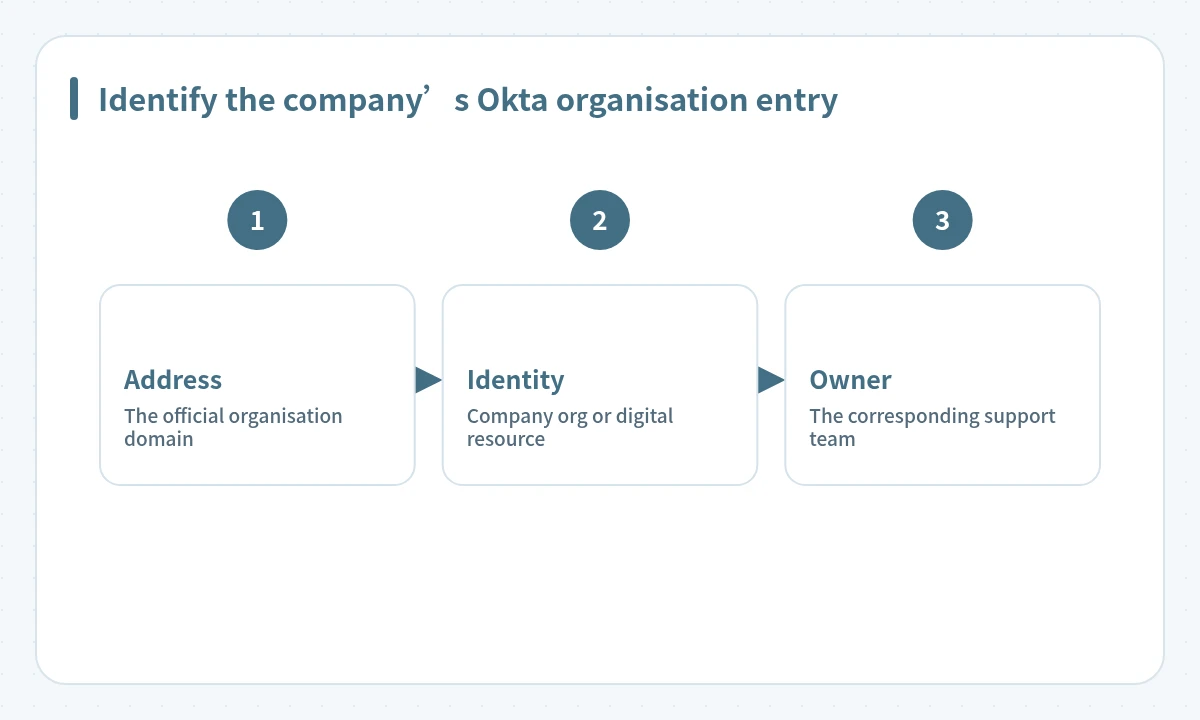
Confirm that the account belongs to the organisation shown. An email address appearing in several services does not establish that the identities are interchangeable. Access to Okta's digital resources is not evidence that the same account can enter the employer's internal applications.
Identify the appropriate support owner
| Account or issue | Relevant support route |
|---|---|
| Company Okta organisation | The organisation's IT, help desk or administrator |
| Okta digital-resource account | That resource account's official assistance |
| A business application | The organisation identity and application owners |
Okta's account-type guidance sends company-organisation reset and unlock questions to company administrators. Disclosing a dynamic code to an outside person does not replace their investigation of the identity and policy. It can instead expose an internal access route.
A support request should identify which organisation entry was used before discussing the device. That simple ordering prevents an employee's account issue from being sent to the support process for an unrelated learning identity.
The organisation determines the available method
Read whether the page asks for SMS, app approval, an authenticator or another resource. Different organisations can configure different requirements. Another employee's screenshot does not establish that your identity has the same method enrolled. Use an alternative only when the official page offers it; otherwise consult the organisation rather than install a forced-recovery extension.
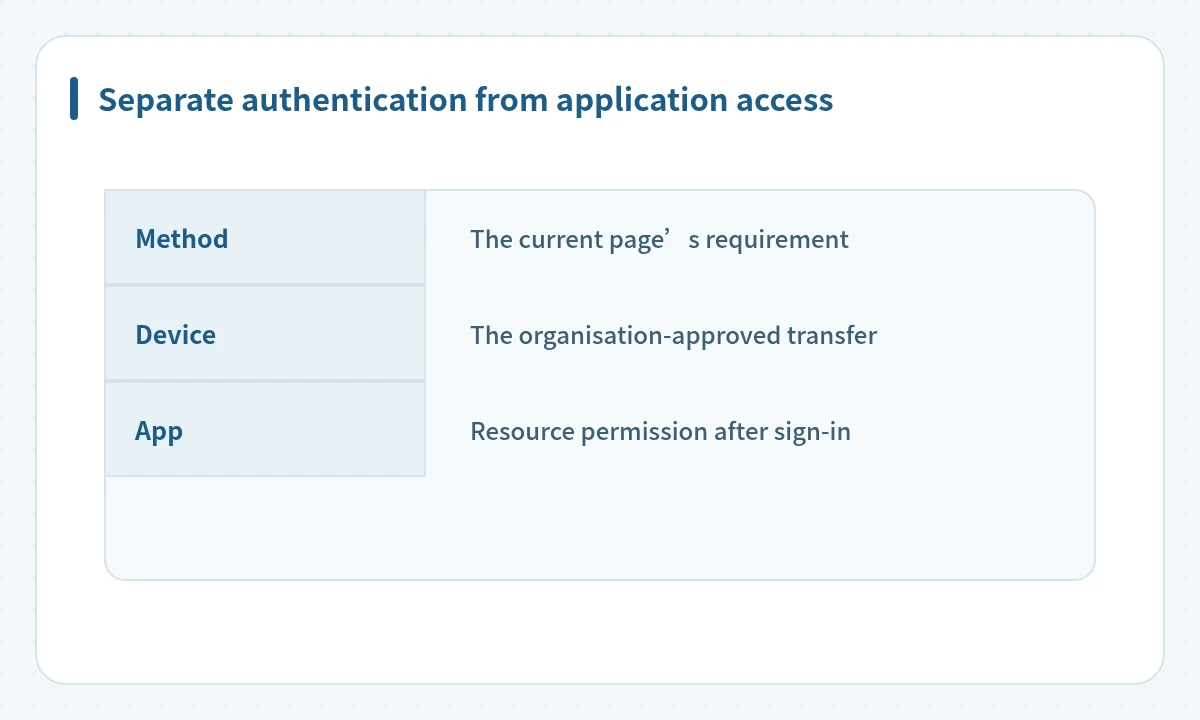
Before replacing a phone, inspect the organisation's approved authentication-transfer process. Keeping the mobile number does not establish transfer of an app enrolment. Preserve the old device if it remains usable while the supported new-device arrangement is completed.
A preparation record can list the organisation, account type, method and responsible team. It should not include setup QR codes, seeds or passwords. These are access resources, not normal information needed to route an incident.
Describe the entry and failed stage precisely
Provide the organisation address, method label, exact error and approximate time through the trusted company channel. Hide credentials and internal business content in screenshots. If Okta sign-in completed but an application remains inaccessible, inspect that application's authorisation instead of treating every later error as missing SMS.
Separating organisation entry, authentication and application access gives each question an appropriate owner. It also lets the administrator understand the problem without asking you to forward the secret that would complete the challenge.
If you work with two organisations, keep their approved entry addresses clearly labelled. Start an incident report with the affected organisation rather than only the phone model. This helps the correct help desk identify its own account context before investigating verification.
References
Okta: Find your company's sign-in page; Okta: Support routes for different account types.
