
GitLab verification codes should not automatically be interpreted as SMS messages. If the current page asks for a code from an authenticator, that is the place to inspect. First also check whether you are signing in to GitLab.com or an instance operated by your organisation.
Establish which instance holds the account
Two GitLab sites can look similar without sharing accounts or security settings. Check the browser's domain, the account identity and the login route supplied by your organisation. GitLab.com recovery instructions are not automatically the procedure for an employer's instance, and an identity provider's challenge may need that provider's support instead.
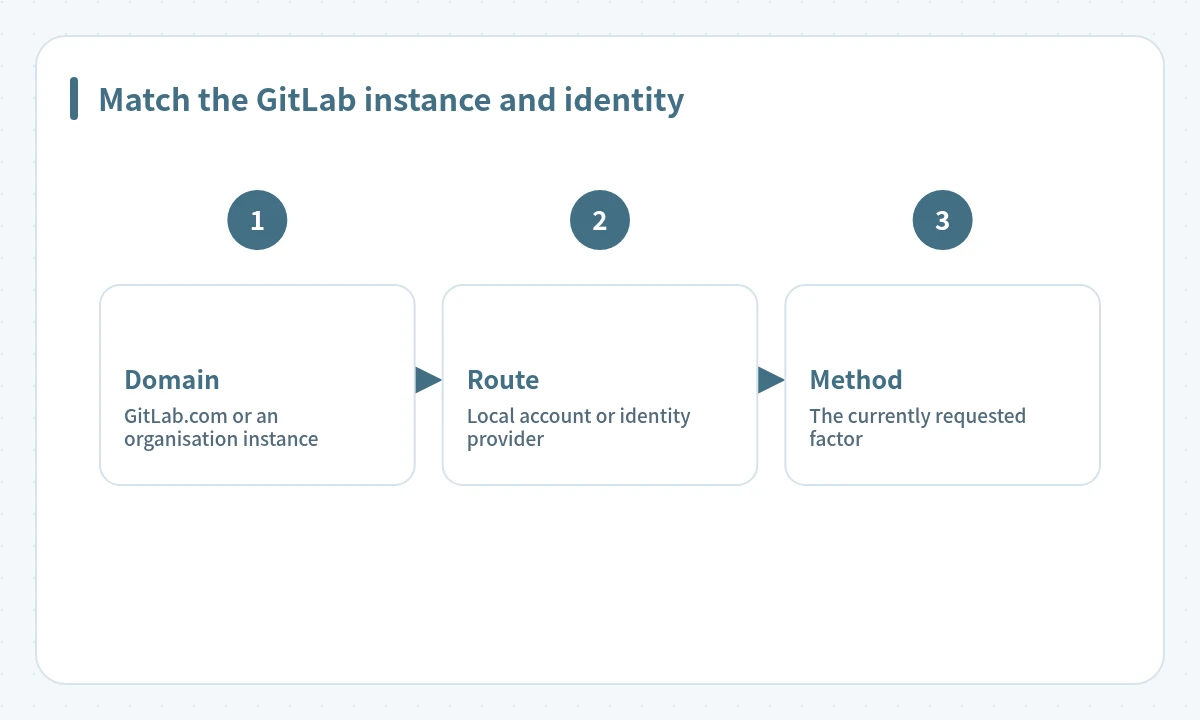
GitLab documents authenticator-based two-factor authentication and recovery options. The instance and organisation determine the applicable configuration. Read the current request rather than inferring that a missing SMS caused the interruption simply because the field expects digits.
Confirm the authenticator entry before changing it
An app may contain entries for an old instance, a test environment and a production account with similar labels. Relate the selected entry to your own setup records. Check that the device's time is normal, then consult the relevant official troubleshooting instructions. Random QR codes supplied by outside helpers are not a legitimate repair method for an authentication secret.
| Item | Must correspond to |
|---|---|
| Site domain | The actual GitLab instance |
| Login identity | The local account or organisation provider |
| Authenticator entry | Your configured account on that instance |
| Recovery information | The current account's saved official material |
Recovery codes also need their own handling. Follow the official instructions and check whether a code has already been consumed or replaced. Never attach a complete list to a support ticket. A report can identify the recovery stage without disclosing the credential that would complete it.
Separate login from project and tool access
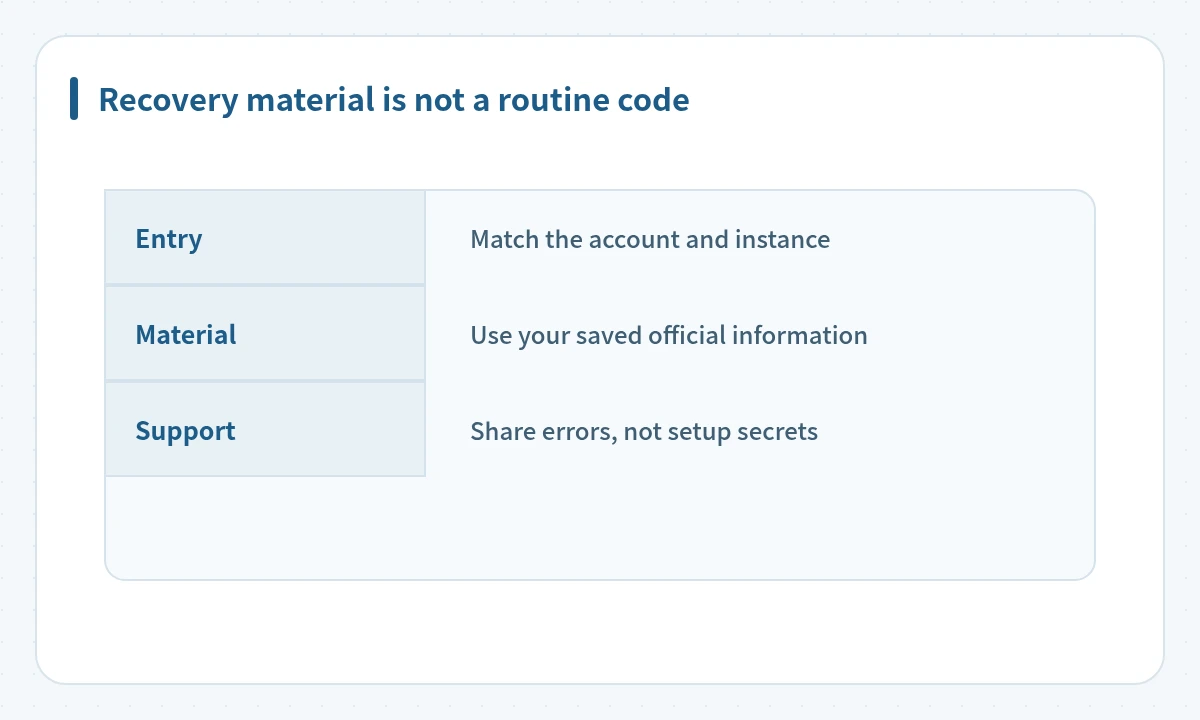
After personal sign-in succeeds, opening a project can still depend on membership and organisation requirements. Command-line tools use their own documented authentication arrangements. A short-lived website verification code is not a general replacement for a tool's expected credential, and pasting it into continuous-integration variables can expose it in places unrelated to the original login.
For an organisation-managed instance, provide the administrator with the domain, account, login route, exact error and approximate time. For GitLab.com, use the corresponding official support guidance. Do not hand an outside individual your password in return for a claimed back-office removal of the verification setting.
Preserve a working route during a phone change
Inspect the available security methods and recovery material while an existing device remains usable. Prepare the supported new-device arrangement before clearing the old phone. If the change stops midway, keeping the previous state intact allows you to investigate without discarding access that still works.
Troubleshooting notes should name the method and error, not contain the seed, setup QR code or recovery values. Store sensitive recovery material through an appropriate protected process instead of an ordinary shared incident document.
The order matters: identify the instance, identify the requested method and then identify the resource that remains inaccessible. It avoids spending time on an SMS request that never occurred and lets the responsible administrator distinguish a sign-in problem from a project-permission problem.
References
GitLab: Two-factor authentication and recovery.
