
Cloudways verification codes can have different alternatives for primary account holders and team members. An owner seeing an SMS option does not establish that a member should see it too. Identify your role and configured authentication before reporting the missing button as a delivery fault.
Do not apply an owner's screenshot to every member
Cloudways' official two-factor help says owners and members can use authenticator protection, while the SMS alternative is limited to primary account holders. Members should inspect their own configured method and backups rather than use an owner's phone as a shared team entry.
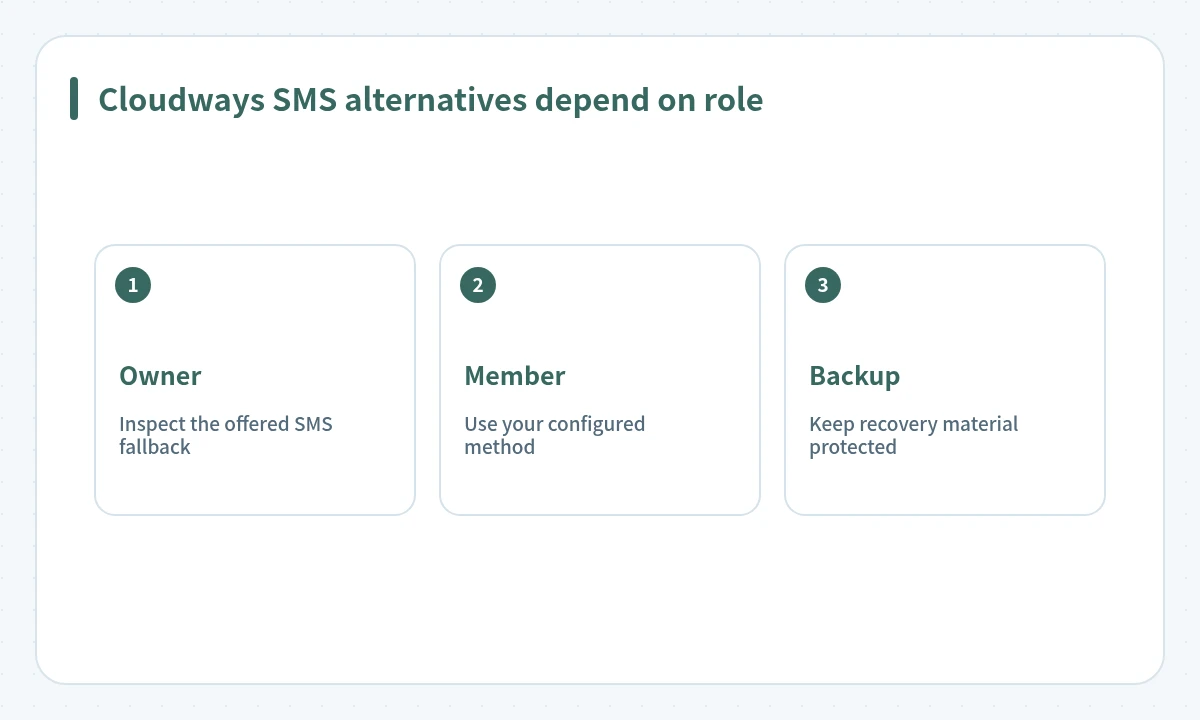
Record the current account email and role. If a project is missing after entry, distinguish that observation from an unfinished login challenge. A text delivered to the owner does not simultaneously authenticate another identity or grant its project permissions.
Inventory the resources belonging to your identity
| Resource | What to establish |
|---|---|
| Authenticator | The entry matches your Cloudways account |
| Backup information | It was retained for the current setup |
| SMS alternative | Your role and page actually offer it |
A scanned setup QR code creates a local record, but the platform still needs its required confirmation. Inspect the enabled state after completing setup. Email confirmation during configuration, authenticator confirmation and an ordinary later login can involve different stages.
When a team operates several accounts, label the authenticator entries clearly enough to distinguish them without publishing their secrets. A familiar service logo alone may not identify the correct account.
Use the formal fallback when the phone is unavailable
Inspect the other methods actually offered on the login page and use recovery material saved for your own identity. Backup codes are access credentials. Protect them rather than place them beside public project documentation or send the whole set into a support conversation.
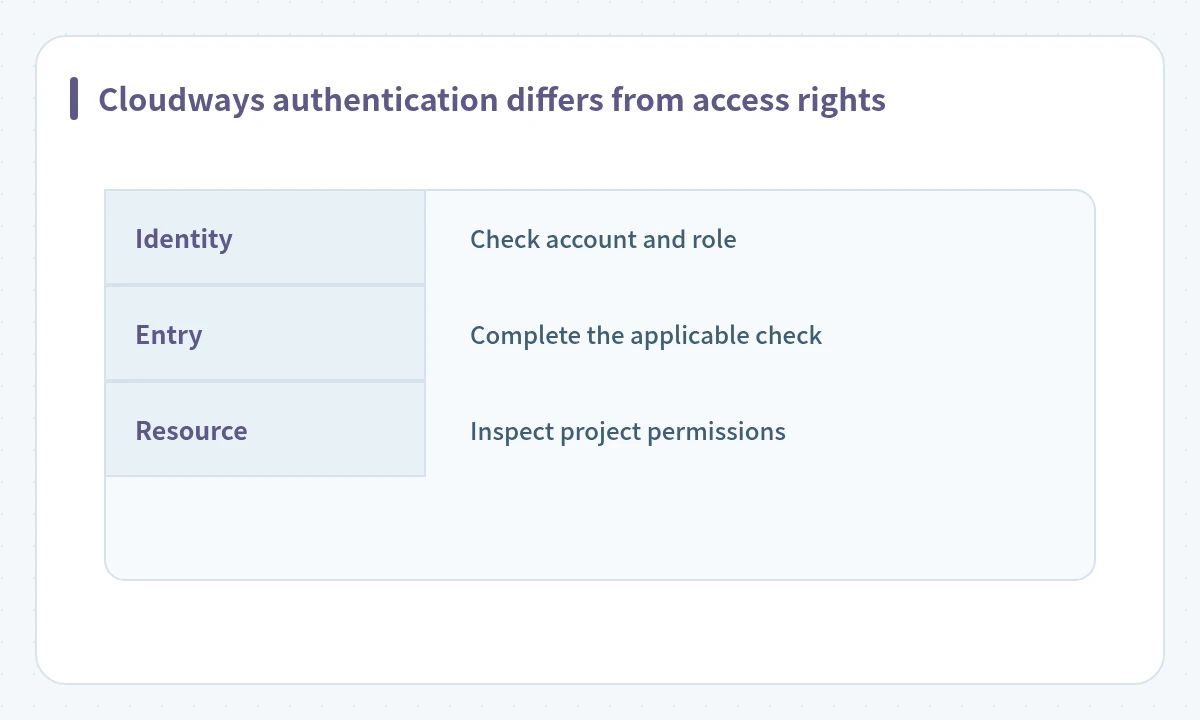
If every enrolled resource is unavailable, tell official support which role and resource are involved. Borrowing another member's account does not resolve ownership of yours. Likewise, copying the primary holder's long-term authentication material into a team chat is not a sound way to restore server access.
For a planned phone replacement, inventory the remaining access first and complete the supported new arrangement before retiring the old device. Moving a SIM card and moving an authenticator entry should be checked as separate tasks.
Inspect project authorisation after authentication
Once inside the console, check the expected identity, role, servers and applications. Authentication establishes entry to that identity; it does not expand resource permissions. Ask an authorised administrator to investigate missing access rather than repeatedly resetting the authenticator.
A handover involving several people should maintain member identities and project assignments separately. One phone should not become an unexplained common key for the entire operation. Keep a concise record of the affected account, method, time and masked error so support can investigate the actual interruption without needing server credentials or customer information unrelated to the login problem.
For project access questions, include the affected resource name privately and say whether the dashboard itself opened. This lets an administrator inspect the assignment without asking you to keep generating codes for a login that already completed successfully.
References
Cloudways: Two-factor methods, account roles and recovery.
