
Azure verification codes delivered for a business guest invitation need the correct email and organization context. Microsoft Entra B2B email passcodes are a conditional guest-authentication method, not a universal sign-in route for every Azure account. Receiving the message is an intermediate event. Continue through the intended organization or shared-resource link and inspect the result there.
Identify the inviting organization and resource
Read the invitation's target address, organization and intended resource. Personal Microsoft access, a work account and a guest relationship should not be treated as interchangeable entry points. A general portal opening through a retained browser session does not prove that the invited identity has entered the correct environment.
For example, an invitation sent to a work mailbox could open while the browser retains a personal session. First establish which identity the request uses. Immediately asking for another identical invitation can repeat the same mismatch without answering why the original link did not produce the expected account context.
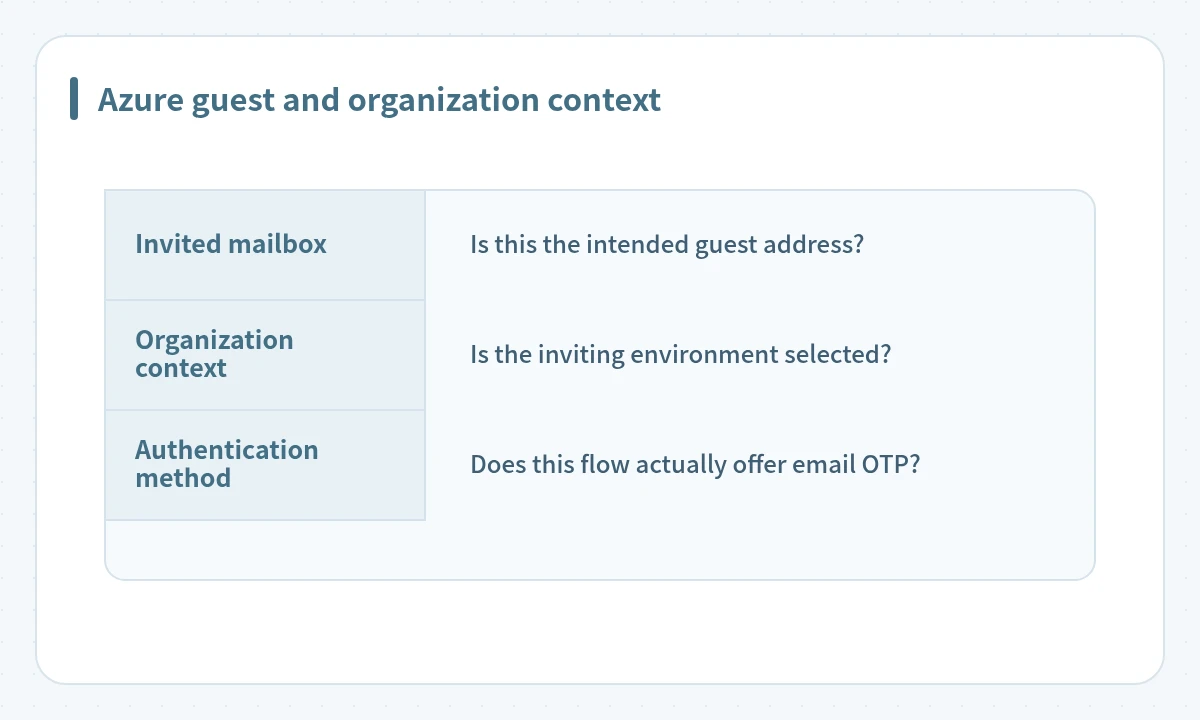
Compare the information that defines the guest request
| Item | Question to answer |
|---|---|
| Invited mailbox | Is this the intended guest address? |
| Organization context | Is the inviting environment selected? |
| Authentication method | Does this flow actually offer email OTP? |
The official documentation describes email passcodes as a fallback for qualifying guests who cannot be authenticated through other relevant methods. Account circumstances and tenant configuration affect the result. Do not promise that every invitation will produce the same email challenge or that creating another Microsoft identity will automatically change an existing guest's method.
Continue through a link with the intended context
Use the direct resource entry supplied by the inviting organization. Where a common sign-in entry is used, follow its organization-selection instructions and check the selected environment. An arbitrary tenant page found through search is not a replacement for the original resource context.
If mail arrives but the page reports an organization or identity mismatch, preserve the precise response. Ask the inviter to inspect the guest address and intended entry route. Changing your mobile number does not explain that relationship. A useful report specifies the stage reached rather than reducing every access failure to a message-delivery issue.
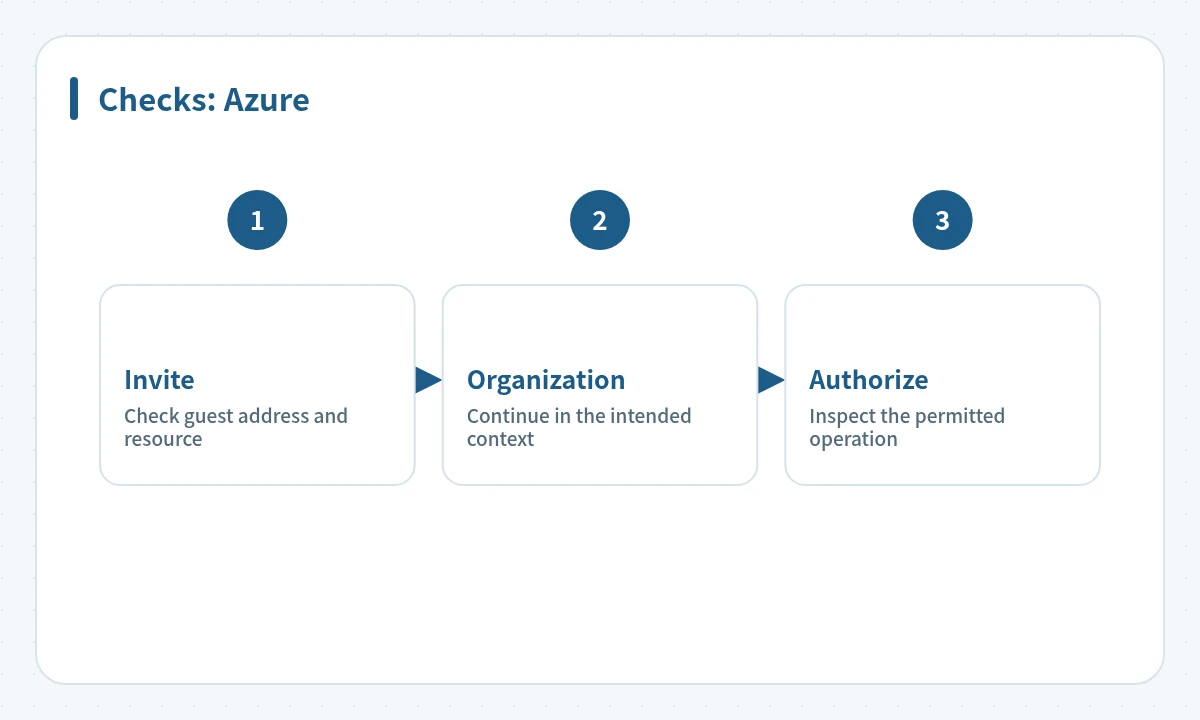
Check authorization after authentication
Once the challenge succeeds, open the resource that was actually shared and inspect the permitted operation. Email confirmation does not grant access to every Azure subscription or organizational resource. Missing access should be checked by the responsible resource administrator, without asking someone else to share their authentication value.
Distinguish absent mail, a rejected passcode and insufficient permission after sign-in. The first concerns a destination, the second an active request, and the third a resource and its authorization. Hide sensitive invitation details and live values in screenshots while preserving the error wording needed to identify the stage.
If an administrator needs to change the guest's authentication arrangement, let them use the supported process. Creating several identities as experiments can make one person's access relationship harder to understand. Finish with a specific result: the intended guest can enter the intended organization and perform the approved task, or a clearly identified permission issue still needs action.
References
Microsoft: B2B guest email passcodes and organization sign-in.
