
Autodesk verification codes should be obtained through the method shown on the current account page. If an older tutorial tells you to wait for a text or call, compare it with Autodesk's current security guidance before changing phone settings. The available methods have changed.
Replace the old SMS assumption
Autodesk's current account-security documentation says SMS and voice are no longer offered for sign-in confirmation. It describes email codes and authenticator use instead. Read the actual destination or method label before deciding which device or inbox needs investigation.
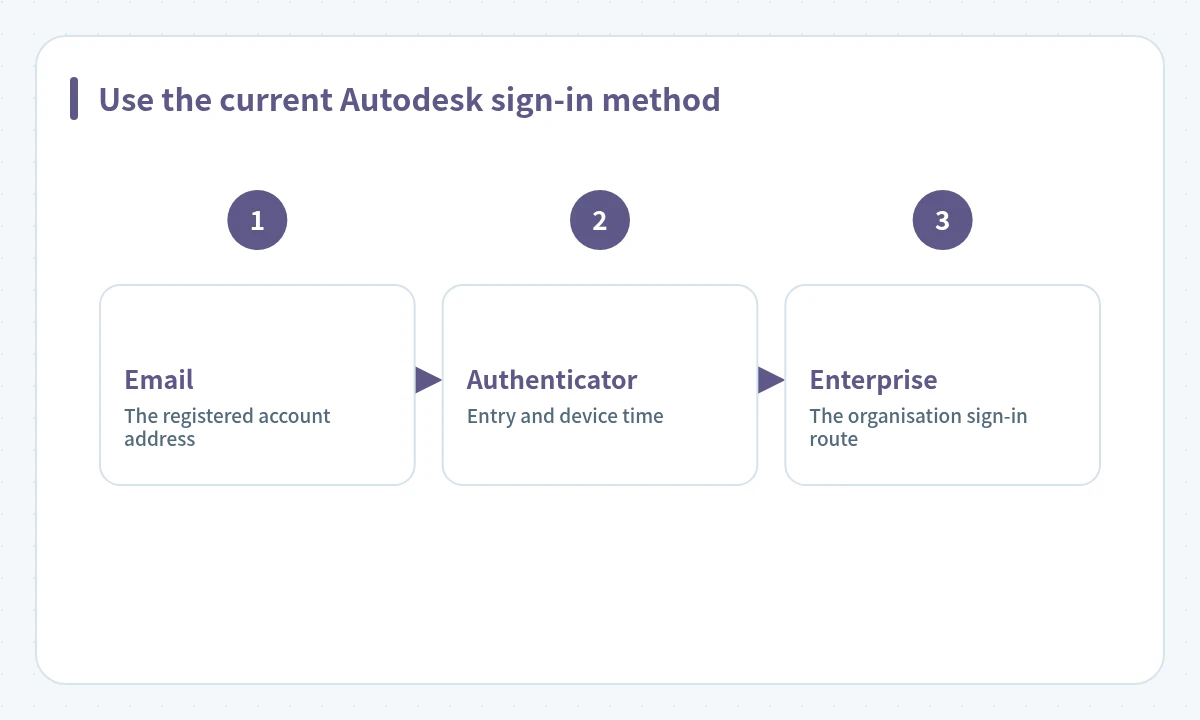
A telephone number retained in profile information does not establish that the present login sends security messages there. Likewise, an organisation's single sign-on flow can be handled by its identity provider. Record where the request appears rather than combining personal-account instructions with a corporate screen.
Diagnose the resource actually requested
| Prompt | Relevant observation |
|---|---|
| Email code | Registered address and mail filtering |
| Authenticator value | Matching entry and device time |
| Organisation sign-in | The employer's identity requirements |
For email, inspect the address before searching spam and organisational quarantine. A company filter may hold the message outside the folders visible to you. Ask an authorised administrator to investigate the relevant sender and time without forwarding the credential to an ordinary ticket.
For an authenticator, compare the account address associated with the entry. A phone may contain similar records for separate organisations. Receiving a normal text successfully tells you nothing about whether the correct authenticator entry was configured.
Preserve email access during recovery
Autodesk's troubleshooting guidance describes requesting an email code when the authenticator is unavailable but the account mailbox remains accessible. Use the alternative actually offered on the official page. Do not invent a recovery URL or assume every managed account displays identical controls.
After regaining entry, review the relevant authenticator settings and permitted backup arrangements. A setup QR code or secret is authentication material. A support screenshot can show the method and error without exposing either item.
Before removing an old entry, establish that its replacement was accepted. A local app entry and a saved account setting are different observations. Retaining that distinction is especially useful during a planned phone change involving several corporate identities.
Separate account access from product entitlement
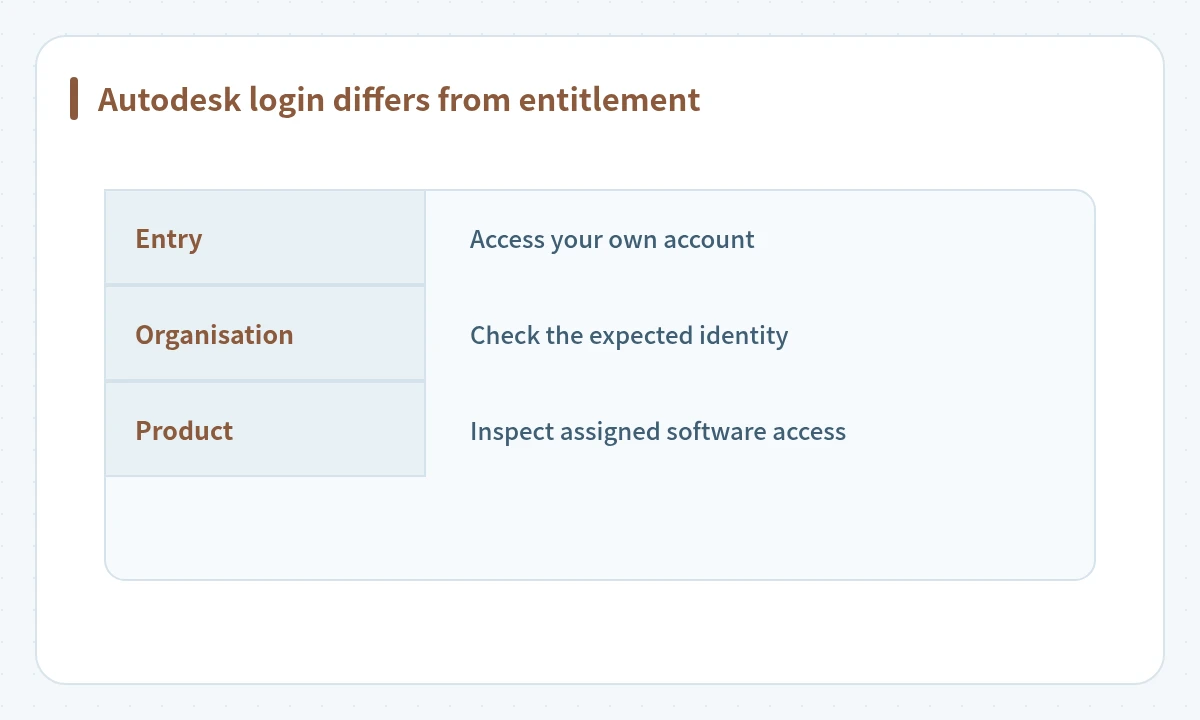
Once signed in, inspect the intended organisation, subscription and product. An absent entitlement may need the organisation's administrator, even though the login challenge succeeded. Repeated email requests will not diagnose a missing product assignment.
A useful support description states whether you cannot enter the account or can enter but cannot see the expected software. Include the client, current method and exact masked error. If the mailbox is also unavailable, identify that additional loss clearly and use the relevant recovery or support route. Creating another identity does not, by itself, transfer the original organisation's products or history.
On a shared workstation, also consider whether trusting the browser is appropriate before accepting that option. A successful personal test should not leave an unattended corporate device able to enter your account later. Follow the organisation's requirements for shared equipment and sign-out.
References
Autodesk: Current sign-in confirmation methods; Autodesk: Troubleshooting unavailable two-step authentication.
