
Appen verification codes during CrowdGen setup can involve email confirmation followed by authenticator enrollment. The official onboarding guide collects a phone number but then describes those distinct tasks. Providing a mobile number does not mean that every later numeric field is waiting for SMS. Read the destination and purpose at each step before requesting another message.
Use the contributor account route
This discussion concerns CrowdGen by Appen contributors, rather than the customer platform. Follow the legitimate welcome message and official site instructions, and identify the intended email. An existing contributor should establish the original account relationship instead of treating a customer sign-in page as a contributor-recovery entry.
For example, the setup page may announce an email after the mobile field has been completed. In that case, inspect the registered mailbox. The lack of a new phone text does not establish failure of the email step. Match the active instruction with the resource it actually names.
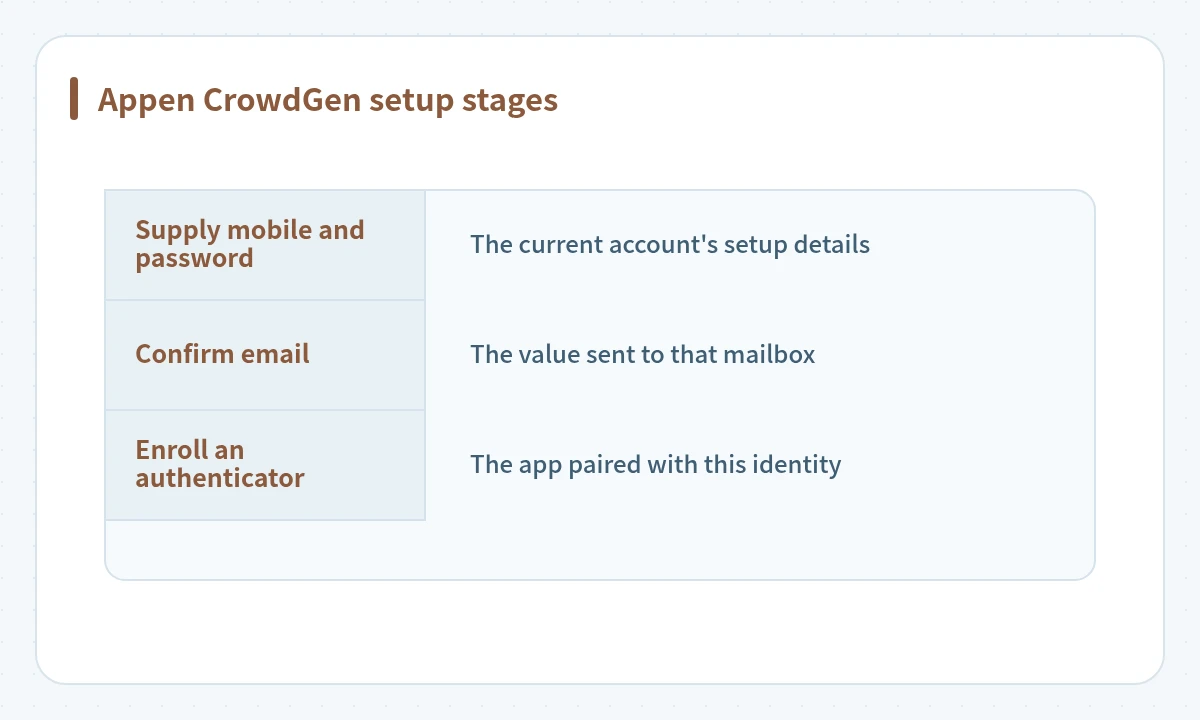
Distinguish the setup operations
| Operation | Resource involved |
|---|---|
| Supply mobile and password | The current account's setup details |
| Confirm email | The value sent to that mailbox |
| Enroll an authenticator | The app paired with this identity |
The official sequence includes connecting an authenticator through the user's setup QR code or an offered manual method, then entering the app-generated value. The earlier email does not replace that pairing. Keep the steps distinct even when their fields accept similarly formatted digits.
Establish the authenticator relationship before using its numbers
Installing Google Authenticator or Microsoft Authenticator does not automatically add the CrowdGen identity. Follow the official enrollment page and inspect the resulting account entry. A demonstration QR image in someone else's tutorial cannot establish your secret relationship with the account and should not be scanned as if it were your own setup.
Protect setup keys, QR images and live values. They do not belong in public support screenshots. If scanning fails, inspect the current page's allowed manual option rather than downloading an unofficial verification tool. Record the exact step and response so support can distinguish enrollment failure from a rejected value after pairing.
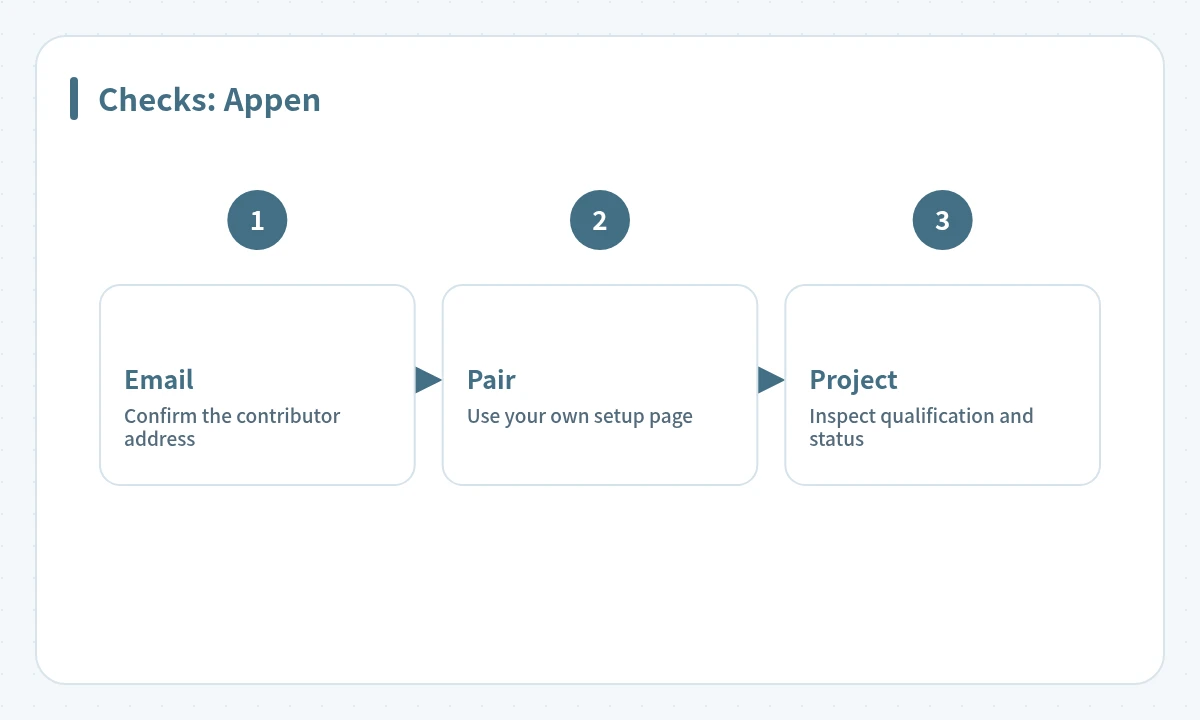
Check project status after account setup
CrowdGen's guide separately describes continuing with qualification after reaching the dashboard. Email confirmation or successful authenticator setup is not a guarantee of a particular project, income or final acceptance. Inspect the actual application and project state rather than interpreting account access as completion of every onboarding condition.
A support report should say whether the obstacle is email, authenticator enrollment or a later qualification screen. Include the time and error wording, with private material removed. Use Appen's official scam-awareness information to check the route if someone asks for identity records outside the legitimate process.
Once setup completes, verify the original contributor account and relevant project page. Maintain accessible recovery resources through the offered security settings. Repeatedly creating identities to skip an unexplained step can make the original application harder to identify. A short record of the completed stage and remaining project task provides continuity without keeping the actual codes that were used to establish access.
References
CrowdGen by Appen: account setup and authenticator onboarding; Appen: official channels and scam awareness.
