
Wish verification codes are not always the action involved in email signup: the official account-creation guide describes an emailed verification link. If you chose email registration, look for that link instead of waiting for SMS. First identify the route selected on the page, then use its corresponding resource.
Email registration continues in the email message
With the documented email route, enter the requested information and continue through the verification link sent to that address. Do not search the phone inbox for digits or paste a complete email link into an unrelated numeric field. A clickable confirmation and a typed code are different interface actions.
If the message is absent, compare the entered address with the mailbox you opened and inspect junk mail. A phone may open a default mailbox that differs from the shopping address you submitted. Check that mismatch before concluding that email delivery failed.
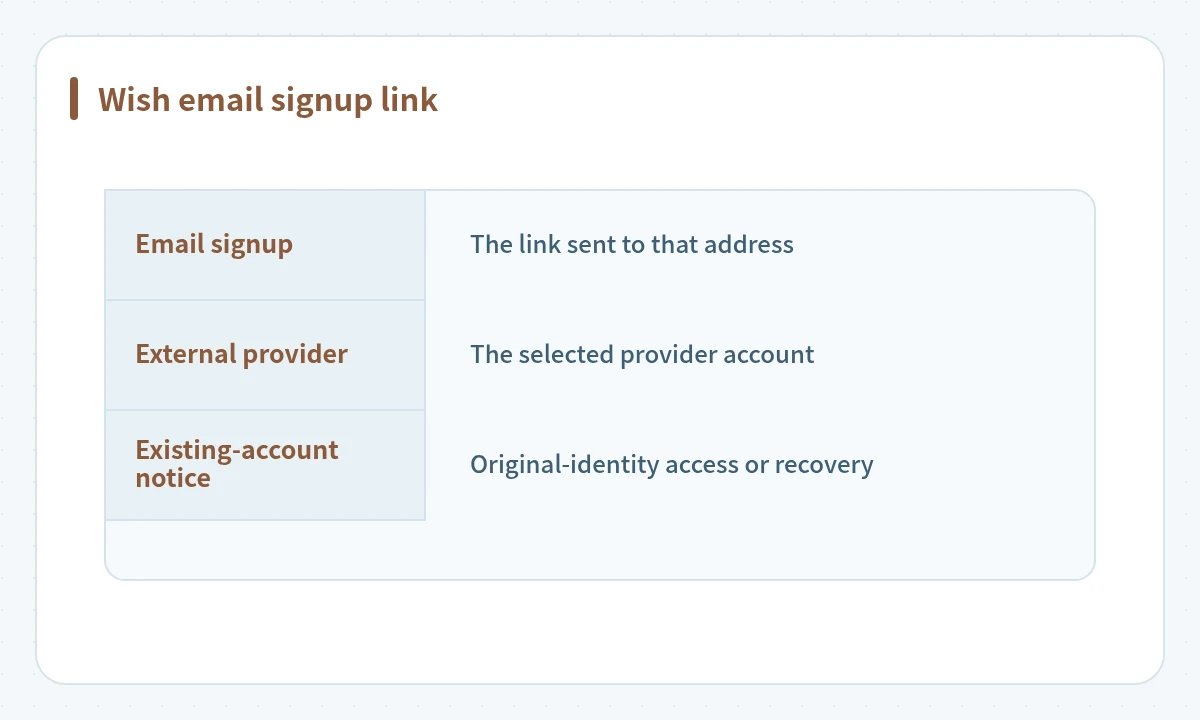
| Chosen route | Confirmation resource |
|---|---|
| Email signup | The link sent to that address |
| External provider | The selected provider account |
| Existing-account notice | Original-identity access or recovery |
Select the intended identity for a provider route
Wish also lists Facebook, Google, and Apple account-creation options. Before continuing through one, inspect which provider identity the device or browser selected. A device with several signed-in accounts can supply a different identity from the one you used for earlier orders.
If the account already exists, return to its appropriate login method rather than creating another similar profile to search for orders. Registering with a different email or provider identity does not, by itself, move records from the previous account. Establish which identity holds them first.
Where your recollection is uncertain, your own earlier order correspondence can help identify the address associated with those records. Keep that investigation private. An order number in an old email can be useful context for official support, but a public post does not need your complete personal details.
Inspect the page after opening the link
Continue from the email connected to the request you initiated and read the official page's resulting state. A message being marked as read does not show that account creation finished. If the browser does not complete its navigation, preserve the prompt rather than clicking unrelated notification buttons.
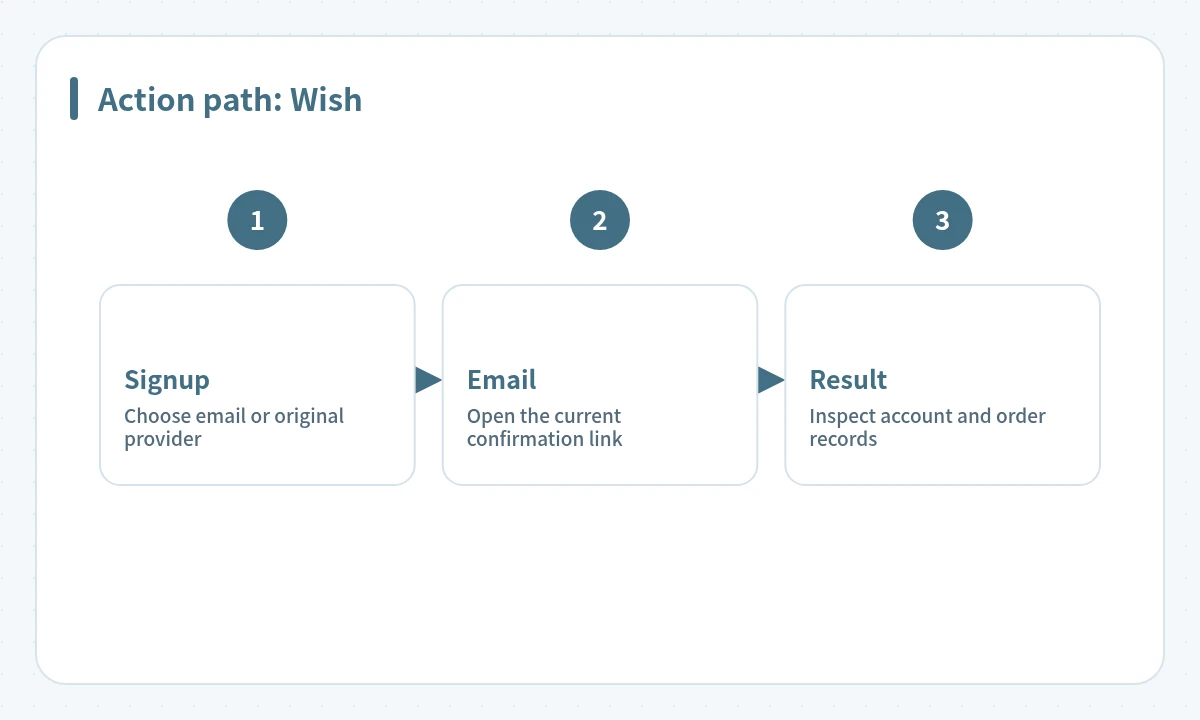
Treat the link as a private account resource. Do not forward it to shopping-group members or a stranger offering to finish signup for you. When asking support for help, describe the route, approximate request time, and error without publishing the complete link or any live value.
After entering, check the identity and existing records before editing delivery details. If the account is unexpectedly empty, inspect the access route first. If your actual problem is finding earlier orders, explain that as access to the original account rather than reporting that a text never arrived.
This distinction avoids a long search in the wrong inbox. The objective is to complete the action your page requires and reach the intended identity, not simply to collect a confirmation message from whichever channel happens to be available.
References
Wish: Email and provider account creation
