
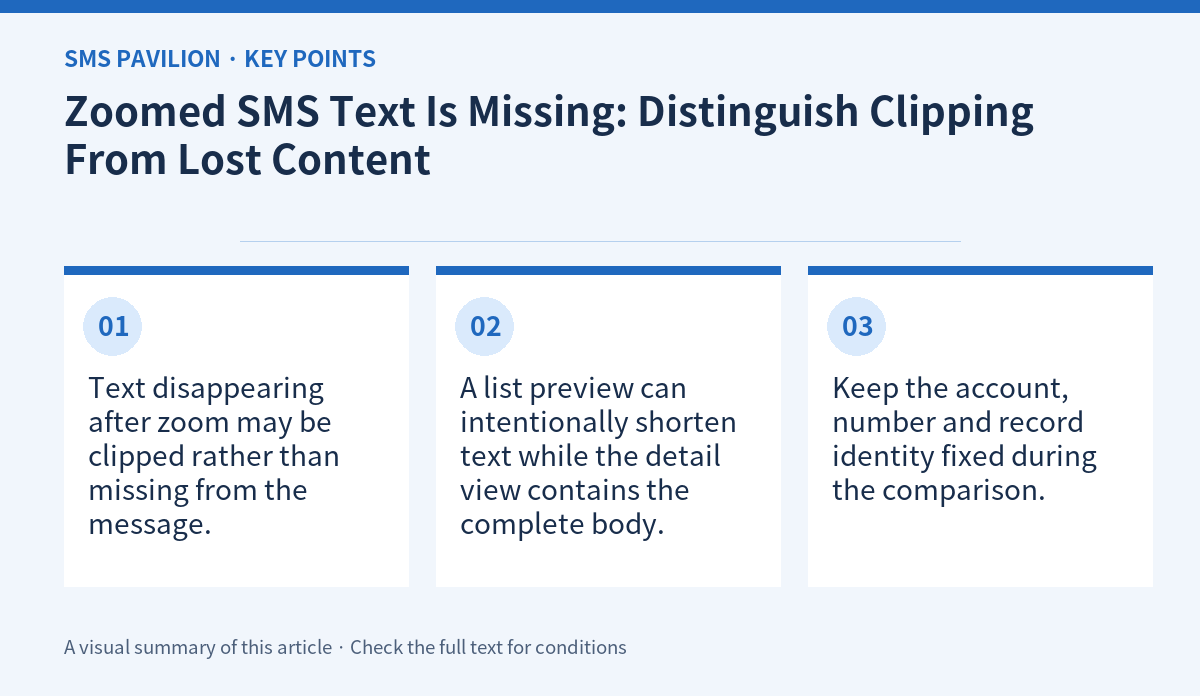
Text disappearing after zoom may be clipped rather than missing from the message. Compare the list preview with authorised details, then check scrolling and wrapping within the content area.
Identify which representation is clipped
A list preview can intentionally shorten text while the detail view contains the complete body. A fixed-height panel can also hide lines after enlargement. Check for a normal expand control, scrolling region or detail link, and distinguish an excerpt from a supposedly complete record.
Keep the account, number and record identity fixed during the comparison. Opening a different message while adjusting the display can create an apparent inconsistency that has nothing to do with zoom. Use a harmless sample if a screenshot or recording is needed to demonstrate the layout issue.
Check the whole reading task at the required size
W3C’s explanation of reflow concerns presenting enlarged content without losing information or functionality. That is a useful design reference, not a claim that a particular inbox has passed accessibility testing. The practical check is whether the person can still identify fields, read the message and reach the necessary controls.
| Observation | Useful distinction |
|---|---|
| Only the preview is short | Open the full record through its normal control |
| Text extends outside a panel | Investigate layout and scrolling |
| A fixed bar covers content | Record the overlapping elements |
| Source data also differs | Investigate content separately from presentation |
Try supported display options while retaining the size needed for comfortable reading. Permanently shrinking text until the interface fits is not a complete resolution for someone who needs enlargement. If another supported view works, record that route along with the original obstruction.
Distinguish browser zoom from a website’s own text-size control when describing the issue. They can produce different layouts, so record the setting actually used. A comparison that changes both at once can obscure the failing condition and make a maintainer’s attempted reproduction look falsely successful.
Give maintainers a reproducible layout report
Include the browser, device, orientation and enlargement settings, plus the specific field or control that became inaccessible. A screenshot should exclude live verification codes and unrelated account information. Describe what is hidden and what action you expected to take, rather than reporting only that the page “looks wrong.”
For a controlled comparison, return to the same record after one setting change at a time. Check long text and long addresses as well as the short example that first exposed the issue. A fix that shows the body but hides the recipient label can leave the original task unreliable.
If the underlying record itself lacks content, treat that as a separate question and follow the service’s documented data path. Do not infer original delivery loss merely from a clipped browser panel. Conversely, a layout workaround should not be presented as proof that every source character was present unless the complete record was actually checked.
Reference: W3C: understanding reflow and enlarged content.
