
A screen reader can make messages accessible while allowing nearby people to hear them. Check the audio destination and reading scope before opening a private message.
Find out what the reading command will announce
A screen reader may announce control labels, sender information and message previews as focus moves. A separate read-aloud feature may read the current selection or a larger part of the page. Check the actual tool rather than assuming every speech command reads only the paragraph you intended.
Start with ordinary, non-sensitive sample text in a setting you control. Establish how to start, pause and stop speech, and how to move away from a detail view without accidentally rereading it. There is no need to trigger a real verification message to learn those commands.
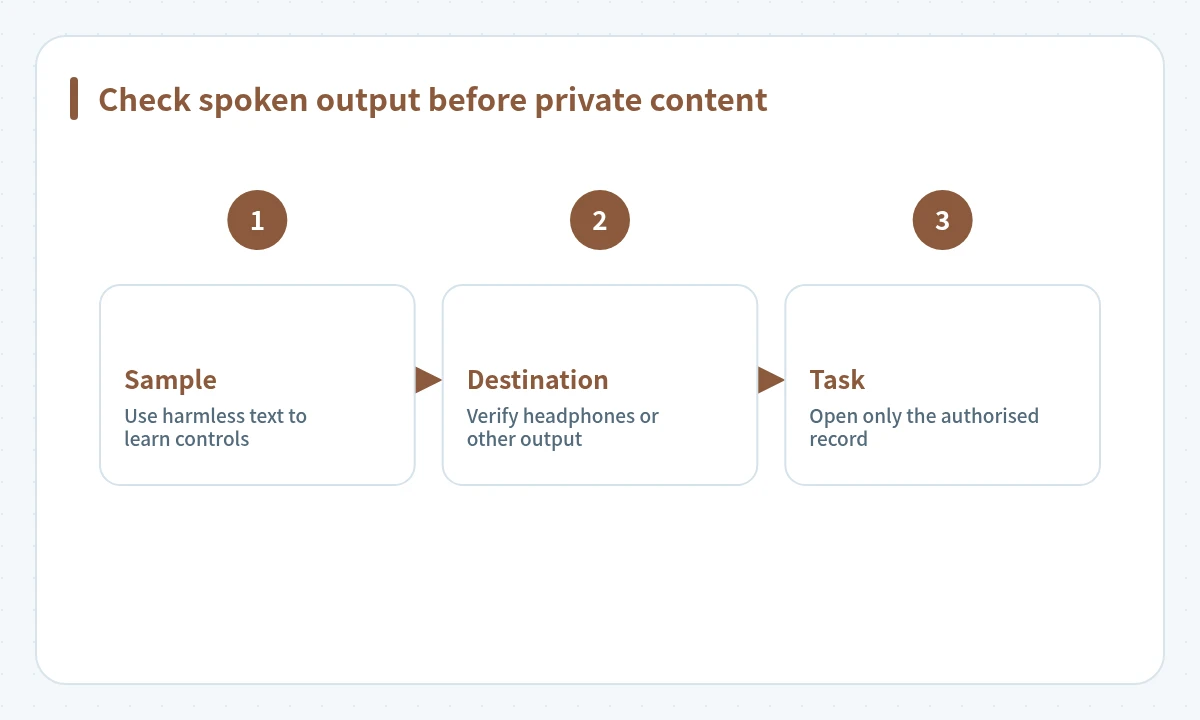
Check the output destination before opening details
Speech can go to speakers, headphones or a connected device, depending on the system and application. Verify the active destination and volume. A previously paired device or a change after disconnecting headphones can make an old assumption about the route unreliable.
If you are in a shared space, choose a suitable output arrangement before entering private content. This is a presentation decision, separate from whether the account is authorised to read the message. Someone can legitimately use the inbox while still needing to prevent the spoken output from reaching bystanders.
For tasks assisted by another person, agree which information the helper needs. They may be able to locate a control or explain an error without hearing an active code. Do not turn a navigation problem into a reason to disclose account authentication material.
Keep the message associated with the correct task
Speech is sequential, while a screen can place several messages side by side. Confirm the resource and selected record before acting on a code or a link. A sender label or the most recently spoken item alone may not identify the request currently open in another tab.
Where the interface offers meaningful headings and labelled controls, use them to move deliberately. If a button is announced ambiguously, pause before activating it. Guessing through repeated clicks can change a setting or send another request without making the original control clearer.
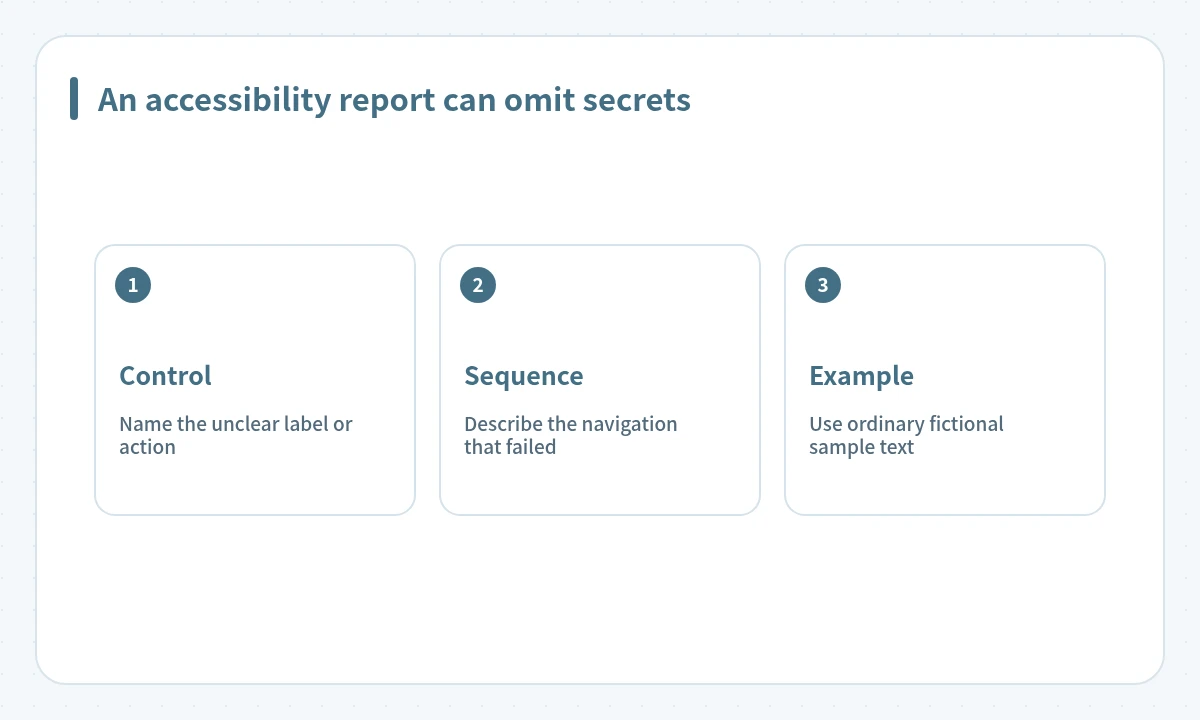
Report accessibility defects with a harmless example
A useful report names the page, reading tool, control and action. State what should have been announced and what actually happened, using sample text rather than a real message. Include the relevant browser or tool version where it helps reproduce the navigation issue.
If focus jumps after refresh, describe the sequence that causes the jump. If several controls share a label, identify their positions or surrounding headings. These observations help distinguish a labelling problem from an output-device problem without exposing the contents of the inbox.
After the task, close unnecessary detail views and stop speech as appropriate. If a chosen tool keeps transcripts, audio history or synchronised output, review its own settings and retention rules. Closing the web page should not be assumed to remove copies kept by another application. Accessible use should remain available while these specific output and storage boundaries are managed.
