
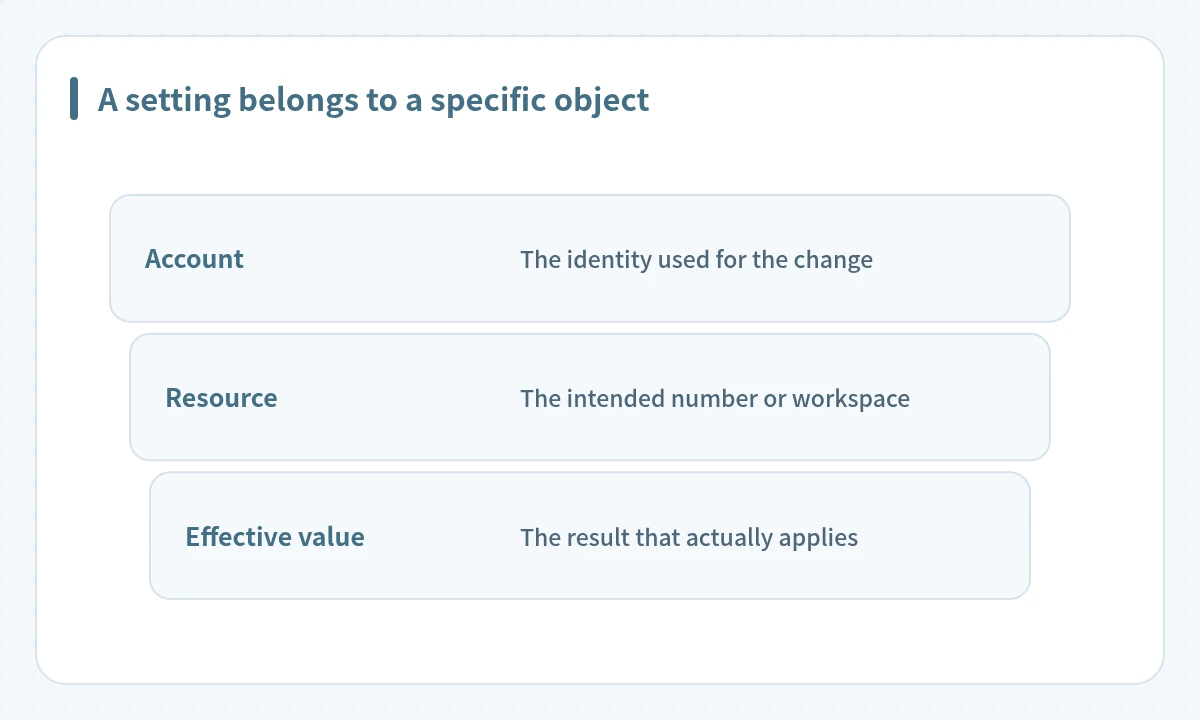
Entering a value, saving it and observing its effect are separate checks. Confirm whether a setting belongs to a user, workspace or resource, then inspect the returned and reloaded state.
Read the setting’s surrounding context
Confirm the signed-in account and selected workspace or number. Then read the field label and any explanation of scope. Similar-looking controls in two services do not establish identical behaviour, and a general “preferences” heading may not identify which object will be changed.
Some products offer account-wide defaults as well as per-resource overrides. Others do not. Treat those as arrangements to verify in the actual documentation rather than features to assume. If the scope is unclear, resolve that question before changing several values at once.
Distinguish a changed field from a confirmed save
Typing a new value only changes the local form. After using the supported save action, read the returned result. A validation error, a pending update and a completed change should not be recorded as the same outcome. Keep unsaved work protected if navigation would discard it.
For a consequential setting, note the old value, intended new value and resource identity without collecting unnecessary private messages. That small record helps explain a later discrepancy and provides a basis for undoing the change through the service’s normal controls if necessary.
Avoid repeatedly clicking save when the result is unclear. Review the current effective setting through the documented interface before sending another change. The first request might still be pending, and repeated input would add uncertainty rather than evidence.
Reopen the effective setting deliberately
Return to the known configuration view and check the same account and resource. Where the product documents an effective-value display, inspect it rather than relying on the stale form you left open. A list remaining visible in a tab is not proof that it was refreshed after saving.
If the service supplies a confirmation reference, keep it with the change note. It identifies that update without requiring a copy of the entire inbox or its authentication data.
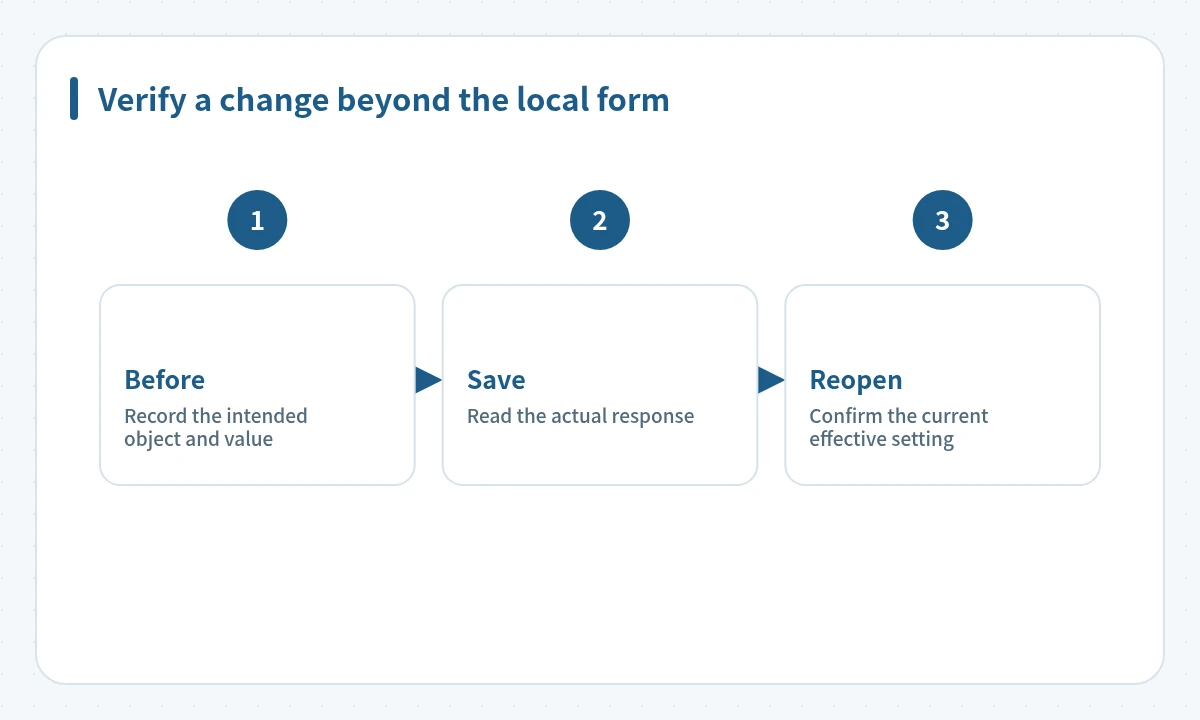
If the value differs from what you entered, preserve the observation. Check whether a documented default, override, delayed application or another authorised administrator’s change explains it. Do not select a different number until the expected value appears and then call the original task complete.
| Checkpoint | What to confirm |
|---|---|
| Before editing | Correct account, object and control purpose |
| After saving | The service’s actual success or error response |
| On reopening | The current effective value for the same object |
Coordinate overlapping changes
If two people are editing the same setting, stop overwriting each other’s result. Agree who owns the next change and retain each person’s intended values separately. A product may offer conflict detection or history, but a team should not pretend those features exist when they are undocumented.
After the agreed update, have the responsible person confirm the effective result and any supported functional check. Describe exactly what was checked; changing a notification preference, for example, does not establish that every future message will arrive. A clear completion note names the setting and the resource, not an unsupported promise about the whole service.
