
Start troubleshooting with the failing step and error text. If remote help is needed, separately decide the screen-sharing scope, control permission and stop procedure after confirming the helper and task.
Decide whether screen access is necessary
Start with a written description, browser version and a cropped, non-sensitive error image where possible. A helper may be able to explain a setting without seeing a live inbox. Verify the helper through an independently known support channel rather than responding to an unexpected request for remote access.
If viewing is necessary, agree on the problem to inspect and the information that can be shown. Close unrelated windows and hide notification previews where appropriate. Sharing one application window can have different scope from sharing an entire display; inspect the actual sharing tool’s controls instead of relying on its name.
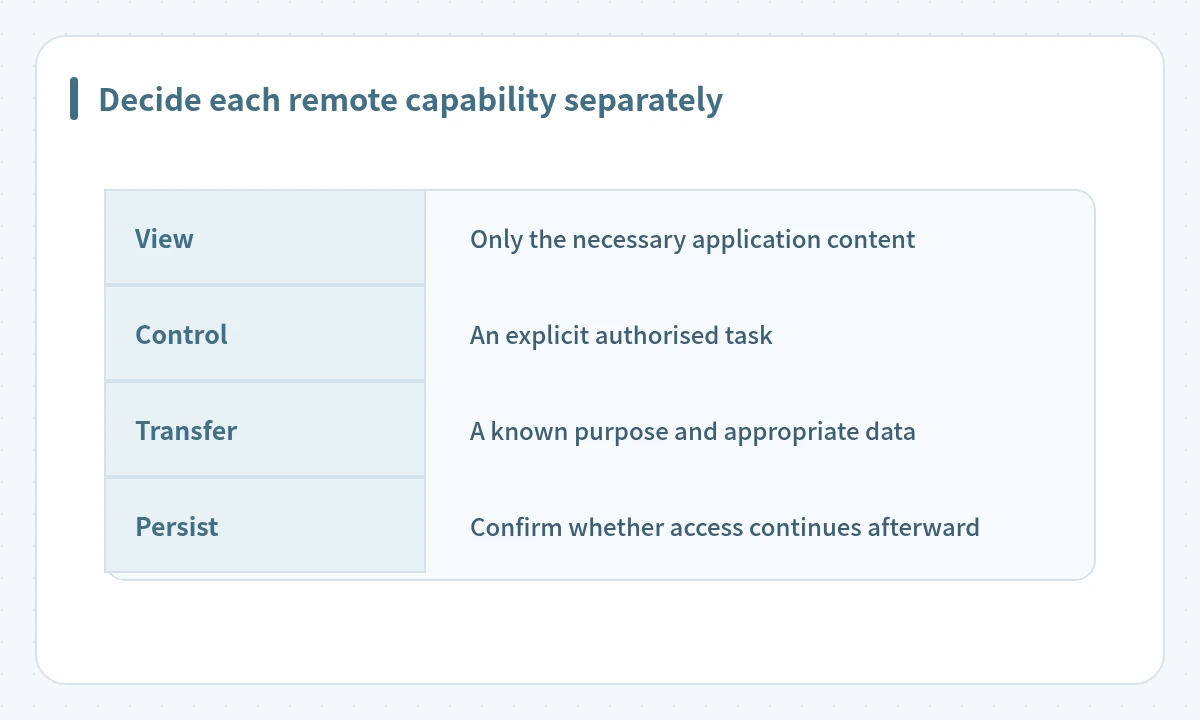
Keep viewing and control decisions explicit
A person allowed to observe should not automatically be allowed to click, type, transfer files or use the clipboard. Review which capabilities the selected tool offers and what you have enabled. Do not assume all tools support the same restrictions or that a pause button ends every form of access.
Use harmless authorised content to reproduce a display issue where practical. If an authentication step becomes necessary, keep passwords, live codes and approval actions under the account holder’s control in the correct environment. The helper’s knowledge of your problem does not authorise them to sign in as you.
| Capability | Decision to make |
|---|---|
| View a window | Which visible information is needed for the issue? |
| Control input | Is this necessary, authorised and limited to the agreed task? |
| Transfer files or clipboard data | What information would leave the device? |
Review proposed changes before applying them
Ask what a setting controls and how to restore it. Broad permission changes, unknown extensions and new remote-access software should not be accepted merely to make a button work. On a managed device, follow the organisation’s support arrangements and approval rules.
Do not let the session expand from a layout problem into unrelated account recovery or payment activity. If a new issue appears, decide whether it belongs to the agreed task before exposing more information. Record useful setting names and outcomes, not a transcript of authentication material.
Before reconnecting for another session, confirm the helper and the task again. A previous authorised conversation does not make a later unsolicited remote-access request trustworthy.
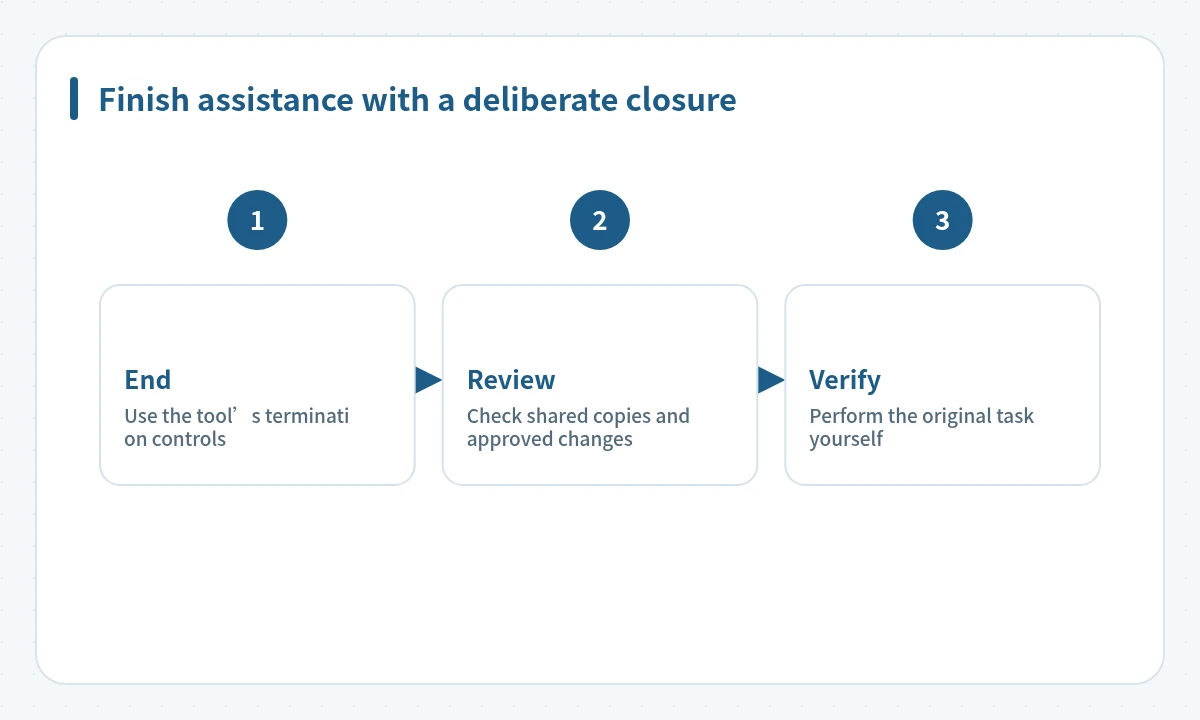
End the access, then check the result
Use the remote tool’s actual termination controls and confirm whether any persistent access option remains enabled. Closing the inbox tab may not end the assistance session. If files were intentionally shared or downloaded, handle those copies according to the agreed purpose and access rules.
Finally, check the original problem yourself: the affected field is visible, the intended page loads or the supported action works. A helper moving the pointer is not the outcome you needed. Retain a brief note of authorised changes and any unresolved issue so that the next support contact does not repeat broad experiments without context.
