
Stop entering credentials or codes when a certificate or connection warning appears. Confirm the official address, error and device environment instead of treating a warning bypass as a repair.
Confirm the address before changing anything
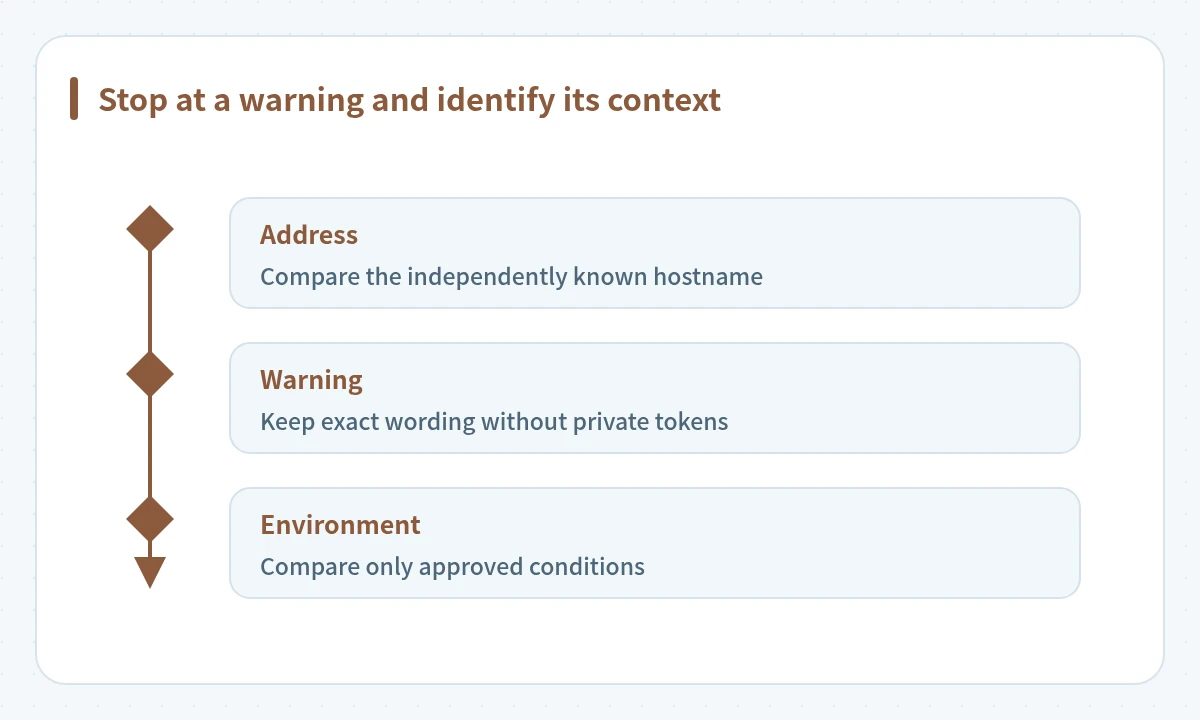
Compare the address with the service’s independently known entry point. A mistyped hostname, an obsolete bookmark or an unexpected redirect may lead somewhere other than the intended site. Do not judge the address by the page logo alone, and do not use a link from an unexplained warning message as your new login route.
Record the browser’s exact warning and the time observed, without copying private session parameters. Different warnings can indicate different problems, so “the page is unsafe” is less useful to support than the actual error wording and the confirmed hostname.
A controlled comparison can narrow the environment
Check that the device’s date and time are set normally. Note whether the issue occurs only on one managed network, one browser or one device. Keep the intended hostname constant while comparing approved environments; switching both the service address and the network makes the result harder to interpret.
On an organisational device, ask the administrator about network or certificate-management requirements rather than installing a certificate from an unknown source. Do not disable security software or bypass a certificate warning to finish an authentication task. If you cannot establish a trusted path, use the provider’s separately confirmed support channel.
A secure connection does not establish every other claim
Chrome’s connection-safety guidance describes how to inspect the browser’s security information. That information concerns the connection and site warnings; it is not proof of every business claim shown on a page.
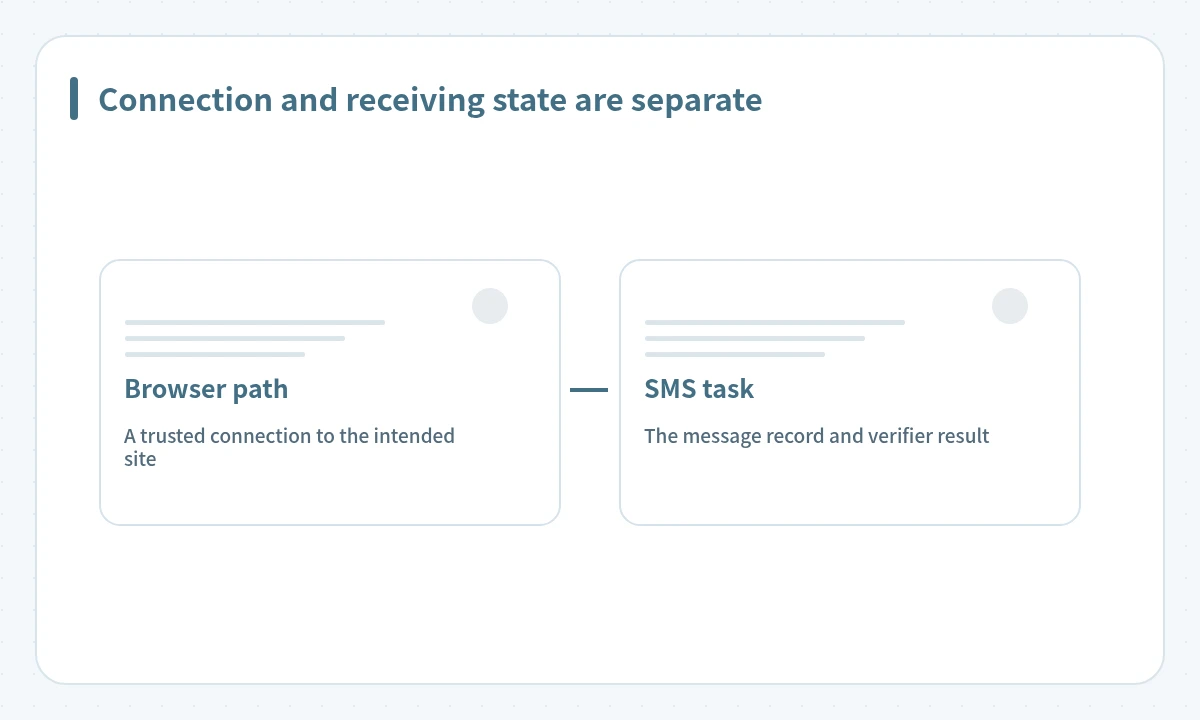
Likewise, a connection problem does not tell you whether a text reached the provider’s receiving system. Until the correct inbox can be queried safely, the status of a particular message remains unresolved. Avoid repeatedly requesting codes simply because the page cannot currently be opened.
If the warning appears before any account page loads, say so in the report. That sequence helps distinguish a connection failure from a sign-in error displayed by the service after a trusted connection was established.
Give support a useful boundary
Describe the confirmed domain, warning text, browser version, observation time and whether the problem is limited to a specific approved environment. A screenshot should exclude passwords, active codes and unrelated account information. A broad packet capture or a complete browsing history is unnecessary for an initial enquiry.
If another trusted environment works, report that difference without treating it as proof that the failing device is compromised. Local settings, managed infrastructure and the site configuration are all possible areas for the responsible parties to investigate. A comparison identifies scope; it does not supply a cause by itself.
Once the warning is resolved, sign in through the known address and confirm the selected account and number. Recheck the target business’s current request before continuing verification, especially if time has passed. A repaired connection does not extend a code’s validity or guarantee that an abandoned operation is still pending.
