
A home-screen icon changes the entry point. Receiving capability, account access, expiry and history remain governed by the original service rather than by the window’s app-like appearance.
Identify what was added
Depending on the browser, device and site, the result can be a shortcut or an installed web application. MDN’s installation guide describes web-app installation across supported environments. It does not establish that every saved inbox page is a fully featured application or uses the same storage and permission behaviour.
Open the entry and confirm the actual site, signed-in account and selected number. A familiar icon is not an identity check. If the entry points to an old domain or an expired detail link, return to the service’s current official route rather than entering credentials into an unexplained destination.
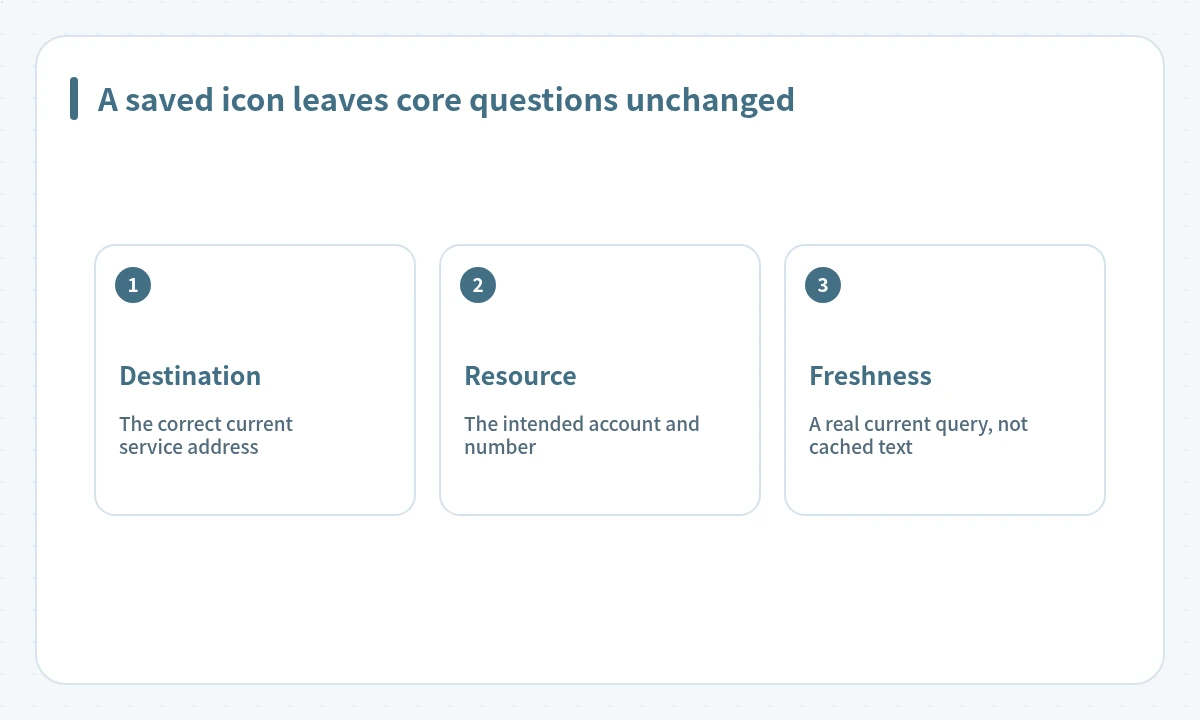
The receiving and update paths still need confirmation
A page that opens while the device is offline may display previously saved content. Check its connection state and the actual record update result before calling the view current. The home-screen entry does not by itself create a new receiving channel or extend a code’s validity.
Likewise, notification support is separate. Determine whether the service offers it in that environment, whether the browser and device permit it and which events are covered. A successful installation or saved icon is not acceptance evidence for notifications across every device.
| Visible change | Condition still to check |
|---|---|
| Convenient icon | The correct live service address |
| Standalone window | The intended account and resource |
| Old content opens offline | Whether a fresh query actually succeeded |
| Notification option appears | Supported behaviour and granted permissions |
For a managed or shared device, confirm who may install or remove entries and whether the site opens under a particular browser profile. A shortcut visible to the next person should not invite them to inherit an unattended authenticated session. Review the actual access arrangement before treating installation as a convenience for the whole team.
Include sign-out and removal in the evaluation
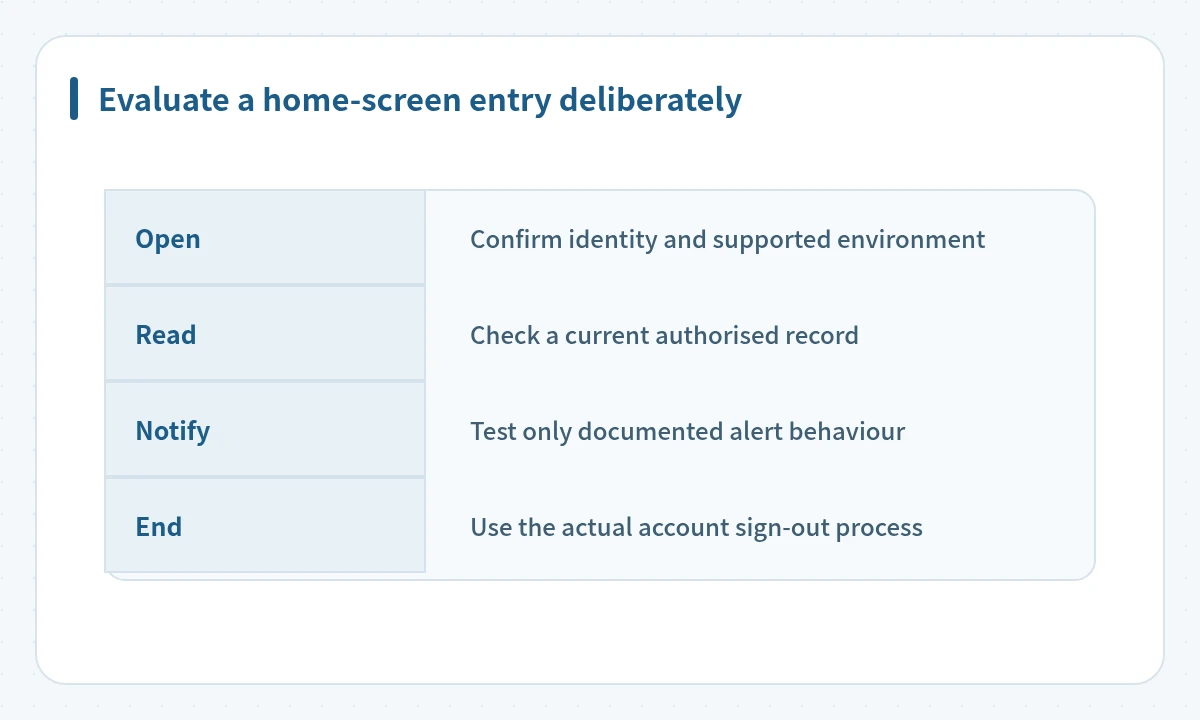
Check the service’s normal sign-out and session-management process. Removing a shortcut or uninstalling a web app should not be described as releasing the number or closing the remote service account. Those actions have their own supported procedures and consequences.
Local data and downloaded files also need deliberate handling according to the device and browser. Do not promise that deleting an icon removes every copy, setting or active session. On shared equipment, follow the owner’s rules and use an appropriately trusted access route for sensitive content.
A small harmless acceptance task can verify opening the correct resource, obtaining a current record, observing supported notifications and ending access. Record the browser and device used so the result is not mistaken for a universal mobile capability.
Treat the home-screen option as a navigation choice unless specific additional features have been confirmed. The number’s allocation duration, message compatibility and third-party verification rules remain independent of the icon used to open the inbox.
Reference: MDN: installing and uninstalling web applications.
