
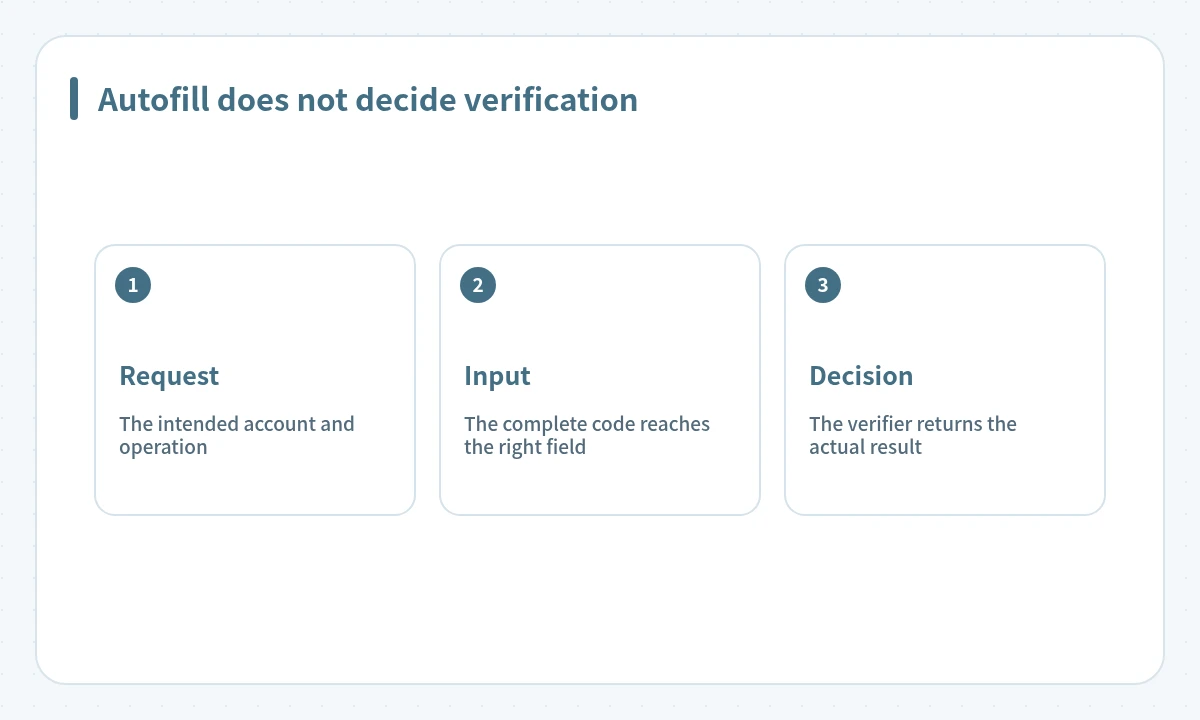
Autofill can place an SMS code into a field without confirming that it belongs to the current request. If you use a mobile SMS number to receive SMS verification codes, check the account, operation and exact value before submitting. A populated field is an input state, not a successful verification result.
For the complete workflow around this question, continue with Receive SMS Online: Complete Steps, Codes and Troubleshooting. The link opens the relevant section.
Keep the current request identifiable
Start from the business page that requested verification. Confirm the account and action before switching to the receiving view. When several tabs or messages are open, a recent-looking text can still belong to a different operation. Read the actual platform instructions for retries and code validity instead of selecting solely by arrival order.
MDN documents a one-time-code autocomplete hint for web forms. It describes an input purpose, not a guarantee that every browser, service and receiving arrangement will identify the right code automatically. Use the feature where supported without treating its suggestion as a substitute for the request context.
Compare the complete value
Check the expected number of characters and preserve leading zeroes and other meaningful characters. Copying can include adjacent whitespace or labels if the selection is too broad. Use the service’s normal supported control and confirm what actually reached the input, rather than editing characters until an error disappears.
A harmless practice string is useful when evaluating copy and paste behaviour. There is no need to capture a live code in a support recording. If the form has separate input boxes, verify that the value was distributed as expected and that focus did not move to an unrelated field.
Before pressing the final action, check for a newer request, changed account or replacement verification screen. If the page has explicitly ended the previous request, follow its normal restart process. Do not try the same code across several accounts to discover which one accepts it.
Copying a code can create clipboard material outside the receiving page. If the device offers clipboard history or synchronisation, consider that actual feature when handling the value. Do not send the code to a chat or shared note merely to move it between tabs; use an appropriate authorised workflow.
Separate submission from the resulting decision
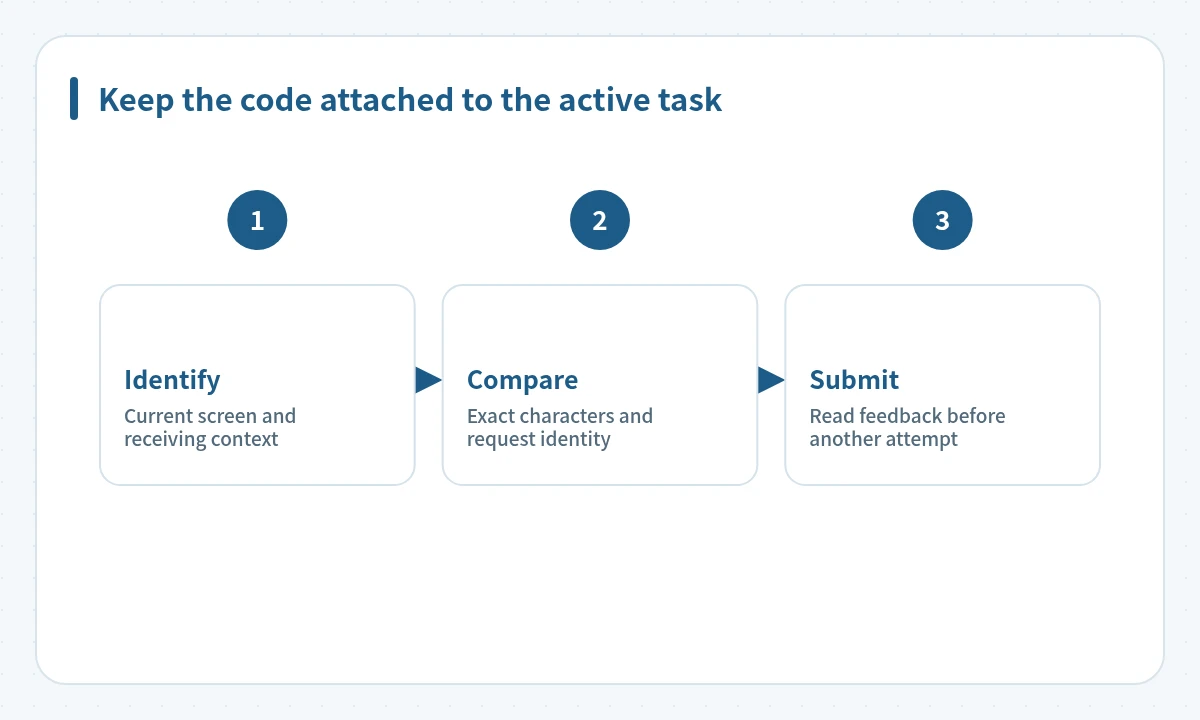
A keyboard action, a disabled button and a visible filled field can each mean different things. Wait for the business page’s response and read the actual result. If submission is pending, avoid repeatedly pressing the control or requesting another code merely because the visual feedback is slow.
On failure, distinguish format rejection, an expired request and a code that does not match the current operation. Follow the target service’s allowed next step. Repeated changes to the inbox or device permissions will not necessarily fix a decision made by the verifier.
When asking for help, describe the field behaviour, request stage and non-sensitive error. Do not provide the code, password or an unredacted recording of the full authentication flow. A minimal reproduction can show that a leading character vanished or focus changed without disclosing account-access material.
Keep the final completion check with the service that owns the operation. The inbox supplies the text and the browser may help enter it; only the actual verification result establishes whether that task was accepted.
Reference: MDN: form autocomplete purposes, including one-time codes.
Main guide for this question
Receive SMS Online: Complete Steps, Codes and Troubleshooting
