
Check print preview, page count and selected fields before printing. Keep unrelated messages out of the output and distinguish print time from message and business-event times.
Define what the printout is meant to contain
Identify the authorised account, receiving number and required time range. Establish whether you are printing a detail view, a loaded list or a supported report. A paginated or dynamically loaded inbox should not be assumed to put every matching record into the browser’s print job.
If the task needs a complete data export, use a documented export feature where one exists. Printing can still be useful for a particular permitted record, but do not label it a full archive without verifying the scope. Keep any displayed time field and timezone understandable in the output.
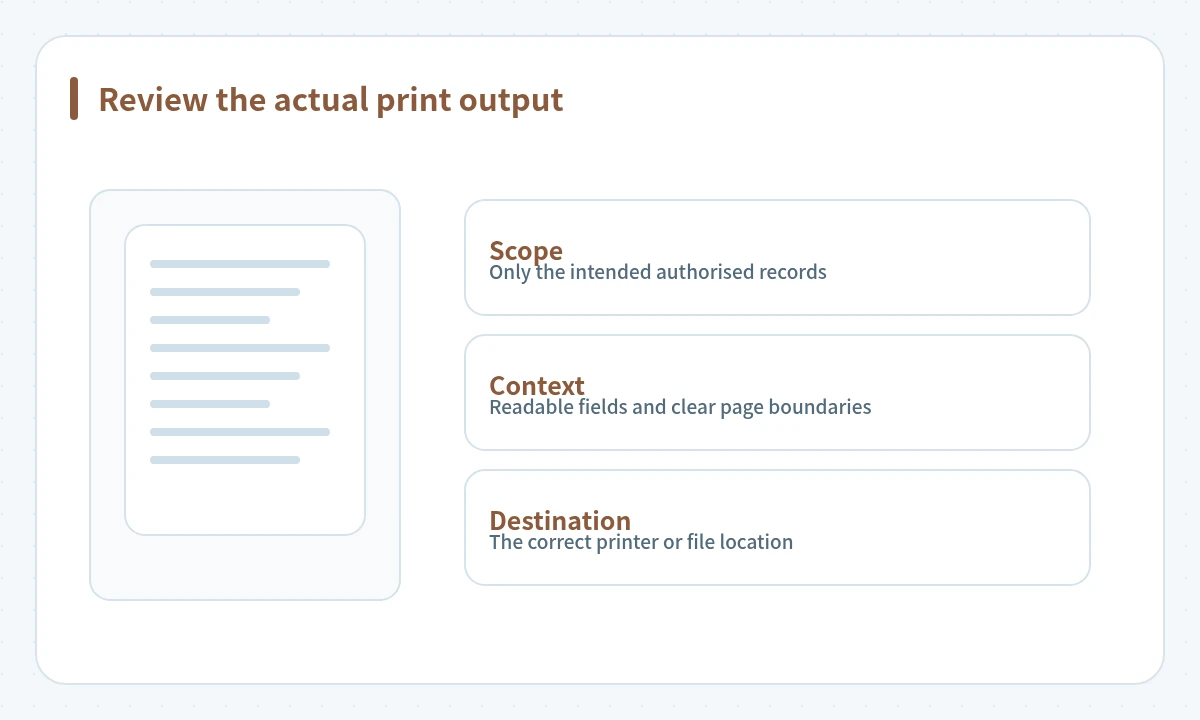
Read the preview as a new document
Check that sender, recipient and message boundaries remain associated after pagination. A clipped column, hidden text or repeated navigation can make the printout less useful than the screen. Look for unintended account details and neighbouring messages too; the printable area may not match the region you meant to share.
| Preview item | Question |
|---|---|
| Record selection | Are these the intended authorised messages? |
| Fields and dates | Do values retain their labels and context? |
| Page breaks | Can a reader still identify each record? |
| Extra content | Did menus or private neighbouring data enter the output? |
Use a harmless representative record to check a new workflow before printing sensitive material. Redaction should remove the actual information from the shared output, not merely obscure a visual label while leaving the underlying data accessible. Where possible, generate only the permitted subset rather than cleaning a broad printout afterward.
Check whether a selected-text print option changes the context you need. A fragment containing only message wording can omit the recipient or date label. Where a permitted extract is appropriate, retain enough non-sensitive context for its stated purpose rather than describing the fragment as a complete record.
Confirm the destination and retrieve the result
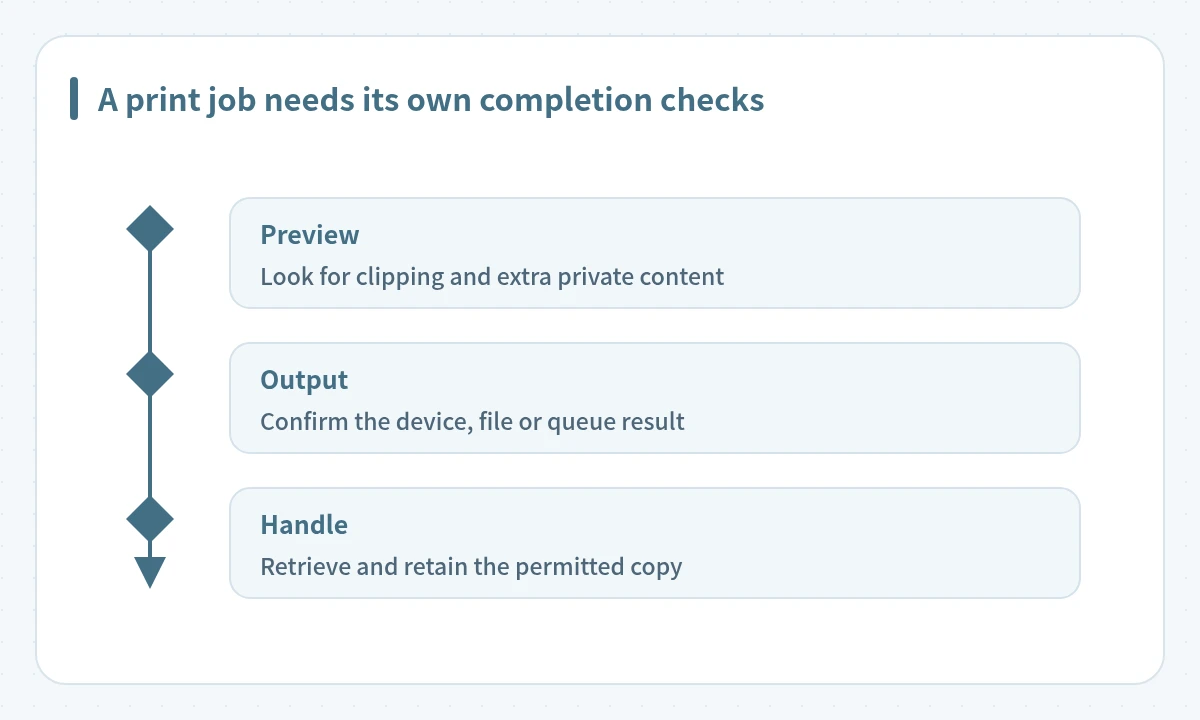
Chrome’s printing guidance includes selecting an output destination and settings. Apply the same care in the browser and operating system you actually use. A physical printer, a local PDF and a managed cloud destination create different copies with different readers and retention conditions.
At shared equipment, verify the intended device and your authority to use it. Retrieve the pages promptly according to the site’s rules. Saving to PDF requires checking the actual file location and account; closing the print preview does not establish that no copy remains.
If a print attempt fails, inspect the queue or resulting file before repeating it. A delayed job may still produce pages after you leave, and repeated attempts can create extra copies. Report the failure using the task scope and non-sensitive error rather than a complete private printout.
Label the output accurately with its scope and capture context where needed. A printout is a representation prepared for a specific task; it should not claim to prove every message was received or that the underlying account history is complete.
Reference: Chrome Help: printing and output destinations.
