
Mail.ru verification codes are not the only resource involved in computer QR sign-in. Mail's official QR help requires the intended mailbox to be signed into the mobile app first. An installed app or working phone connection does not establish that identity. QR access uses an existing account relationship rather than creating recovery access to an unavailable mailbox automatically.
Identify the mailbox already open on the phone
Inspect the official Mail app and the identities available there. Confirm that the mailbox needed on the computer is actually included. Where several entries coexist, compare account identifiers rather than relying on a familiar avatar or similar display name. Keep those identifiers private while establishing the relevant relationship.
For example, a phone may be signed into a personal mailbox while the computer needs a separate work mailbox. The personal session cannot be treated as evidence that the work identity was recovered. Establish legitimate access to the intended mailbox before beginning the corresponding computer request.
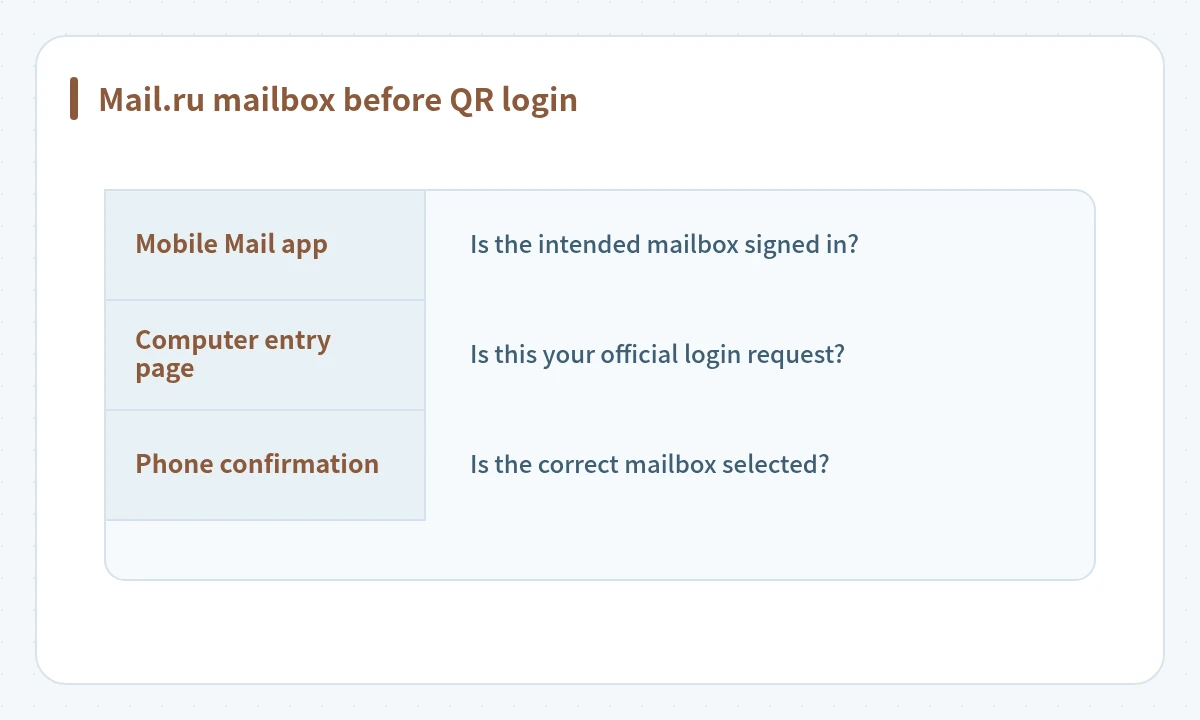
Compare three parts of the QR request
| Location | Question to establish |
|---|---|
| Mobile Mail app | Is the intended mailbox signed in? |
| Computer entry page | Is this your official login request? |
| Phone confirmation | Is the correct mailbox selected? |
The official instructions identify account.mail.ru as the computer login address to inspect. Open the route independently through the service. Text printed below an unfamiliar QR is not sufficient evidence of its destination, and a forwarded login image should not be scanned merely to help someone perform a supposed verification.
Distinguish scanning trouble from an unavailable identity
If the QR cannot be read or has expired, follow the current refresh or other official entry options. If the target mailbox is absent from the mobile app, repeated scanning cannot add that identity. Resolve its access relationship through the appropriate account process before expecting this route to work.
For application availability or version issues, use official software and help. Do not upload a login QR to an unknown website or ask a stranger to scan it remotely. The image can represent an account-entry request and should be protected accordingly, rather than treated like an ordinary illustration with no effect on access.
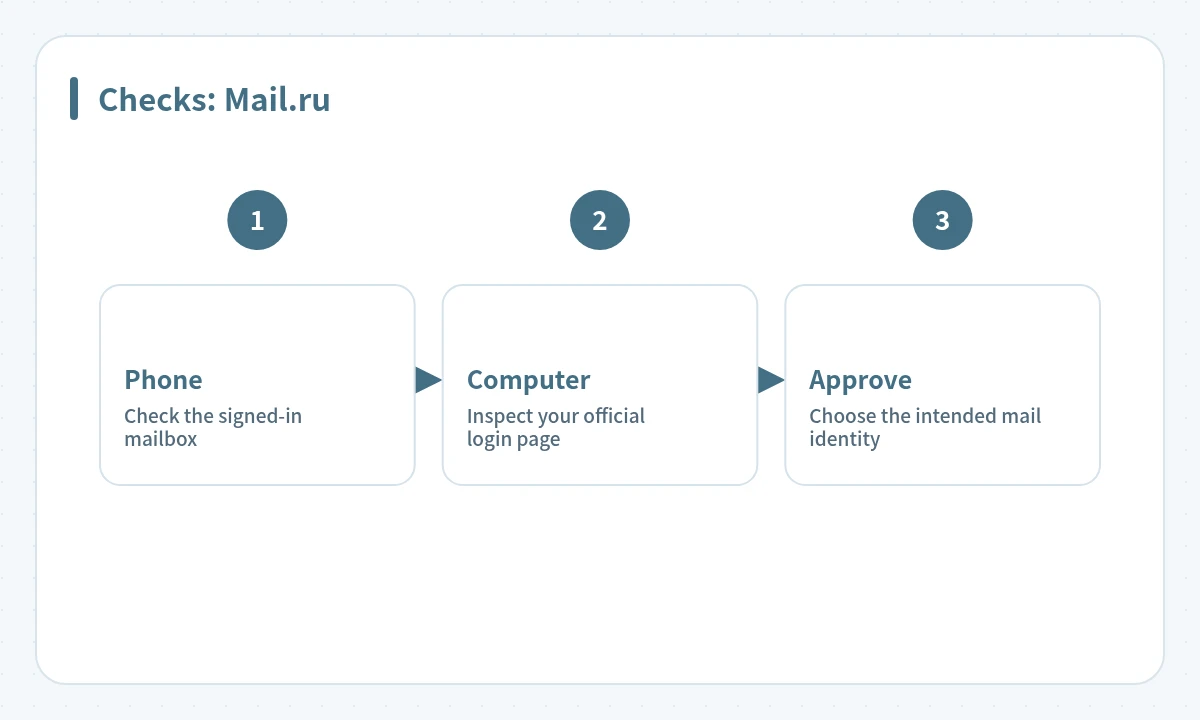
Inspect the computer after approving the request
Return to the computer and verify the actual mailbox and relevant records. A phone dialog closing does not establish that the expected identity opened, nor that every computer window or browser session changed together. Inspect the environment where access was intended rather than inferring it from another device's screen.
If the wrong identity appears, preserve the selected mailbox and page context before proceeding through official account help. Do not continue editing another mailbox's security information. If the request cannot be recognized as your own, stop approving it and inspect the relevant account-access state.
For support, say whether the mobile app contains the target account, which computer route was used and where the failure occurs. Hide QR images, full values and recovery links. A concise description distinguishes an unreadable image from a missing mobile session, allowing the remaining task to be addressed without presenting QR login as a way around ownership verification.
References
Mail: mobile mailbox access and computer QR confirmation; Mail: account-access recovery directory.
