
imo verification codes need a device-context check before another SMS is requested. Official imo help says Windows, Mac and web sign-in values go to mobile imo. An absent system text on the computer-side attempt does not therefore establish a failed request. The user may be watching the wrong location for the task being performed.
Identify which device initiated the request
Start with the official client or web entry and read the current version's prompt. Verifying a phone account and using an existing mobile relationship for computer access are different situations. Instructions for someone registering a new phone should not automatically replace the desktop flow shown for the intended account.
For example, a computer could show a pending confirmation while mobile imo remains open under the original identity. Inspect the phone application's relevant notice first. Repeatedly opening the phone's ordinary SMS inbox may not reveal what that computer request actually provided. Record the device and destination together before assigning a delivery cause.
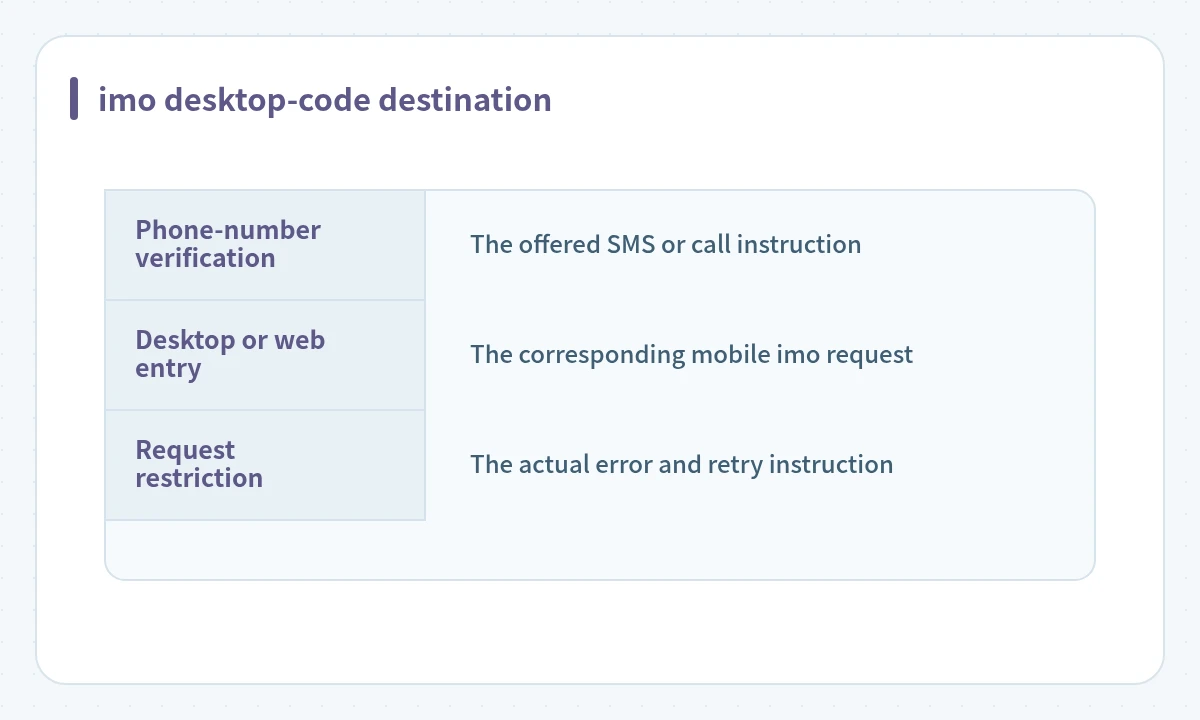
Inspect the location appropriate to the context
| Context | First inspection |
|---|---|
| Phone-number verification | The offered SMS or call instruction |
| Desktop or web entry | The corresponding mobile imo request |
| Request restriction | The actual error and retry instruction |
Official help describes SMS or calls for phone confirmation, but regional and version availability should follow the current service. This article does not promise identical behavior for every location, receiving number or older client. Read an offered method instead of assuming a channel exists because it appeared in someone else's account.
Resolve an absent original mobile identity first
If mobile imo now contains another identity, do not use it as evidence that the original account can be confirmed. Establish the registered number, accessible devices and official recovery route. Successful entry with a new line does not demonstrate that the old identity or history has been restored.
Describe a retired or inaccessible number accurately rather than checking only internet access. For a genuinely blocked delivery task, inspect the destination, filtering and request-limit guidance supplied by official help. Repeated requests across different accounts can mix messages without clarifying the original symptom. Keep one attempt and its result interpretable.
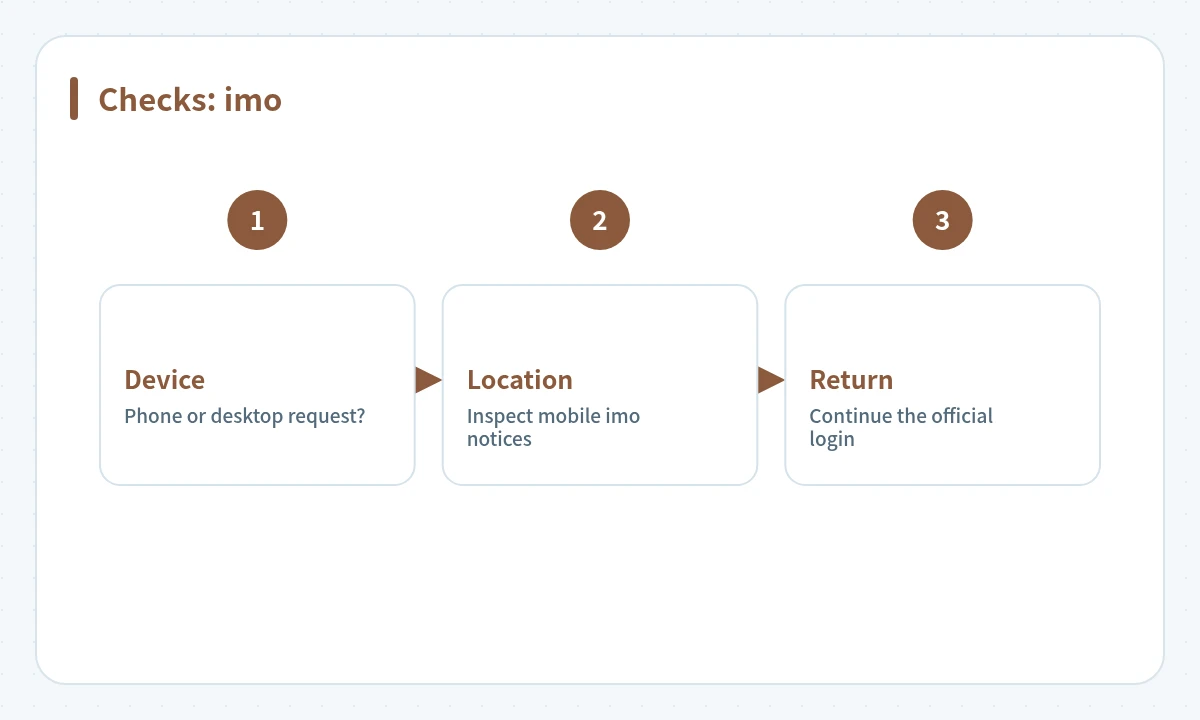
Return to the intended computer session
After confirmation, inspect the actual computer identity and records needed. A mobile prompt ending does not establish that every desktop window completed sign-in or that another browser session changed. Check the environment where access was intended and compare the visible result with the original request.
For support, identify the device type, client version, masked country-code context and failed stage. Keep full values and personal information out of public screenshots. There is no need to forward the entire authentication message into a group conversation to explain whether it appeared in mobile imo or the ordinary phone inbox.
Verify three outcomes separately: mobile access is available, the request reaches its named location, and the computer opens the correct identity. Recording those observations distinguishes original-account recovery from new-device entry and prevents a later investigation from returning to an inbox that never belonged to this particular flow.
References
imo: verification help for mobile, desktop and web contexts.
