
Grammarly verification codes can arrive by email, appear in an authenticator, or use a configured text-message option. Read the active prompt before choosing where to look. Confirming an account change and setting up a second factor may occur in sequence, but completing the first does not automatically complete the second.
Start with the mailbox named by the account task
Grammarly's help describes email verification before account-information changes. If the original mailbox is mistyped or no longer accessible, searching the SMS inbox will not answer that request. Use the official help for lost access to the verification email.
Compare the destination with the mailbox you actually opened. A work address, a personal address, and a browser's automatically filled address can differ. The fact that one mailbox is available on the computer does not establish that it is the account's requested resource.
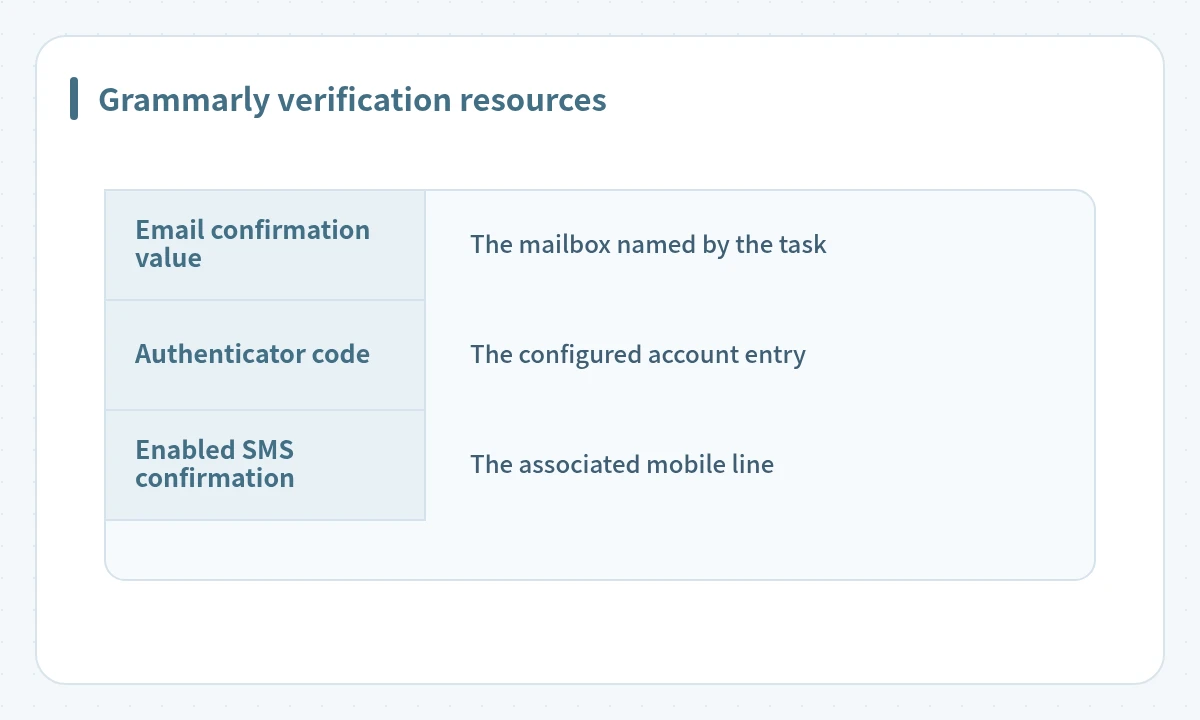
| Prompt requests | Resource to inspect |
|---|---|
| Email confirmation value | The mailbox named by the task |
| Authenticator code | The configured account entry |
| Enabled SMS confirmation | The associated mobile line |
Use the second factor your account actually supports
The security guide distinguishes authenticator and text options, with availability depending on the account plan. Its free-account and free-trial instructions specify a third-party authenticator. Another person's SMS setup screenshot therefore does not establish what your own settings should offer.
When configuring an authenticator, match the entry to the account you are currently securing. Similar entries on one phone are a reason to inspect their identity, rather than try values at random. The enrollment QR or secret is sensitive too; do not publish it as an ordinary screenshot of the settings page.
If a page changes from email confirmation to authenticator setup, read that as a change of task. Keep the earlier message separate and follow the new instruction. This is more useful than resending email while the screen is waiting for a value from an already configured application.
Save recovery resources deliberately
After enabling protection through the official flow, store the supplied backup codes securely. They are different from an email message or a text used once. Avoid keeping your only recovery copy on the same device whose loss could also remove your authenticator.
If the original mailbox is inaccessible, explain the account type and access problem to official support and use its private ownership-check process. Do not post full card details, receipts, or account values publicly. Grammarly's email-access help specifically warns against providing a complete card number or card photographs.
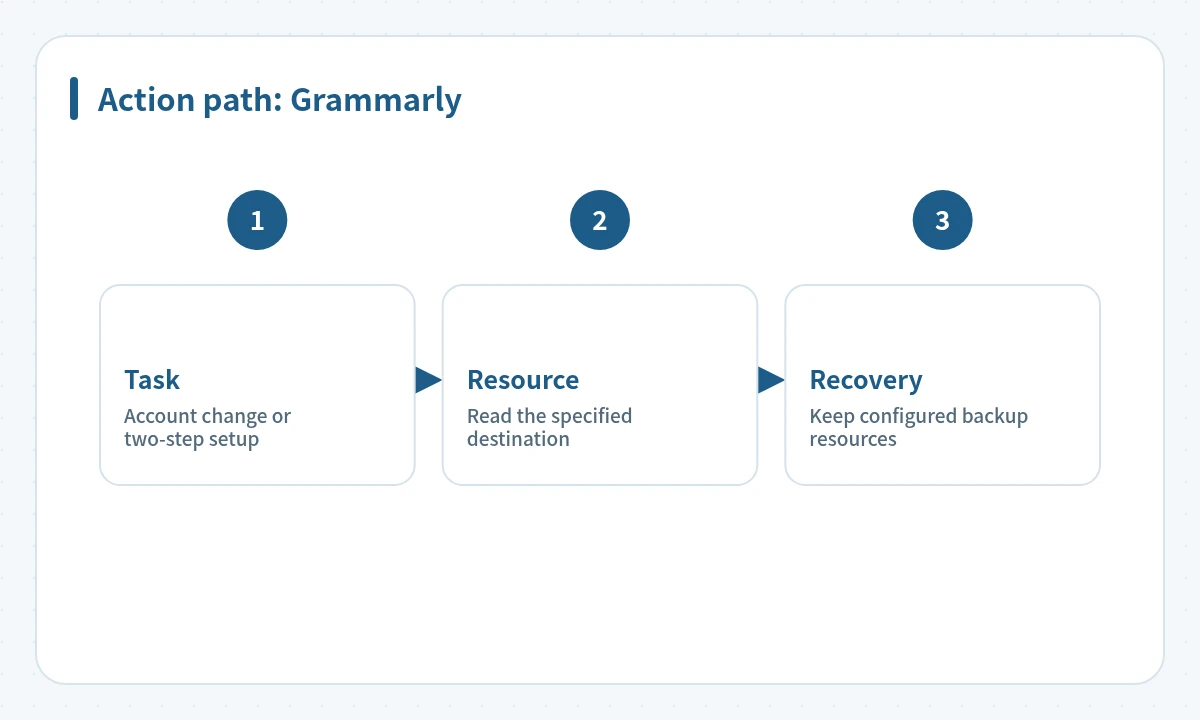
For your own diagnosis, keep three questions distinct: can the original email be confirmed, is the intended second factor configured, and are recovery resources safely stored? Each points to a different next action. Separating them prevents a routine resource mismatch from turning into repeated attempts across a mailbox, phone inbox, and authenticator with no clear account of what the page actually requested.
On a shared computer, also check the account address before changing security settings. The browser may already be signed in under a different person or workplace identity.
References
Grammarly: Account security and two-step verification; Grammarly: Inaccessible verification email
