
Google (Youtube, Gmail) verification codes can seem missing when the sign-in page is actually waiting for a Google prompt. Before requesting another text, read the action on the screen. A request to check a phone is not necessarily a request to open its SMS inbox.
Identify the challenge before troubleshooting delivery
Google lists several two-step verification methods, including prompts, authenticator codes and text messages. Its troubleshooting guidance notes that a prompt may have been sent instead of a text. The practical starting point is therefore the current method, the named device and any masked destination shown on your own sign-in page.
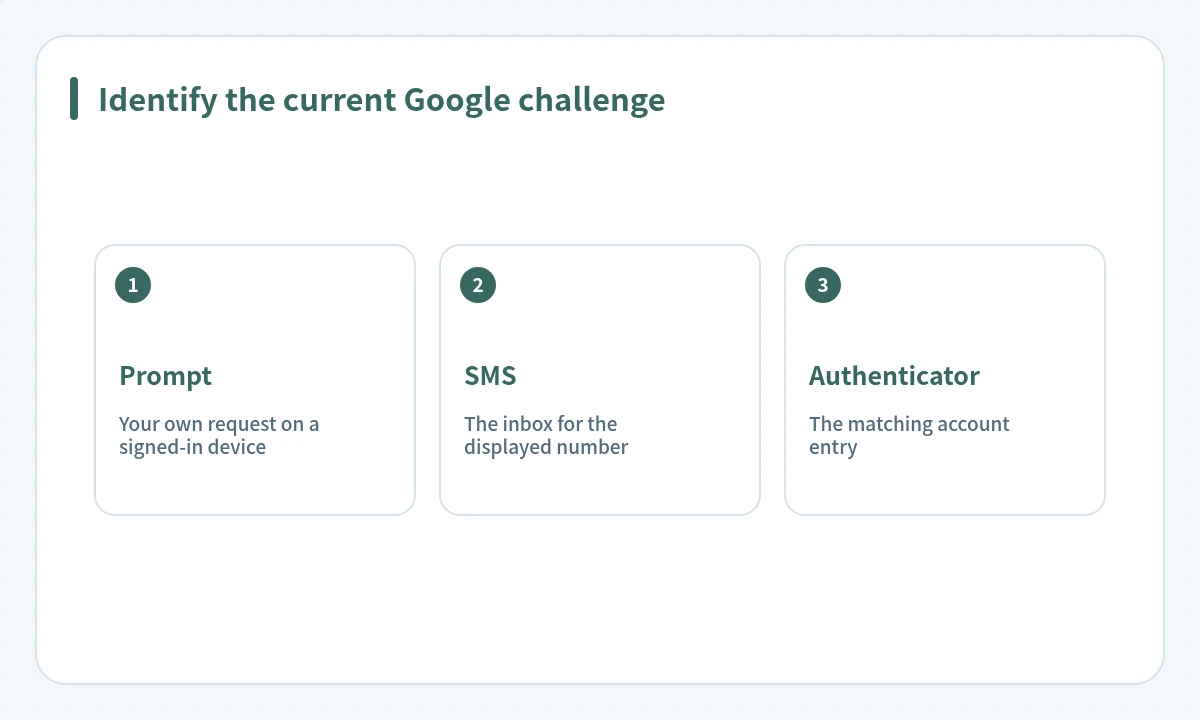
Suppose you are signing in to Gmail on a laptop while holding your phone. If the laptop asks you to approve a request on a device, looking only for an SMS leaves the relevant action unchecked. Open the appropriate account notification on your own device and compare it with the sign-in you just initiated. Do not approve an unrelated request simply because you were expecting something from Google.
Keep three checks separate
| The page requests | Where to look | What absence does not establish |
|---|---|---|
| A phone prompt | The named signed-in device | That an SMS failed |
| A text-message code | The displayed number's inbox | That an old number remains accessible |
| An authenticator code | The correct authenticator entry | That requesting a text will refresh it |
This comparison identifies the object to inspect. It does not create additional recovery options. Use another configured method only when the official page offers it. A screenshot from someone else's account cannot establish which methods are available for yours.
Once SMS is selected, examine the receiving path
Check the country code and masked digits before investigating delivery. Confirm that you still control that line, then inspect message filtering and the line's ability to receive the relevant service messages. If you contact the carrier, provide the approximate request time and the receiving line through its approved support process. Do not send your Google password or verification code.
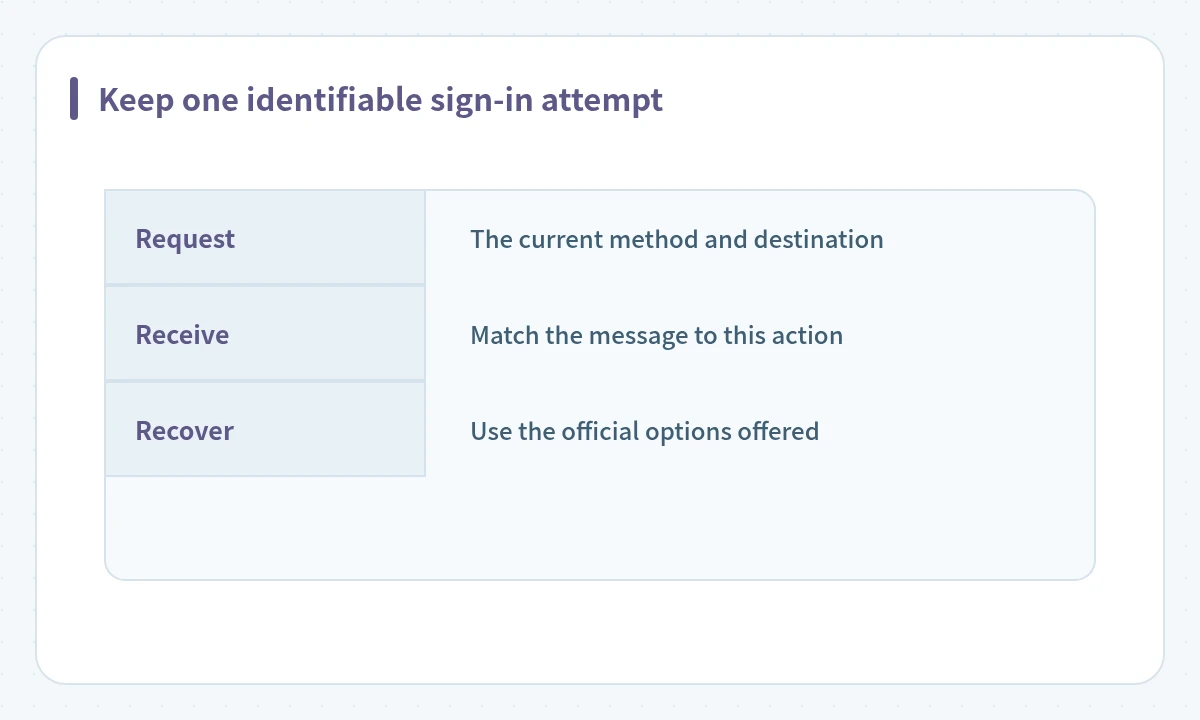
Keep one clearly identified sign-in window while troubleshooting. Repeated requests across several tabs make it difficult to connect a message with the challenge that remains open. Observe the page's countdown or retry restriction rather than interpreting frequent button presses as a way to improve delivery.
Preserve an existing route into the account
If an old phone remains signed in, avoid signing out or clearing it merely to trigger a different result. First inspect the official security settings and available recovery options. Losing a working session and an old number together can turn a notification question into an account-ownership problem.
After access is restored, review whether the configured methods still fit the devices and numbers you actually control. Record the method names and storage arrangements for recovery information, without putting live secrets into an ordinary troubleshooting note. That preparation makes a later phone replacement easier to manage.
YouTube and Gmail use Google accounts, but the challenge presented during a particular action can vary. Follow the actual page rather than assuming every service interaction sends a text. This guide explains how to identify the receiving path; it does not provide Google codes or guarantee acceptance of any number type.
References
Google: Fix common issues with two-step verification; Google: Turn on two-step verification.
