
Garmin verification codes appearing on a new browser or device do not necessarily mean account information disappeared. Inspect what was previously remembered and which identity and destination the new page actually selected.
Remembering a browser has a defined context
Garmin's two-step help explains that remembering the same browser can reduce repeated logins while the account has not been signed out. It does not establish that every new phone, application or computer shares that browser state. Follow the applicable challenge on the current entry.
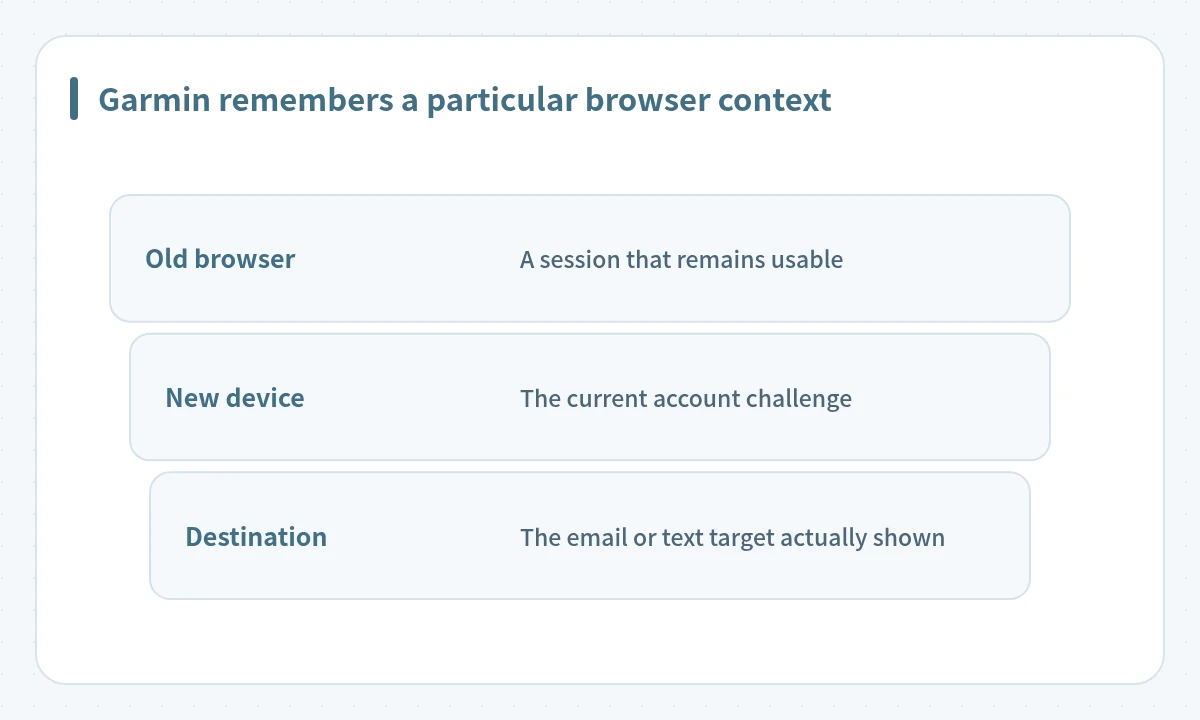
Read whether the selected route is email or text and inspect that destination. An old browser not asking for a code does not make a new-device prompt false. Conversely, a familiar brand is not a reason to approve an action you did not initiate. Relate the request to your own current sign-in.
Compare browser, identity and destination separately
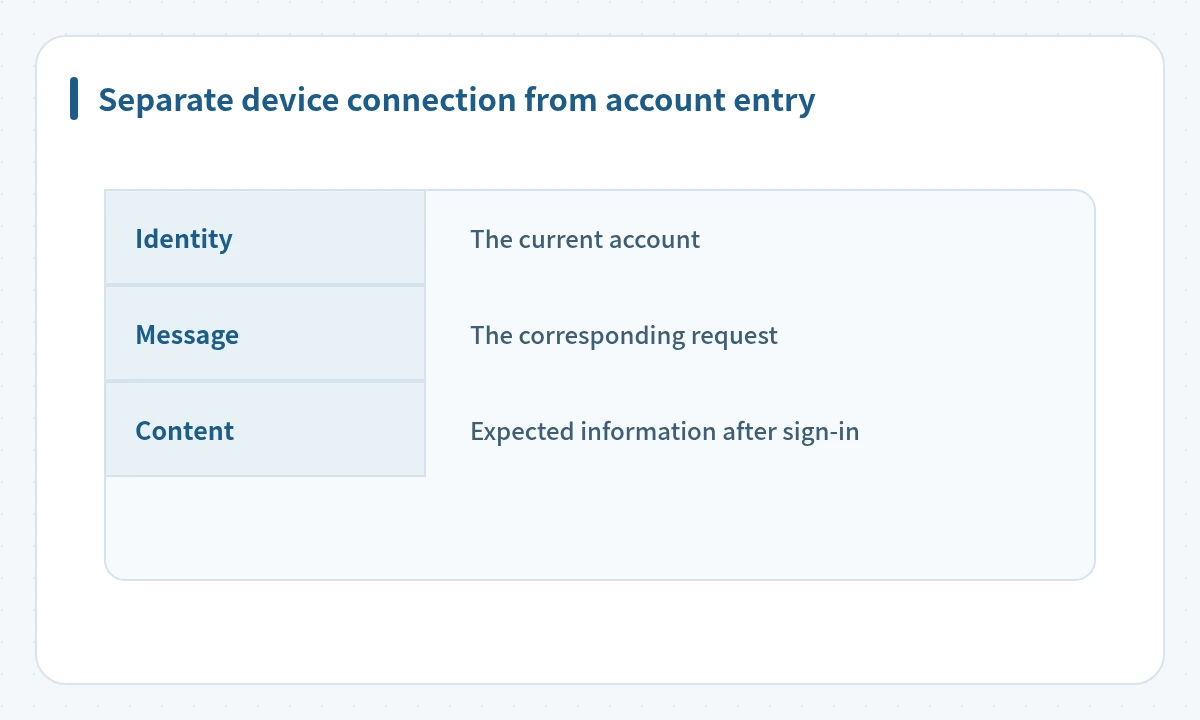
| Object | What to establish |
|---|---|
| Browser | Whether the original usable session remains |
| Account | The identity actually selected |
| Destination | The email or number named now |
| Content | The expected information after entry |
Account authentication and a watch's connection state are also different questions. A device displaying data does not establish completion of every website login. A successful account entry likewise does not automatically diagnose another device-specific interruption.
Investigate the destination requested this time
For email, inspect the correct mailbox and filtered folders. For SMS, inspect the selected line. Observe the current expiry and retry instructions while keeping one identifiable request. Do not try values from several devices and attempts in succession without knowing which field remains active.
An inaccessible old number needs the appropriate account-setting or support process. An outside receiving service cannot replace control of the existing destination. Preserve a usable device instead of signing out everywhere merely to trigger another challenge.
A short private record can identify the browser change, selected route, masked destination and time. It does not need the actual code. Those observations help support distinguish a new authentication context from an outdated contact detail or a delayed message.
Consider the device before retaining access
On a public or shared computer, manage sign-out through the official controls after use. A remembered browser should not become a transferable account entry for another person. Decide whether retaining access fits the actual device arrangement rather than treating it as the default on every machine.
After successful entry, confirm the intended account before investigating missing information. Similar identities across family devices or browser profiles can make content look absent when the wrong account is selected. Check that correspondence before clearing device data.
For support, describe that the original browser still works while the new device requests a named method, then supply the exact error and approximate time. Hide private data and credentials. That explanation keeps an expected additional check distinct from a genuine failure and reduces unnecessary changes to security settings that still work.
If several household devices are involved, make a small device-to-account list with private values omitted. Check each entry before investigating data differences. This prevents a new-browser question from becoming an accidental change to another family member’s account.
References
Garmin: Two-step verification and remembered browsers.
