
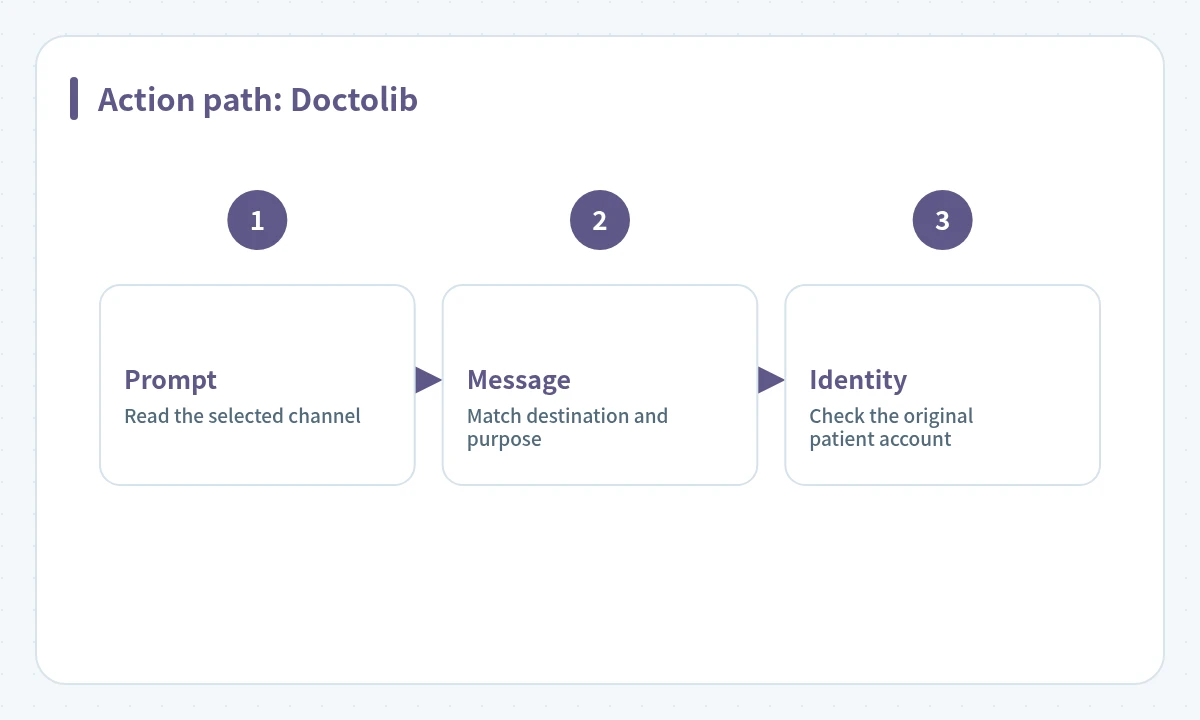
Doctolib verification codes for French patient access on a new device may involve email or an available SMS option. Read the active prompt before searching for a message. An appointment reminder, a clinician's notification, and a sign-in confirmation have different purposes even when they all mention Doctolib.
Start from the new-device request
The French patient guide describes email and text confirmation for new-device access. Establish that you are entering your existing patient account, rather than creating another identity. A desktop browser, a phone browser, and an app are different places from which you might begin that request.
If the page names an email destination, compare it with the mailbox you opened and inspect junk mail. A phone's default mail application can show an address different from the one stored on your account. Locate the message by its purpose and request time, not simply by a familiar brand in its subject.
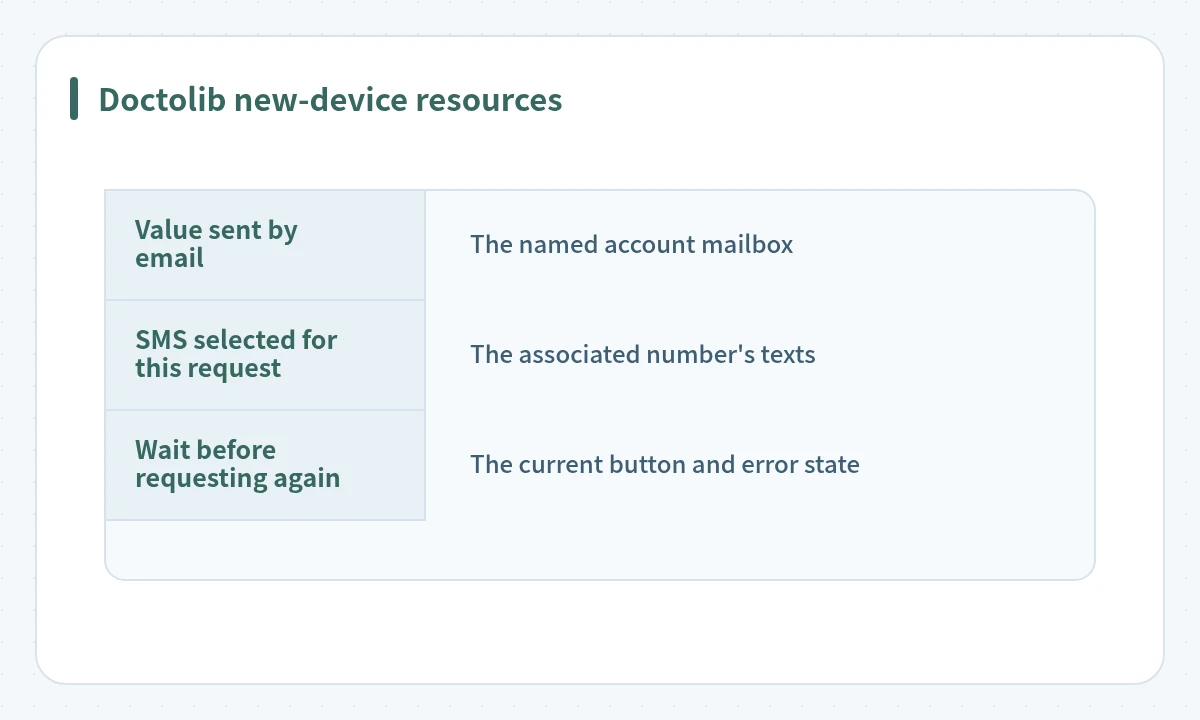
| Active prompt | Resource to inspect |
|---|---|
| Value sent by email | The named account mailbox |
| SMS selected for this request | The associated number's texts |
| Wait before requesting again | The current button and error state |
Keep resending separate from changing channels
The official guide describes requesting again or choosing another available channel when a message is missing. Use the options actually present in your own session. Another person's screenshot is not evidence that your account must offer an identical set of choices.
After changing the channel, remember which resource the page now names. If an earlier window remains open, identify the one holding your active task before entering anything. Several simultaneous requests on a computer and phone can leave you matching the right message to the wrong window.
A temporarily unavailable button is a reason to read the page, not to guess digits. Keep the exact error and the sequence of actions. That record is more useful than refreshing repeatedly and later remembering only that the process failed.
Check the patient identity after entry
Inspect your own account details and expected appointments before continuing. If an unexpected profile-creation screen appears, verify the identifier first. Rebuilding a patient profile or making another booking is not an appropriate test of whether an access message worked.
For help, explain that the issue concerns a new device, which channel you selected, and whether the message never appeared or an entered value was rejected. Redact live credentials, appointment information, and unrelated health details from screenshots. Use official patient support for further account information.
This diagnosis concerns access, rather than whether a particular appointment is confirmed or how a medical matter should be handled. Once inside, follow the relevant appointment page for its separate requirements. A successful message check cannot answer every question about the service accessed afterward.
On a shared computer, also check that the visible account is yours before editing anything. Leaving an existing session open can make the page appear accessible without demonstrating that the new sign-in request reached its intended identity. Confirm the account, then continue with the actual task you came to complete.
References
Doctolib France: New-device patient access and two-factor confirmation
