
Claude verification codes from an email opened on another device should be completed in the context of the original request. If a computer started sign-in and a phone opened the message, inspect the cross-device instructions rather than start an unrelated request on the phone.
Official guidance distinguishes the opening device
Claude's login help describes direct completion when the email link is opened on the requesting device. Opening it on another device can produce a code to enter on the original one. Follow the current page, keeping the message connected to the request that generated it.
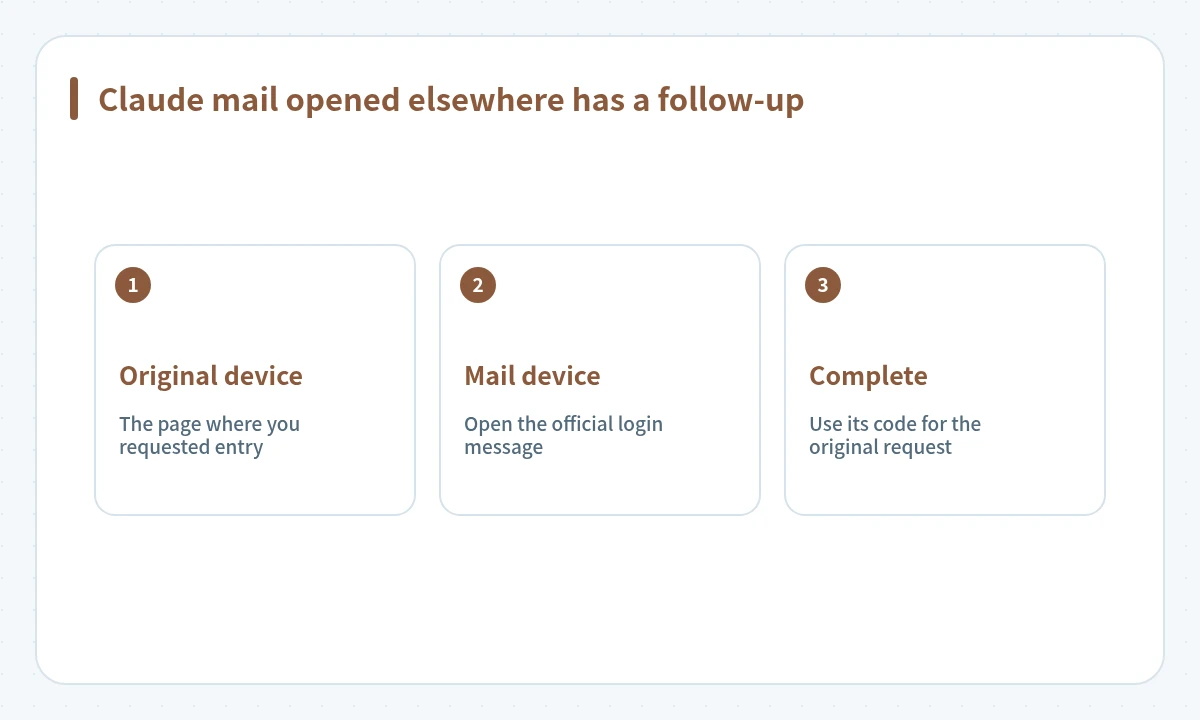
Confirm that you initiated sign-in through the official web or app entry and that the address matches your intended account. Several browser windows can produce indistinguishable messages. Preserve one clear flow rather than approve whichever request was generated most recently.
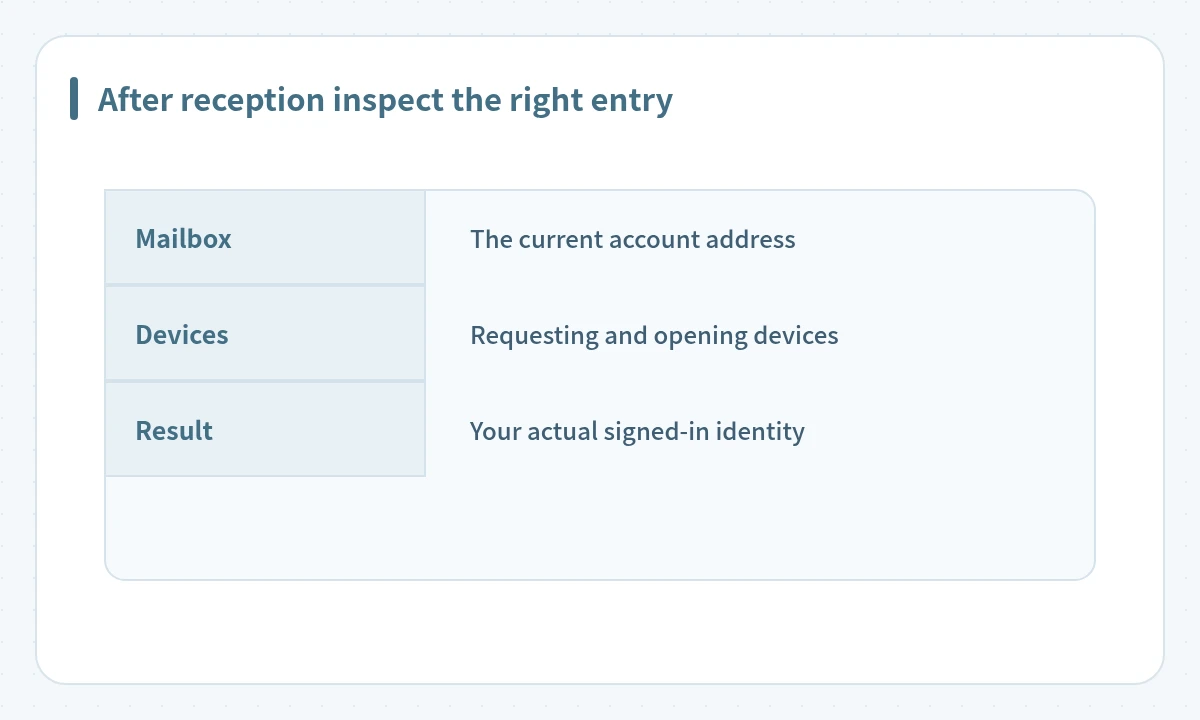
Inspect three locations together
| Location | What to establish |
|---|---|
| Original device | It is still waiting for this sign-in |
| Mail device | The opened message belongs to your request |
| Account result | The intended identity actually opened |
The login link and code are access material. Do not post them publicly for outside testing or give them to someone offering account recovery or benefits. A person describing themselves as a helper does not need access to the mailbox or the credential that completes sign-in.
A support record can name the requesting device, opening device and selected entry without containing the full link. Those observations explain the cross-device sequence while preserving the secret itself.
Do not substitute a permanent-password assumption
Claude's current help says a dedicated account password cannot be set. Inspect the existing Google or email route instead of treating a mailed code as a lasting credential for another program. Use the official entry appropriate to the actual account.
For absent email, inspect the correct mailbox, filtering and any organisation quarantine. If the message arrives but completion fails, record both devices and the error. An organisation's mail administrator can inspect the relevant message type and time without taking the code to sign in for you.
Do not delete a working connection or clear the only usable device merely to imitate another tutorial. Establish the current route and preserve access while the actual failure is investigated.
Confirm the account context after entry
An address can be involved in personal and work contexts. Inspect the selected account or workspace after sign-in rather than assuming every resource is available because the redirect succeeded. A remaining resource or subscription question belongs with its corresponding formal help.
If access remains unavailable, use the official Help Center's unable-to-login route and describe the sequence. Hide complete links, codes and private information in screenshots while retaining devices, task, error and approximate timing.
The useful distinction is whether delivery failed, the cross-device completion was misunderstood or the wrong identity context opened. Keeping those results separate prevents repeated email generation from replacing the check that the current page actually needs.
References
Claude: Same-device and cross-device email sign-in; Claude: Official assistance when unable to sign in.
