
Backblaze verification codes can be confusing when an old SMS guide differs from today's email prompt. Use the current account page and the applicable product documentation to identify the requested resource. Instructions from different periods should not be combined into one assumed login sequence.
Start with the current account-security page
The current Computer Backup documentation describes default email MFA and discusses authenticator and single sign-on arrangements. Determine which route your account actually uses. When the screen names an email destination, changing cellular reception settings does not investigate that message.
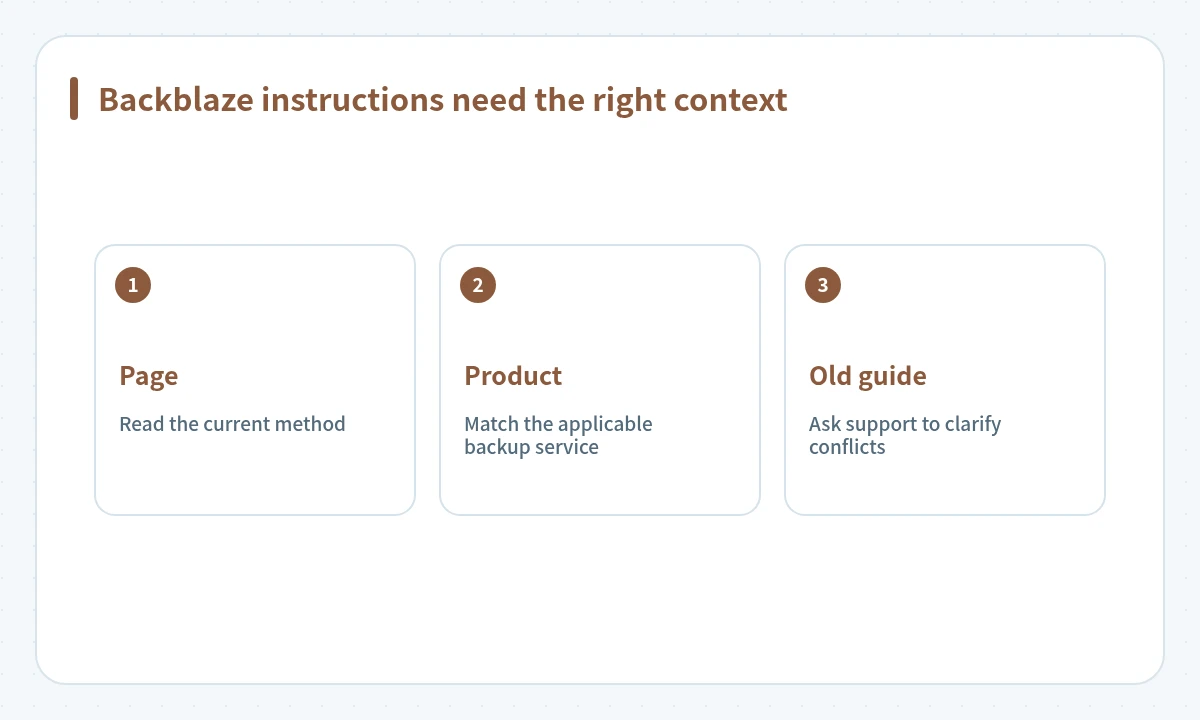
An older Backblaze help article described SMS verification. Its existence does not establish that the option is available to your account now. Compare product, method label and current controls. If the documents conflict with your experience, retain their addresses for support instead of trying to force a missing option.
Match the checks to the sign-in route
| Current route | Resource to inspect |
|---|---|
| Email confirmation | The account's accessible mailbox |
| Authenticator | The configured entry and present value |
| Single sign-on | The identity provider's requested check |
For mail delivery, inspect spam, rules and organisational quarantine. If an alias is involved, distinguish the address entered at login from the inbox that receives its mail. Being able to send a message from that inbox is not proof that incoming service messages have avoided filtering.
For single sign-on, name the provider and the page where progress stops. The account's email address can appear in both routes without making their authentication steps interchangeable. Let the responsible administrator investigate the provider rather than disclose credentials across help channels.
Treat contact changes as account maintenance
The current documentation discusses an email-change and resend option in the login process. Use it only through the formal flow offered to your identity. Managed groups can restrict changes, so a personal-account example is not a guarantee that a group member can make the same edit.
A helpful report explains that the present screen asks for email while an older page described texts. Include the product, time and masked error. There is no need to attach stored customer data or a live authentication value to demonstrate the disagreement.
Preserve a working account session while clarifying the configuration. Removing access methods merely to reproduce the problem can create a recovery task that did not exist before the investigation began.
Verify backup activity independently after login
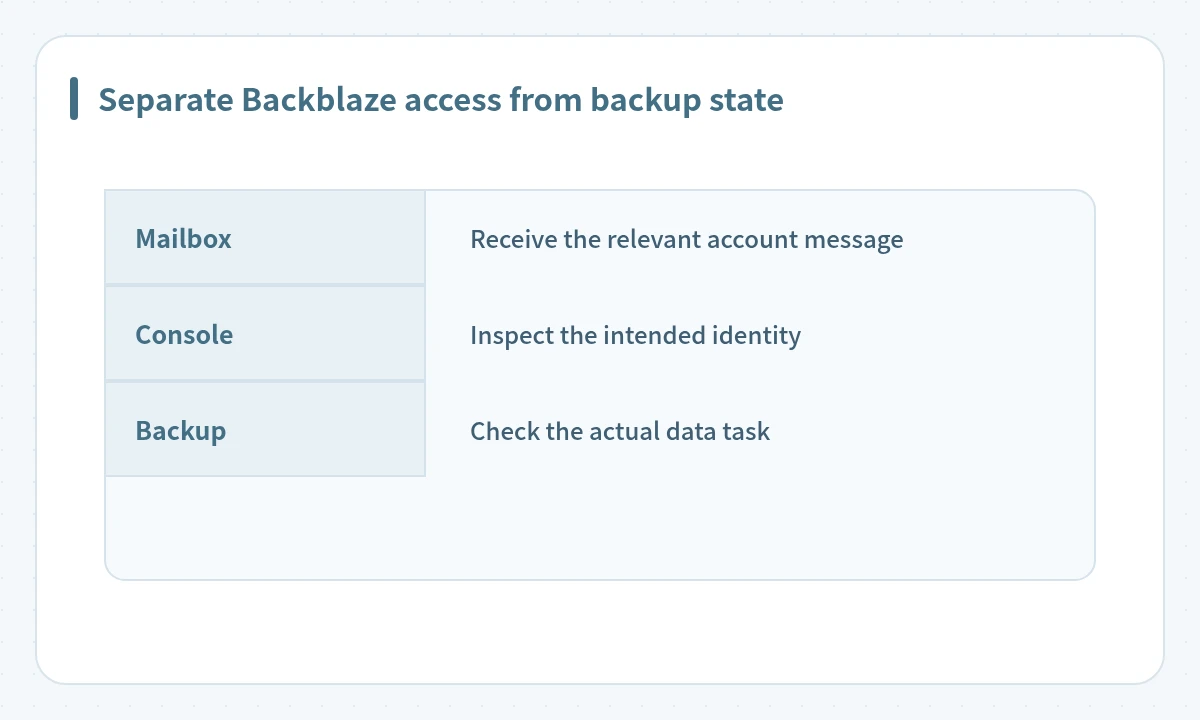
Successful entry establishes access to the console, not completion of a computer's backup or a restore request. Inspect the relevant device and task on their own pages. Do not delete a backup or rebuild the account to test whether a login message can arrive.
When planning a mailbox or device change, establish the currently working route first, perform the supported update and inspect its result. If the interface remains inconsistent with current official documentation, ask support to confirm the account's configuration. Neither an old tutorial nor a message reaching another number establishes compatibility for the resource your account presently requires.
When comparing documentation, keep the article title and product name with its address. An isolated screenshot of a method list can conceal whether it describes an old interface or another service. Giving support the context makes the conflict reproducible without repeatedly changing account settings.
References
Backblaze: Current Computer Backup account security; Backblaze: Earlier two-factor verification guidance.
