
AOL verification codes can complete browser sign-in while a mail client still reports a password error. First identify the connection method supported by that application. Successful website authentication and continuing access from a separate mail program are different setup questions.
Preserve the browser route that still works
Confirm the account through AOL's official site, then record the failing client's name, version and stage. Account addition, incoming-mail retrieval and outgoing-mail submission deserve separate descriptions. Do not reset security settings on every device simply because one application displays a password error.
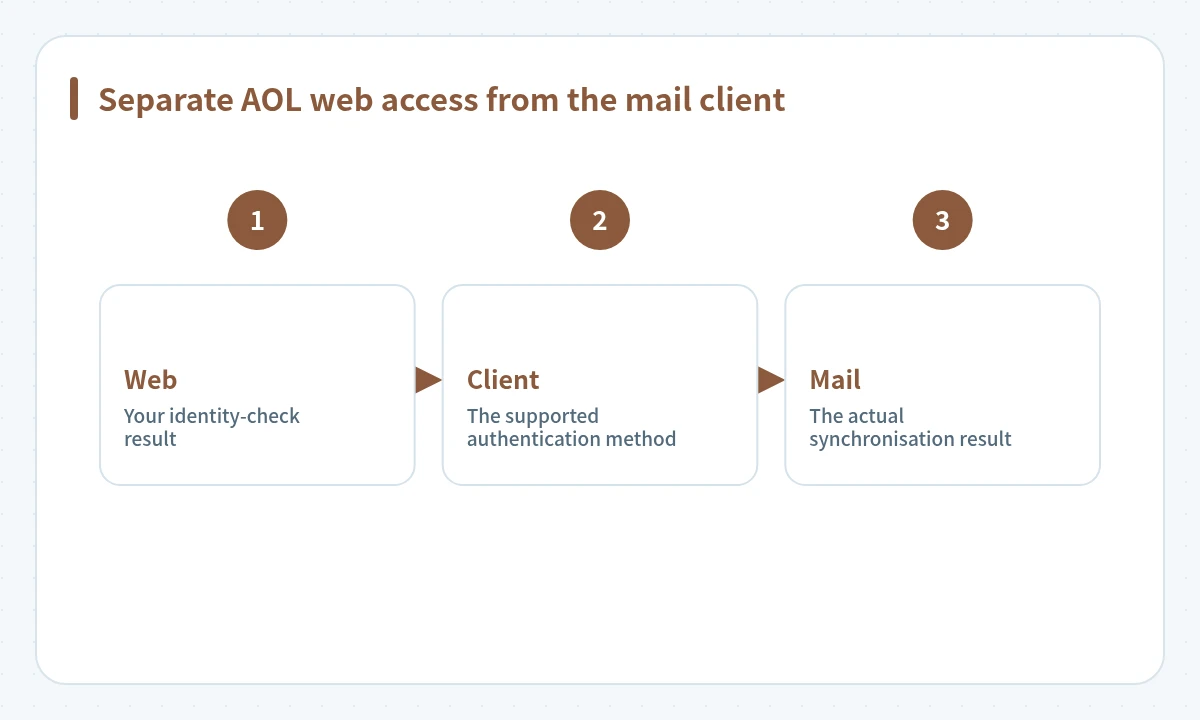
AOL provides official guidance for third-party app passwords. Microsoft's Outlook setup guidance also explains that an applicable provider-generated app password can be used in a mail application's password field. Whether that is required depends on the client's supported sign-in flow and current provider instructions. It is not a universal requirement for every mail program.
An app password is not an SMS login code
| Information | Purpose |
|---|---|
| Browser verification code | Your current website identity check |
| Account password | The corresponding supported account login |
| App password | Provider-generated access for an applicable client |
Pasting a short-lived text into a field intended to retain a client credential confuses two flows. Do not follow an old tutorial's suggestion to remove account protection merely to make the program connect. Check whether the current version offers a supported account-authorisation route first.
If a browser authorisation window appears during client setup, confirm the account and requested action there. Do not treat a familiar logo in an unfamiliar page as sufficient proof that the request is legitimate. Start the process from the application and official guidance you intended to use.
Keep generated credentials out of troubleshooting records
When an app password is genuinely required, generate it in your own official security settings and enter it as instructed. Do not publish the value or give a stranger remote control to paste it for you. A useful screenshot shows the field label and error, with passwords, codes and private messages hidden.
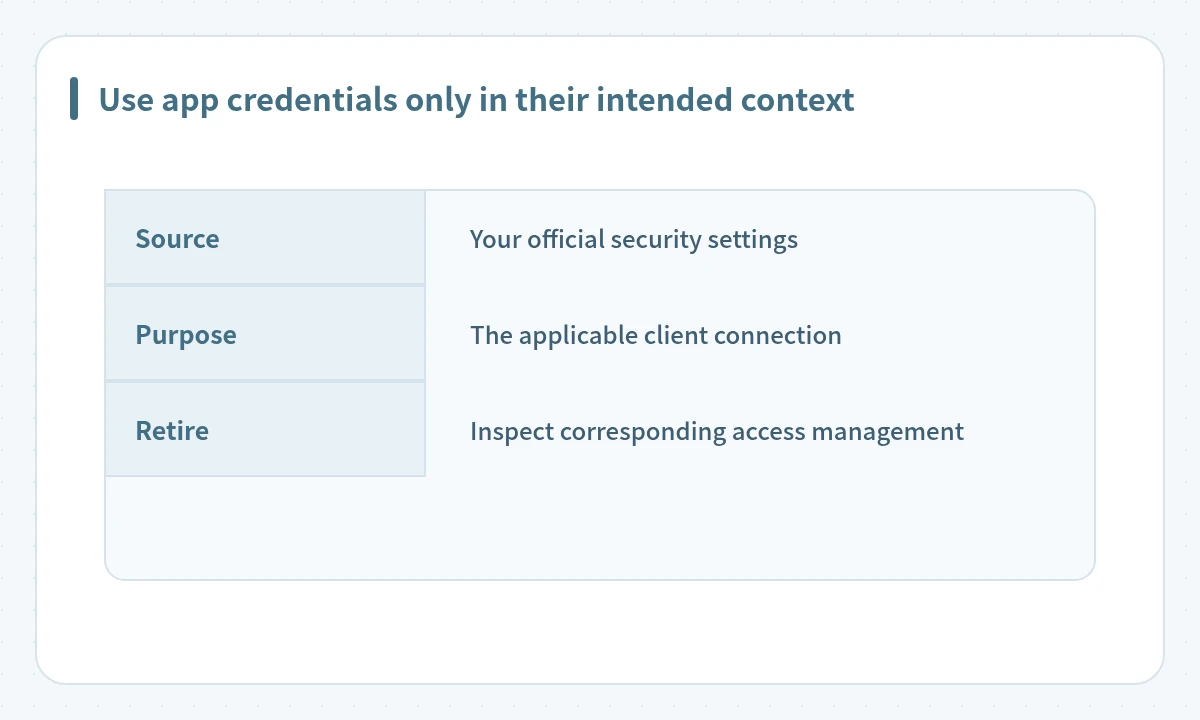
When retiring a client, inspect the provider's access-management and revocation options. Uninstalling local software, changing an account password and handling an application credential should each be evaluated according to their own instructions. Confirm the relevant result rather than assuming one action addressed every remaining connection.
Distinguish authentication from message retrieval
If the client authenticates but a particular verification email is absent, inspect the destination mailbox, folders, filtering and message timing. If the client never connected, address authentication first. An unsynchronised message should not immediately be reported as a code the provider never sent.
Tell official support the client, failed stage, whether website access works and the exact error. Keep the usable browser session while examining settings. This preserves a way to manage the account without surrendering a working route merely to repeat the reception test.
The objective is a supported client connection for your own mailbox, not repeated generation of unrelated login codes or disclosure of a long-lived mail credential to an outside helper.
References
AOL: Third-party app passwords; Microsoft: Outlook account setup and app passwords.
