
Adobe verification codes address an identity check, not every permission a creative application needs afterward. If sign-in succeeds but an app still reports no access, first establish which account is open and which stage is failing. Requesting another code may have no bearing on the remaining problem.
Establish whether authentication actually finished
Adobe's official two-step guidance describes Adobe Account Access approval, email and SMS methods. Follow the method requested on the current page. An app approval belongs on your enrolled phone; an email or text belongs at the destination shown. Determine whether that process completed before interpreting an application's subsequent message.
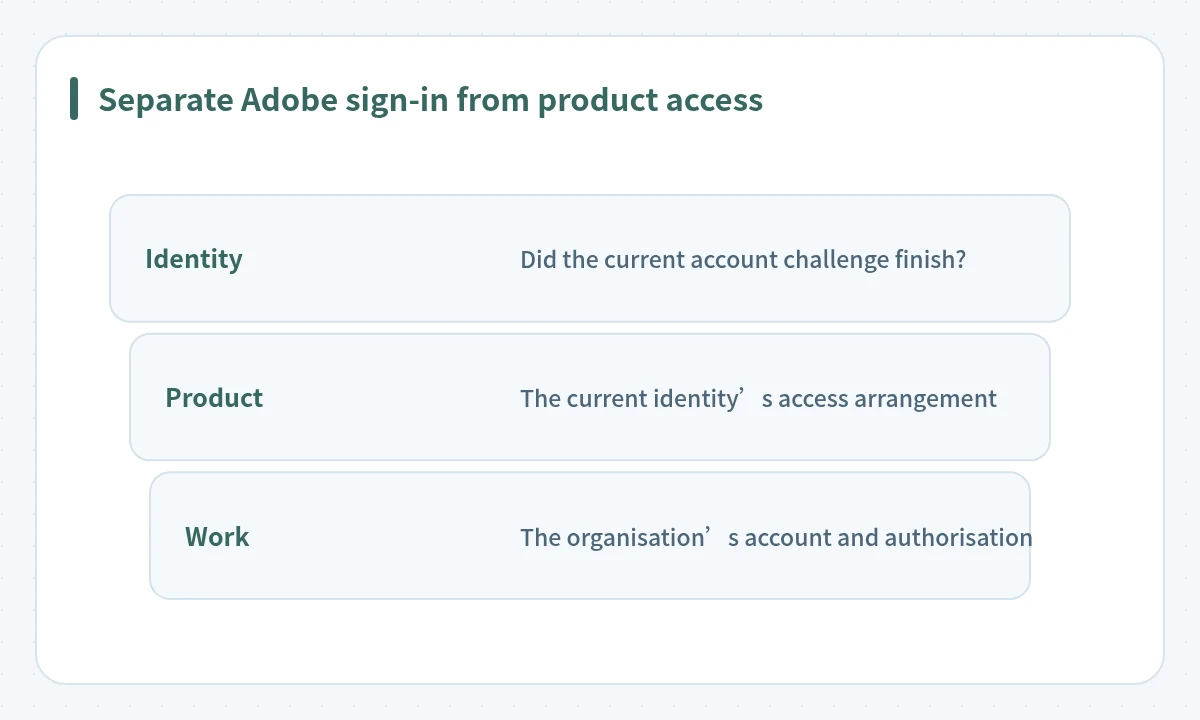
After successful sign-in, inspect the email or identity displayed inside the creative application. A browser retaining a different identity can make the transition confusing. An address that looks familiar is not a sufficient account check, especially when you use more than one personal or work identity.
Give each observation an appropriate object to inspect
| Observation | First check |
|---|---|
| The identity challenge fails | Selected method, destination and error |
| Sign-in succeeds but the app is unavailable | Current identity and its product-access arrangement |
| An organisation resource is missing | The intended work identity and authorisation |
For organisation-provided software, tell the responsible person which identity and product are involved and quote the exact app message. Do not forward a personal verification code so that a colleague can try your account. That does not clarify where the entitlement belongs and can put work material into the wrong session.
Keep a small, reproducible account of the failure
Record whether sign-in started in the browser or application, whether a verification challenge appeared, and what happened immediately after it succeeded. A screenshot should retain the relevant message while hiding private files and unnecessary contact information. This distinguishes failure to enter an account from failure to use a product after entry.
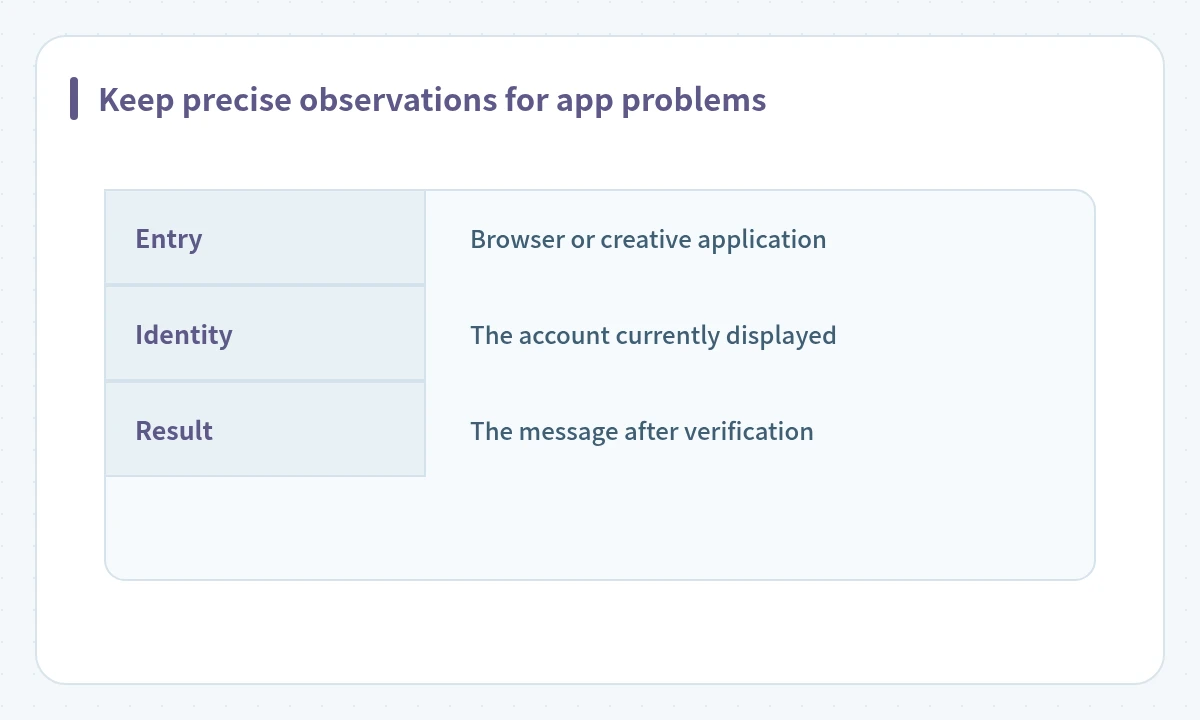
If reception genuinely is the unfinished stage, examine the named inbox, masked number or app request. Follow the page's retry and alternative-method options. Avoid changing the password, replacing the number and clearing application data at the same time; the result would be difficult to attribute to a particular action.
For a software-access question, retain the exact product name and the identity shown there. That lets support or an organisation administrator compare the intended arrangement with the observed state, instead of investigating an SMS delivery problem that already ended successfully.
Confirm the working environment before resuming files
When access returns, check that the application is using the identity intended for the work before creating or synchronising more material. Borrowing someone else's account may appear to open the software while making later ownership and access harder to understand. Use the formal account process and the responsible organisation contact for the relevant parts.
Do not infer a subscription's state from the arrival or acceptance of a security message. This guide provides a way to separate authentication from later access questions; it does not determine Adobe licensing or claim that another code can transfer a product entitlement.
If the organisation asks for a reproduction, use a harmless test document rather than a customer file. The access error and account identity usually explain the stage without exposing the contents of real work.
References
Adobe: Two-step verification methods.
